

Easily review permit applications from anywhere you can access the web. You can use the link provided in the notification email or visit www.oxcartpermits.com and login to your account.
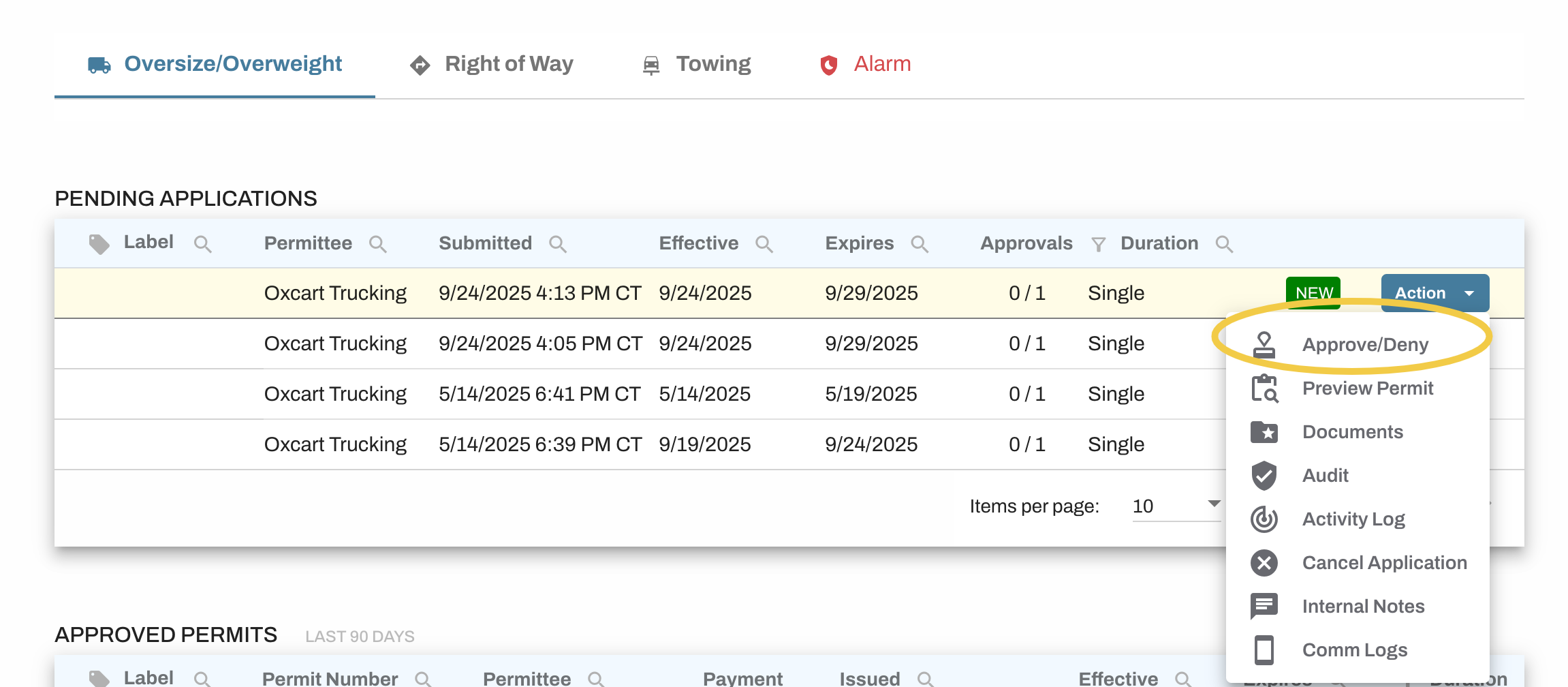
From your dashboard, locate the pending application, click "Action" and select "Approve/Deny" to open.
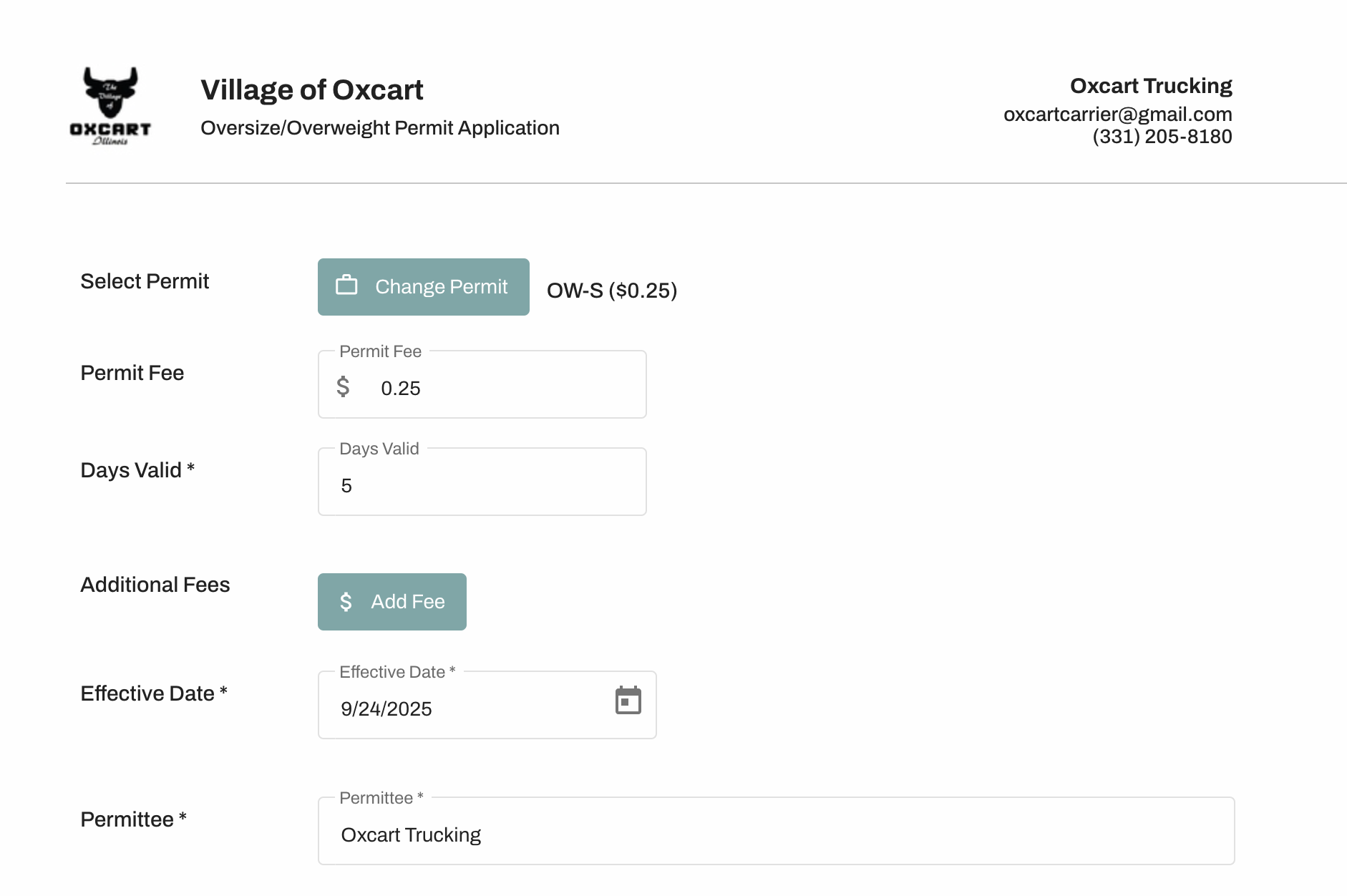
Once opened, you will see all fields from your application.
Confirm the Permit Fee and Days Valid are correct. Changes to permit fees must take place prior to approval.
The Oxcart value listed under "Select Permit" does not need to be changed. As long as you are collecting the proper fee for your permit you are all set. However, if you wish, you can change the permit type by clicking Change Permit and choosing from the dropdown menu. Changing the permit type may effect the provisions that appear on the approved permit.
If a permit did not match, you select Change Permit to choose a permit type, or you may manually update the permit fee and days valid.
Add additional fees (escort fee, bridge fee, etc) here as well.
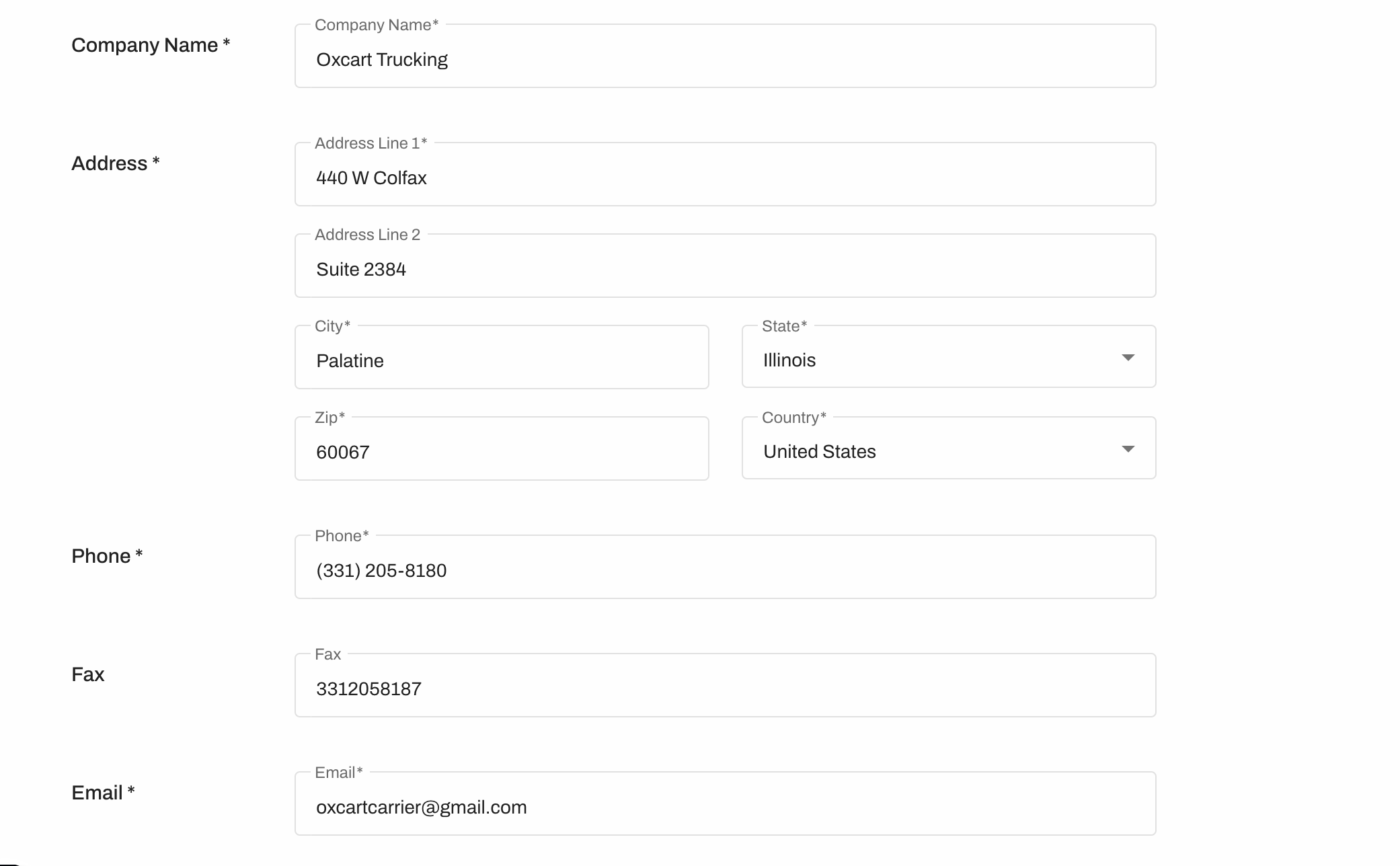
Each application includes the complete contact information for the applicant.
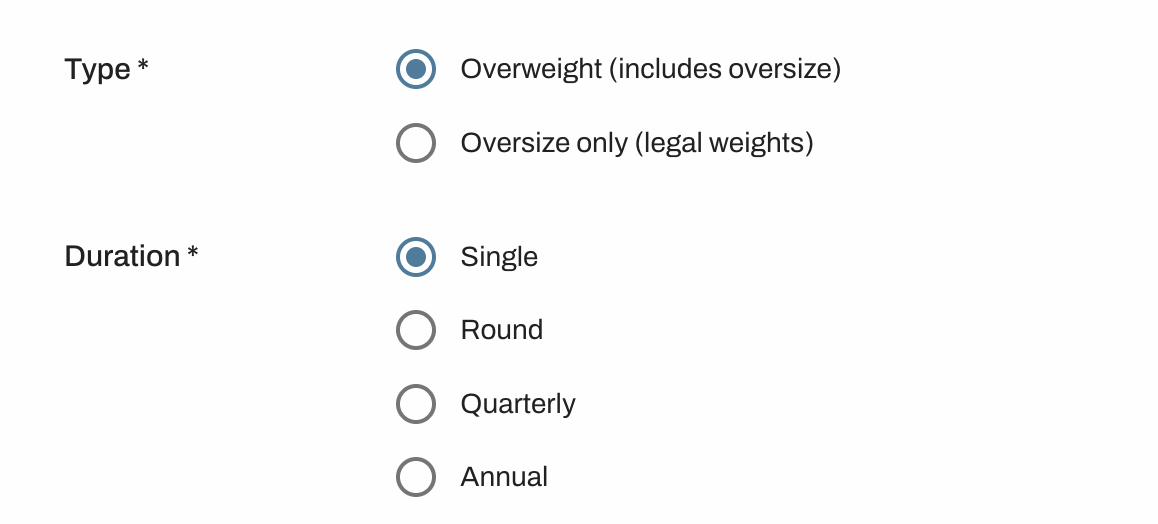
Next on the application will be the applicant selected permit type. If you need to update the type of permit you can do so here. Changing this value may affect other fields on the application.
ROUTING
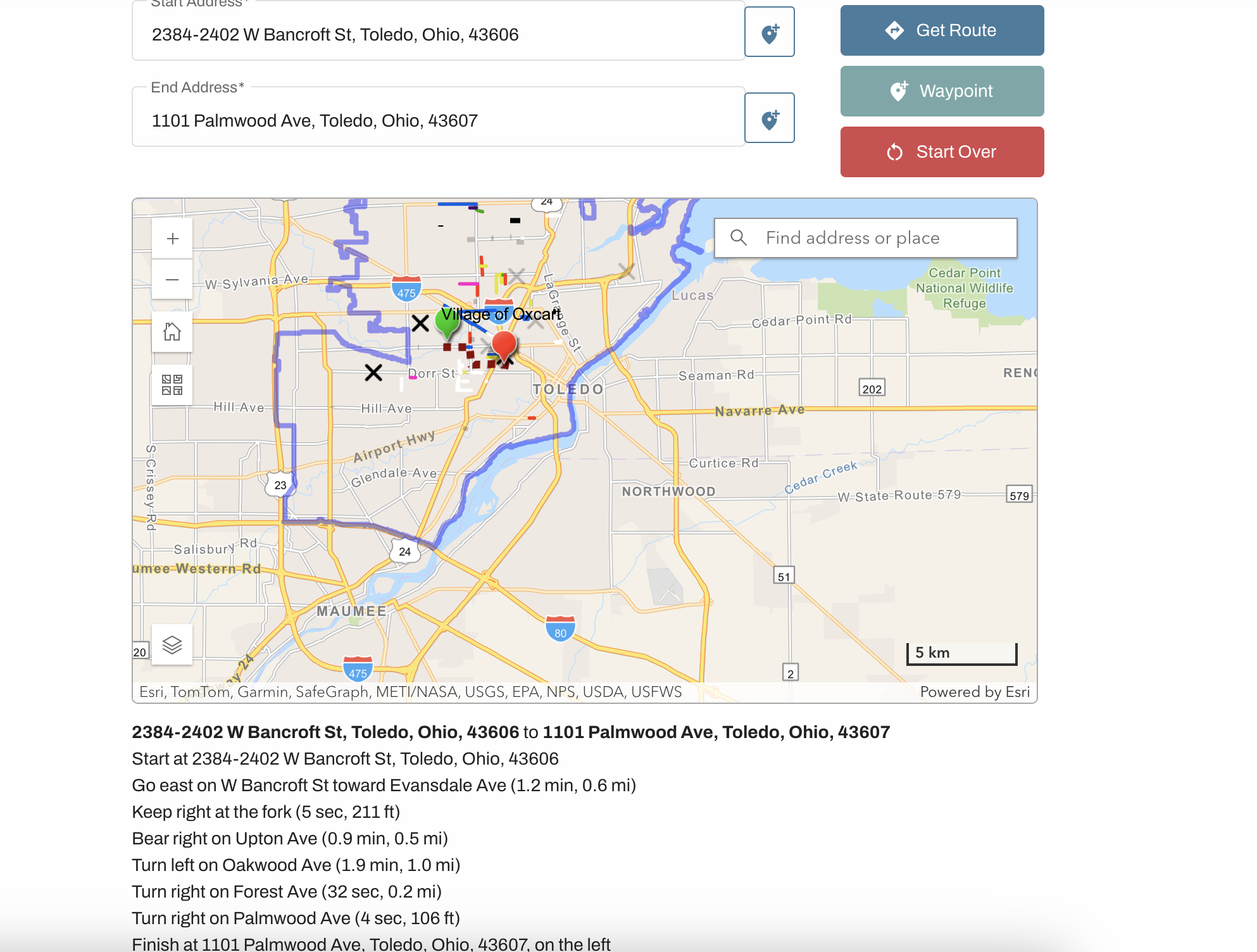
When reviewing the routing portion of an application, you may see a map or a text route. Regardless of how the route has been entered, you can change it if necessary.
Applicants can either select a verified start and end address, or they can use pins to generate their desired route.
Please review the route carefully as the map does not restrict applicants from generating routes outside municipal boundaries. It is up to the approving municipality to confirm jurisdiction when reviewing applications.
If you'd like to adjust the route you may add waypoints to change the calculated route.
If you would like to override a restriction you may.
All applications allow you to add comments, manage documents, and/or set conditions to the permit.
Comments entered here WILL NOT appear on the final permit but WILL BE visible to the applicant.
Documents can be managed from the permit review screen. Applicants will be notified via email if you add or request a document. Be sure to SAVE the application at the bottom of the screen before navigating away from the page.
The rules and regulations of your permit will automatically appear on the final permit but you can add special conditions as well. Canned conditions can be saved in your account and managed from the "Manage" tab. Text entered in the Special Conditions box will be for this permit only and will not be saved. Entries from both of these fields WILL appear on the final permit.
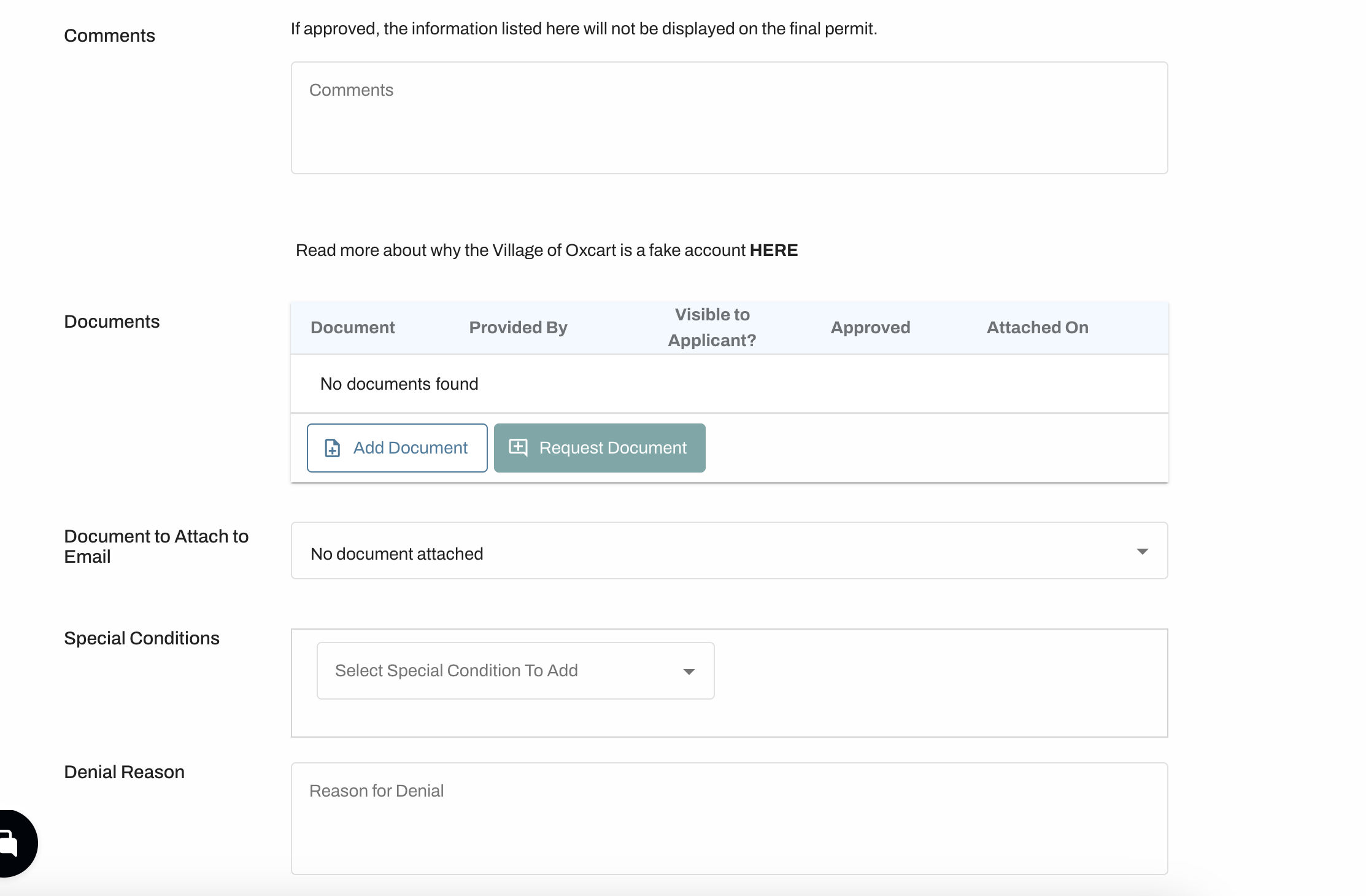
If you are denying the permit, you will need to enter a reason for denial. Use the Municipal Notes field to enter internal notes related to the permit. The applicant will not see these. You can access your internal notes by completing a "permit" download from the Report Center.
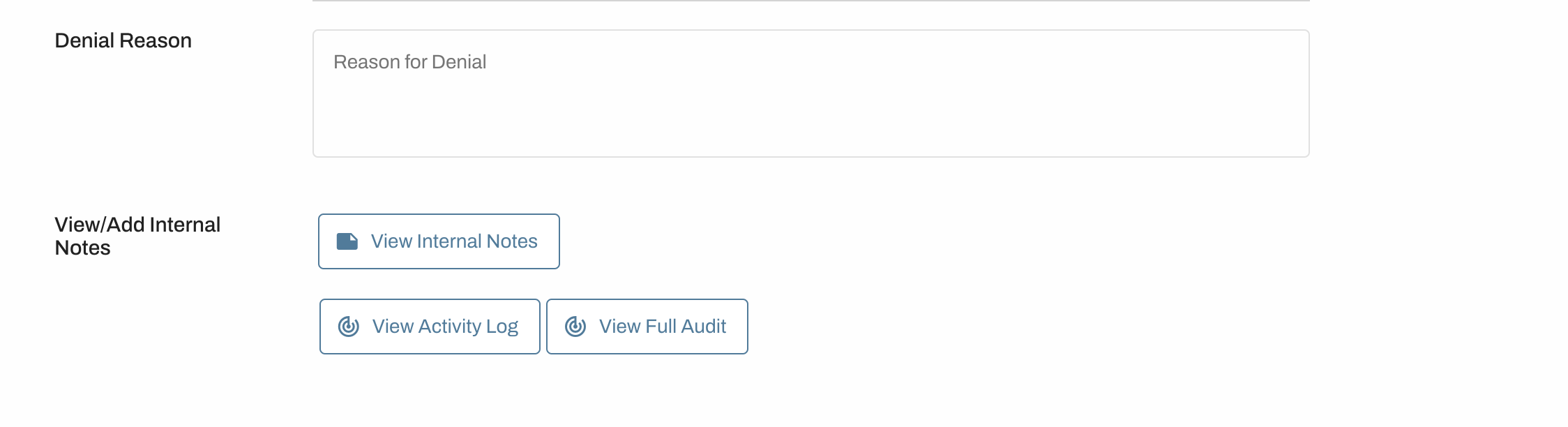
Lastly, it is time to finalize your permit.
The activity log will show you the history of the application.
If you're waiting for documents from the applicant or aren't quite ready to complete the review, be sure to save the application.
If you are ready to approve, a sequential permit number will be assigned, the applicant will be notified their application was approved, and the application will move to the Approved Permits table on your dashboard. Approved permits remain on your dashboard for 90 days past expiration. After that, you will need use the Search feature to locate old permits.
