

Municipalities can customize their application by providing the applicant pre-defined choices for certain fields. Examples of fields that may be customized include a list of roadways, townships, or section numbers within the municipality. This option is only available for certain fields and must be set up by Oxcart. Once enabled, municipal administrators and managers can easily oversee from their dashboard.
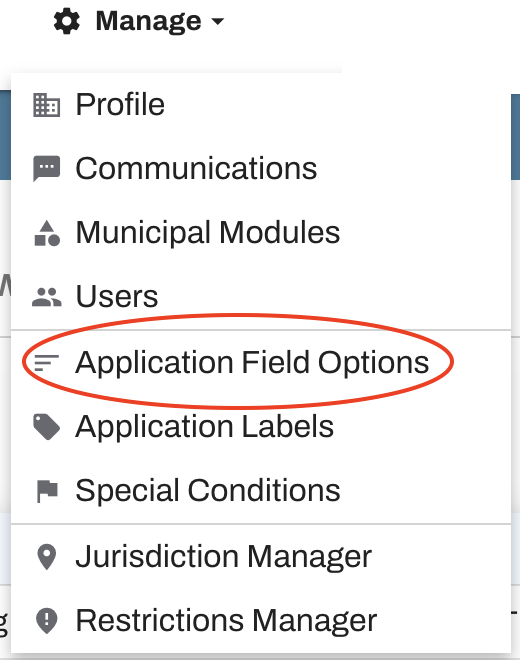
To get started, log in to Oxcart, hover over "Manage", and select "Application Field Options".
Application fields are separated by permit module, such as Oversize/Overweight, Right‑of‑Way, Towing, or Alarm. You will only see modules enabled for your municipality. To view the available fields, open the module for the permit type you’re working on. If field options have been configured in your account, the screen will display them. If none are set up, the message “No managed field available” will appear instead.
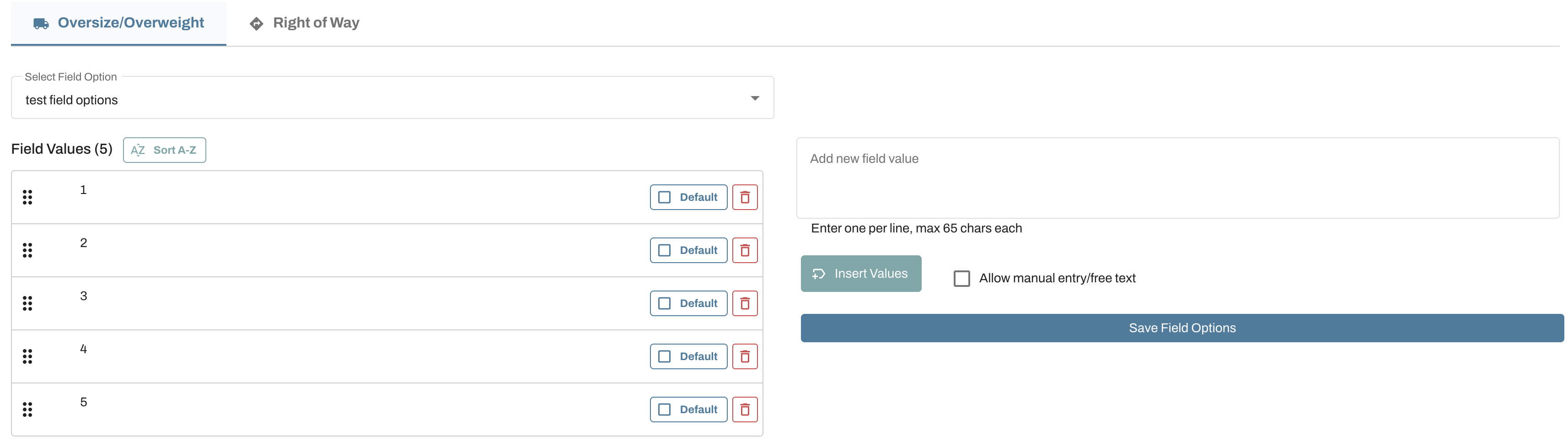
Managing Application Field Options
You can use the dropdown menu to select which application field you're working with (if multiple field options are set up).
Add new field options by typing them in the box on the right and clicking the "Insert Values" button.
Delete field options as needed.
If you would like to allow applicants an option to enter free text rather than choosing a preset option you can click the checkbox to allow manual entry.
Field options can be re-ordered from this screen: just select the value and drag to the desired location. You can also sort alphabetically by clicking "Sort A-Z".
Be sure to save your changes!
If you feel your application could benefit from this type of customization, please reach out to Oxcart at support@oxcartpermits.com to discuss available options.