

Welcome to Oxcart!
We recommend using Google Chrome or Mozilla Firefox for your browser; Internet Explorer is NOT compatible with Oxcart.
1. Visit www.oxcartpermits.com and click Need an Account to create your FREE Oxcart account. Complete the required fields and then check your email for the link to confirm your account. This will be time-sensitive. Be sure to check your SPAM/JUNK folders.

2. Once the account is set up, you can login and begin applying for permits. To get started, click on the correct permit module (Oversize/Overweight, Right of Way, Towing, Alarm) and enter the municipality you need a permit from. Municipalities are listed in alphabetical order, first by state, then by local jurisdiction. You may type in the first few letters of the municipality to shorten the list. **Not all Municipalities offer all Permits***. If you've selected the correct permit type, and do not see the municipality listed, please contact them directly to inquire how to apply.
Once you've selected the correct permit module and municipality, hit the green bar to open the application.
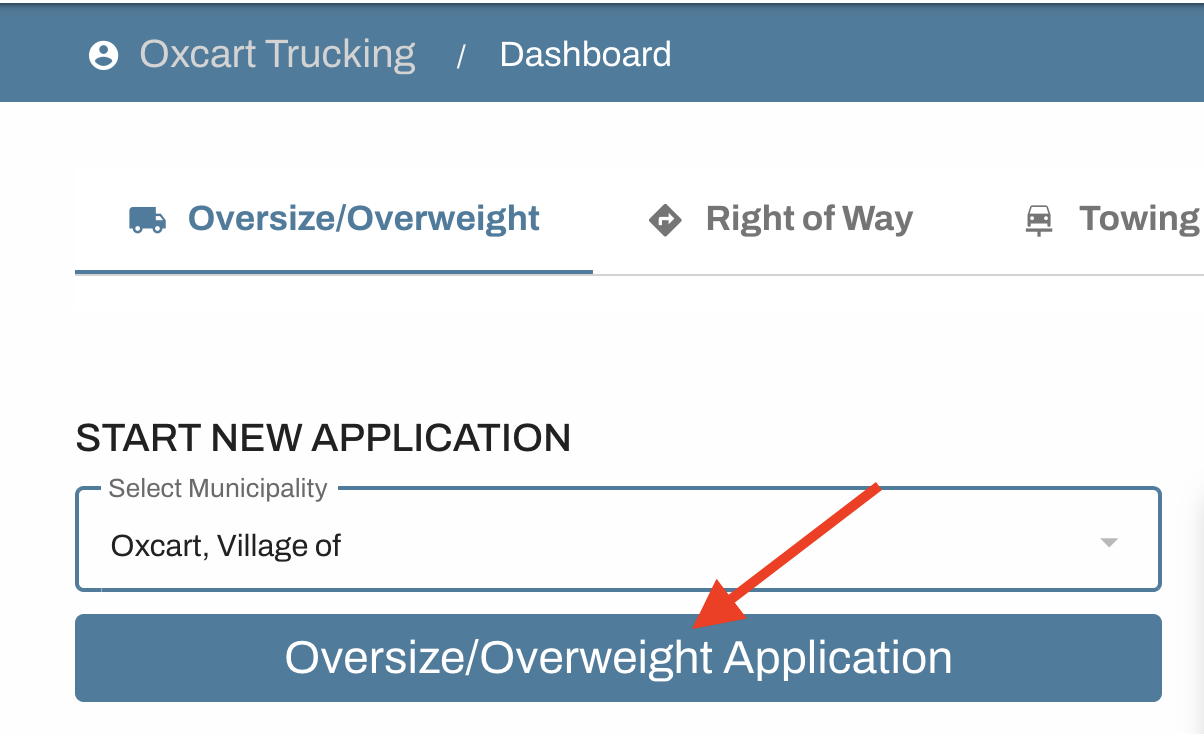
3. Complete all required application fields. Fields will vary by permit type and municipality. Once all fields are entered and you come to the bottom of the application, you can Cancel, Save your Application to edit later, or you can Submit your Application immediately.

4. OSOW, Towing, and Alarm permits require payment pre-authorizations at the time the application is submitted. This is an authorization only! The credit card is not charged until and unless the application is approved by the municipality. You must enter the credit card number, expiration date, cvc, billing zip code, and agree to the terms before you are able to authorize payment. Right of Way permits are paid after approval.

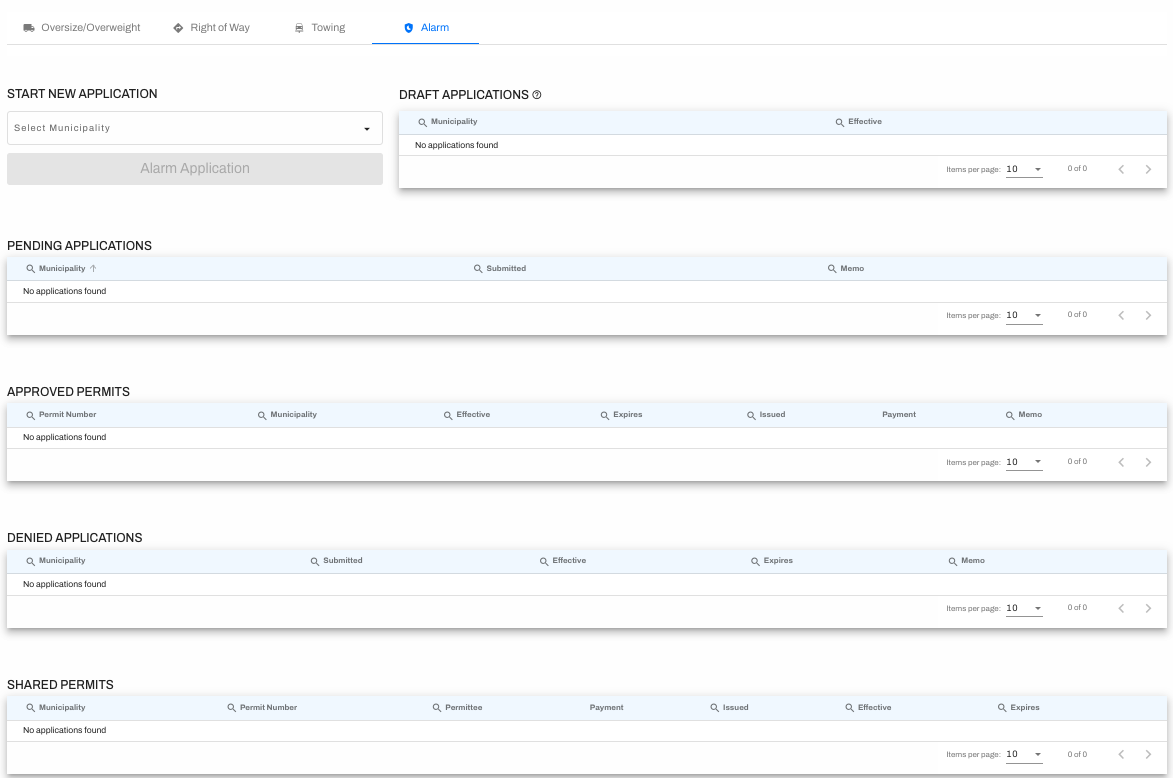
5. Keep track of the application progress using your dashboard. Draft applications are applications that have been saved but not submitted. Pending Applications have been submitting and are awaiting review by the municipality. Approved permits are applications that have been approved. Denied applications have been reviewed by the municipality and denied. Shared permits are permits from another Oxcart account that have been shared with you.
Help is always available! Clicking the message icon in the bottom left corner of Oxcart will provide help articles for frequently asked questions, or a direct link to email the Oxcart Customer Service Team.

Important Information about your Account
The dashboard displays permits and applications from the last ninety (90) days, but permits are stored in your account forever and can be found using the Search Feature.
Visit the Communications page to set your notification preferences.
Use the Messages feature to communicate directly with municipalities about your permits.
Save commonly used documents in your Document Library for easy application uploads.
Generate, export, and save reports regarding payments and/or permit history using the Reports feature.
Keep your account details up to date using the Profile page. Your name and company information automatically populates on your permit applications.
Keep your account's permit history centrally located by adding Users to one company account. Users can have different levels of permissions and can set their own communication preferences.
Store your Vehicles within Oxcart so you do not need to manually enter on each application.
Save alarm keyholders within Oxcart to avoid manually entering on each alarm application.
Access your account from any computer, tablet, or smartphone.