

Oxcart allows you to add an unlimited number of users to the same account. You may also set permission levels to grant or restrict access to the account. You can read about permissions levels here.
Municipal administrators and municipal managers can manage users in a few easy steps:
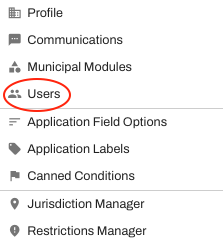
Login to Oxcart and hover over Manage, then choose "Users" from the dropdown menu.
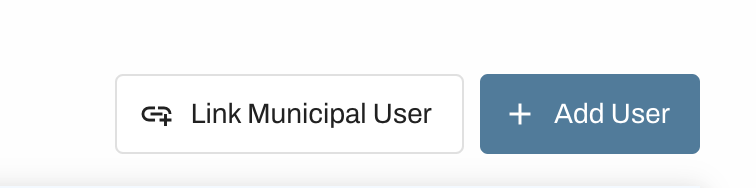
The Users dashboard has a blue rectangle on the right to Add User.
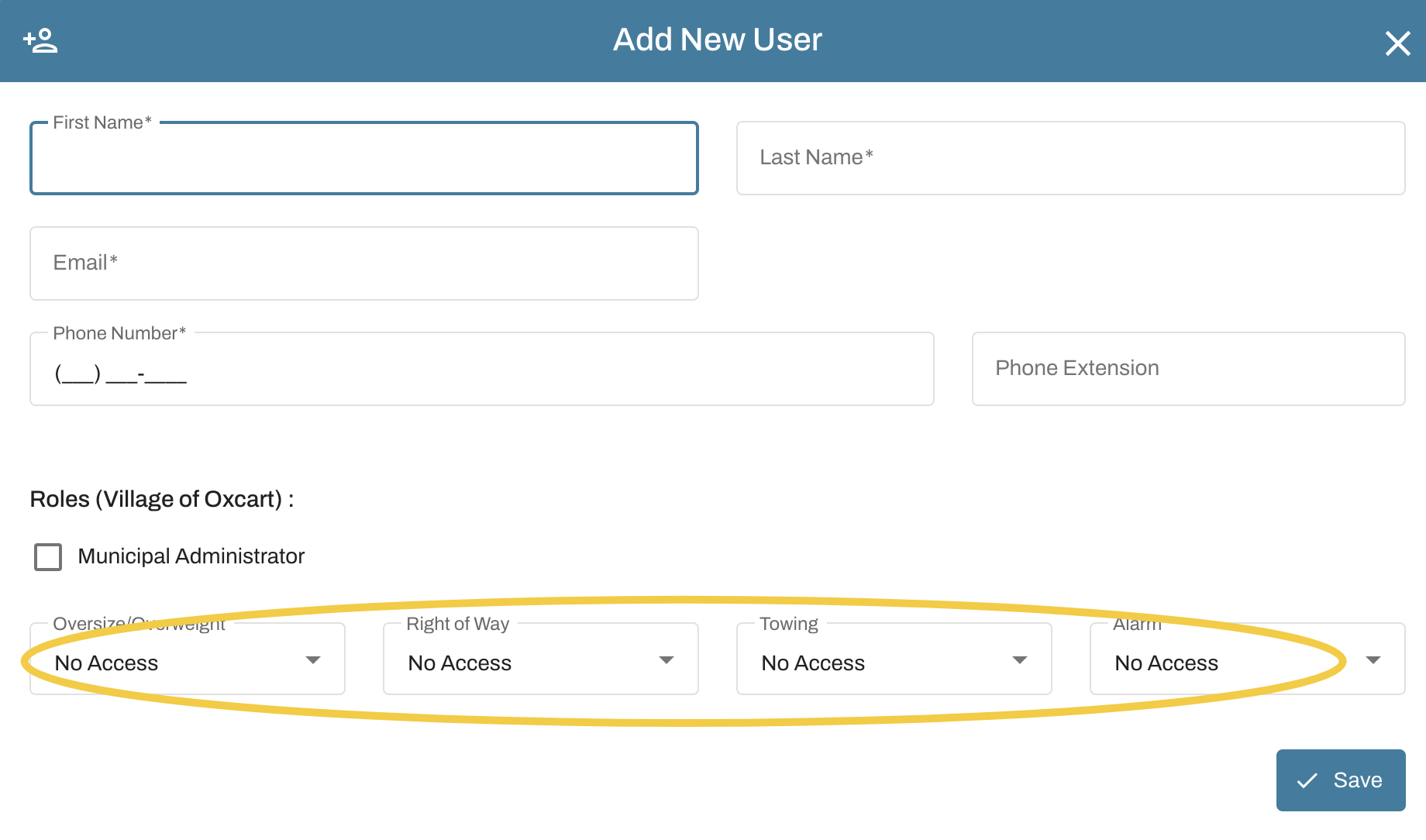
Fill out the contact information and set permissions before saving. User permission levels are set per permit module and can be changed at any time.
The new user will receive a time-sensitive email to confirm their account and set a password. They will not have access to the account until their email is confirmed. The new user should check their spam/junk folder if they do not receive the email. If not confirmed in time, the new user is able to generate a new code following the ink in the email. A municipal administrator can also resend the verification email using the three dots to the right of the user name.
You may link a municipal user with view-only permissions by clicking on Link Municipal User. This can be helpful if a user from a different municipality only needs to be able to view your dashboard. They can be unlinked at any time.
IMPORTANT INFORMATION ABOUT USERS:
An email address can only be associated with one Oxcart account.
Be sure new users are confirmed and have access to the account before removing other users.
New users should set their communication preferences by visiting the Communications Page.