

Oxcart gives municipal users different levels of access, which can be set and adjusted anytime by Municipal Administrators and Municipal Managers. Users can be granted view-only privileges, full account privileges, or something in between depending on their role. To add a new user, click here.
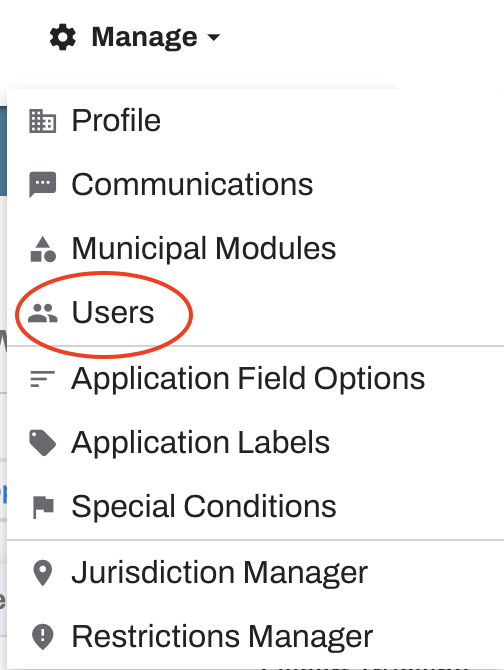
To set or edit existing user permissions, log in to your Oxcart account, hover over Manage and choose Users from the dropdown menu.
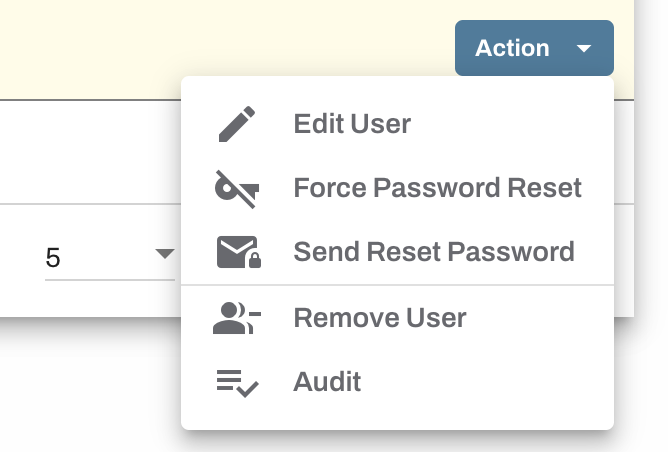
Clicking on the Action button to the right of the User will display the available actions for that user. You can edit user information, force password resets, send a password reset email, remove users, and review a log of that user's actions. Select Edit User to adjust user permissions.
When editing, you can set the role to the correct level of access. Roles are set per module.
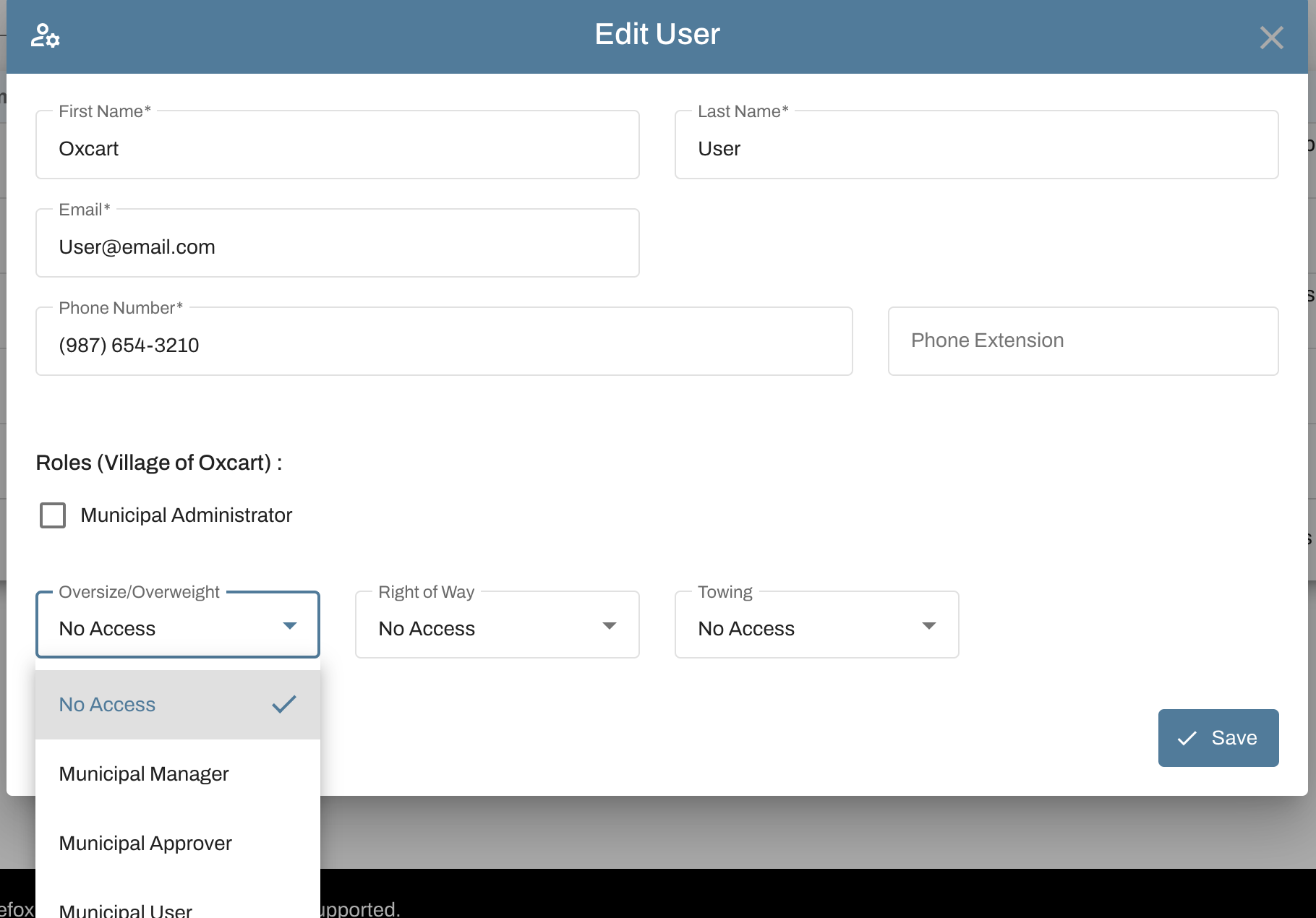
PERMISSION LEVEL OPTIONS:
MUNICIPAL USERS: Basic Account Access
Applications & Permits
View permit documents, inspections, maps, previews, and final permit PDFs
Submit route and work notifications on approved permits (if applicable)
Apply labels to specific applications and permits
Account Management
View users
Generate reports
Finance
Pay invoices
MUNICIPAL APPROVERS: Moderate Account Access includes all the above plus
Applications & Permits
Submit applications
Approve or deny applications
Revise permits
Full access to inspections (add/edit/approve/deny)
Archive permits
Add/edit permit documents
View and add internal notes to applications or permits
Account Management
View communication settings
Access account messages
Finance
View payment details and receipts
ADMINISTRATORS & MANAGERS: Full account access-includes all the above plus
Applications & Permits
View application and permit activity logs
Suspend, reinstate, or revoke permits
Account Management
Manage communication settings
Update account profile and account documents
Manage GIS jurisdictions and GIS restrictions
Add/edit labels, application field options, municipal alerts, and special conditions
Add/edit account users
Finance
View statements
Send payment reminders
Issue refunds