ADDING AND ACCESSING DOCUMENTS:
Store and manage all of your permit documents in Oxcart with our document center. Hover over your account name and select Documents, then click the blue rectangle on the right to Add Document.

TIPS WHEN UPLOADING DOCUMENTS:
Upload documents up to 10MB. Documents larger than 10MB will need to be split into smaller documents or zip filed.
Be specific when naming your documents. You are able to upload multiple documents with the same name.
The document library will not allow you to upload the same document twice, even if it has a different name. Oxcart will recognize the metadata and reject the upload.
TIPS WHEN USING THE DOCUMENT LIBARY:

Use the Filter feature to quickly locate a specific document.
Sort the documents by Name, Municipality, Permit Number, Owner, Creation Date, or Expiration.
Options on the right include copying document URL to clipboard, downloading, hiding, and editing.
DOCUMENTS ASSOCIATED WITH SPECIFIC PERMITS:
When reviewing applications, you have the ability to add documents from your Library, or request documents from applicants. When adding documents, you can choose a file from your document library, or you can choose a new file from your computer.

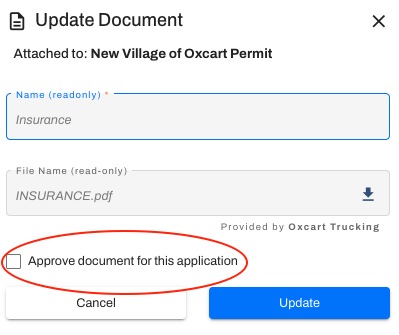
When an applicant uploads a document, or multiple documents, you also have the option to mark a document as approved. This does not affect the application status, it is simply an indicator for which document(s) you'll be referring to and holding the applicant accountable for. For example, if multiple copies of plans are submitted you can mark the final plans "Approved" so the applicant knows the specifications you are allowing.