Oxcart Permit Systems has been written and extensively tested to work best with the most current versions of Mozilla Firefox, Google Chrome, Apple Safari, and Microsoft Edge. Please note, Internet Explorer is not compatible with Oxcart.
If you encounter issues while using one of the supported browsers, use this guide to clear your cache. You may need to fully close and reopen your browser for the changes to take effect. We also recommend using a private browsing window when working in Oxcart.
Mozilla Firefox
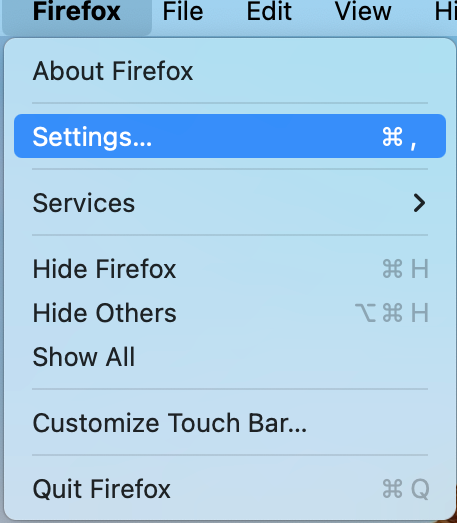
Open the Firefox menu and select Settings.
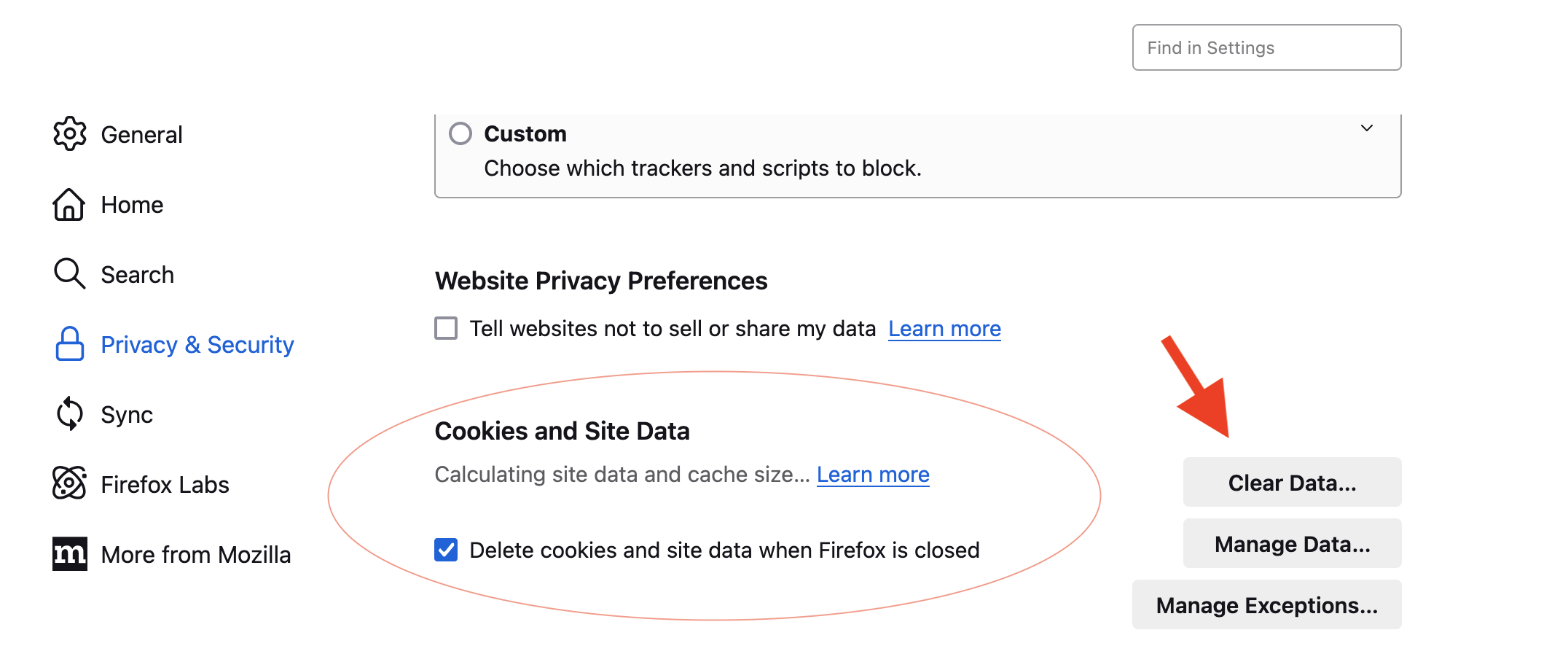
Highlight Privacy & Security.
Scroll down to Cookies and Site Data and check the box to "Delete cookies...".
Click the Clear Data button on the right.
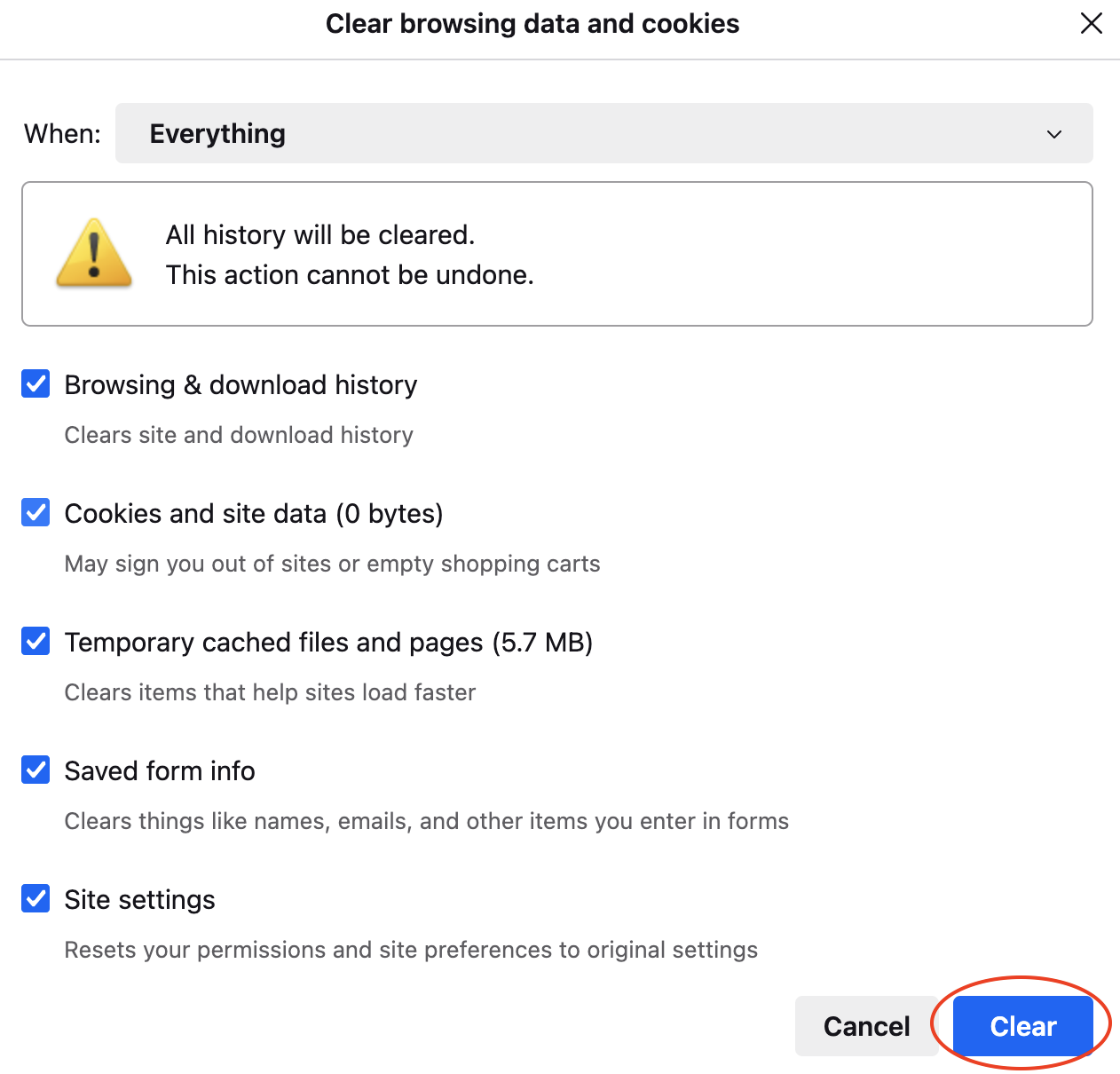
Check all the boxes and select Clear.
Google Chrome
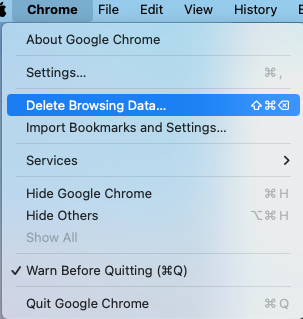
Open the Chrome menu and select Delete Browsing Data.
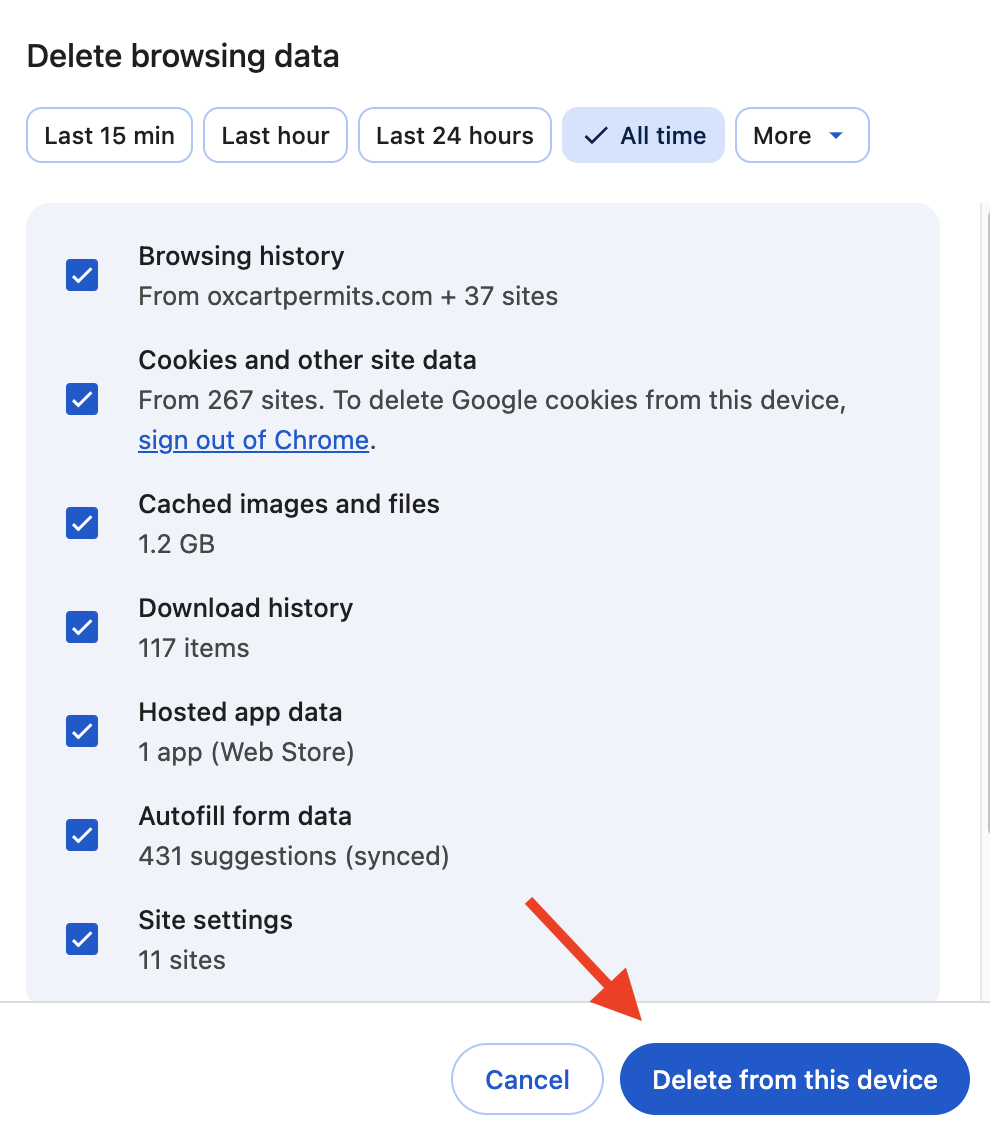
Choose All time from the time range drop down menu.
Check all boxes and click the Delete Data button.
Apple Safari
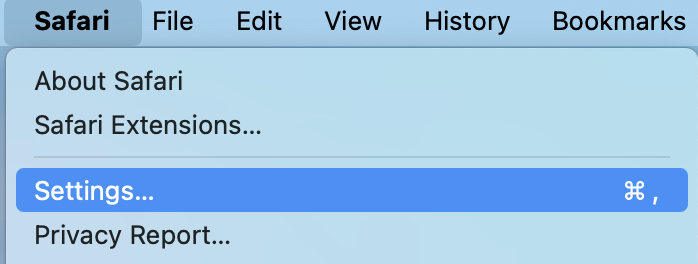
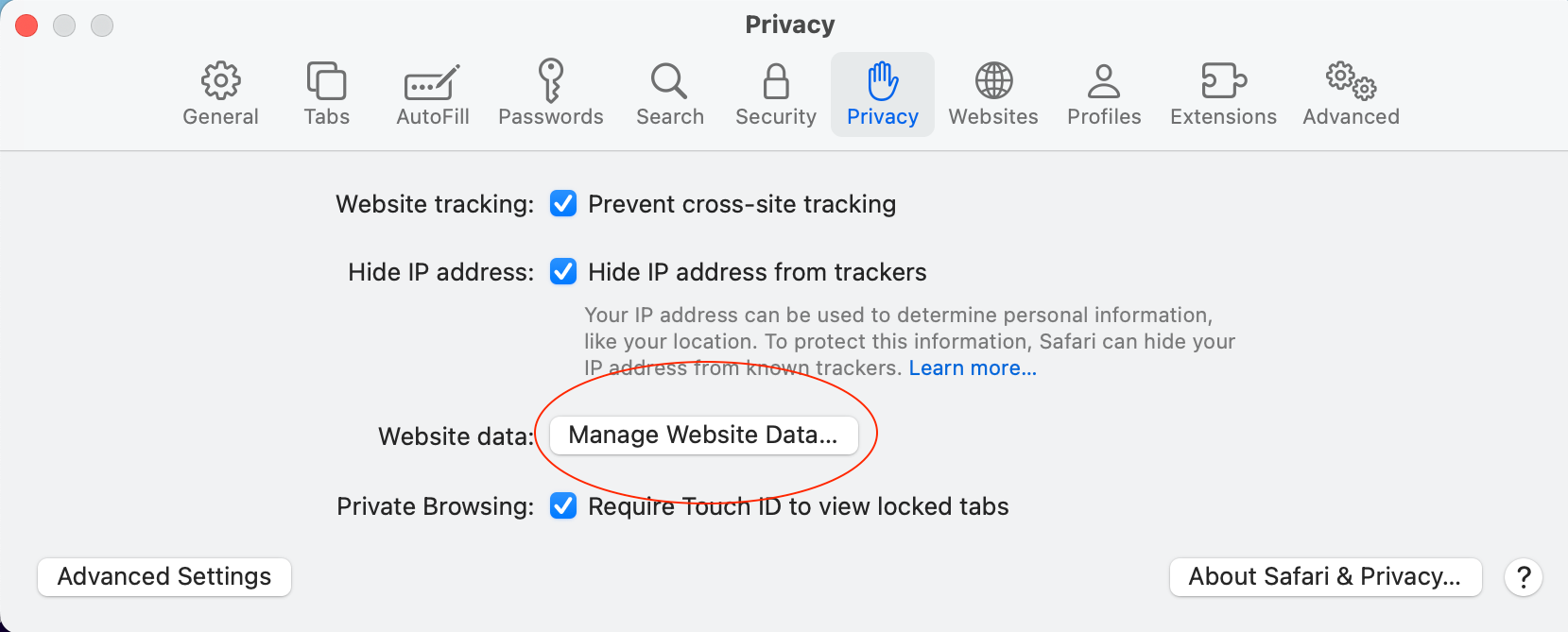
Open the Safari menu and select Settings.
Highlight the Privacy tab and click Manage Website Data.
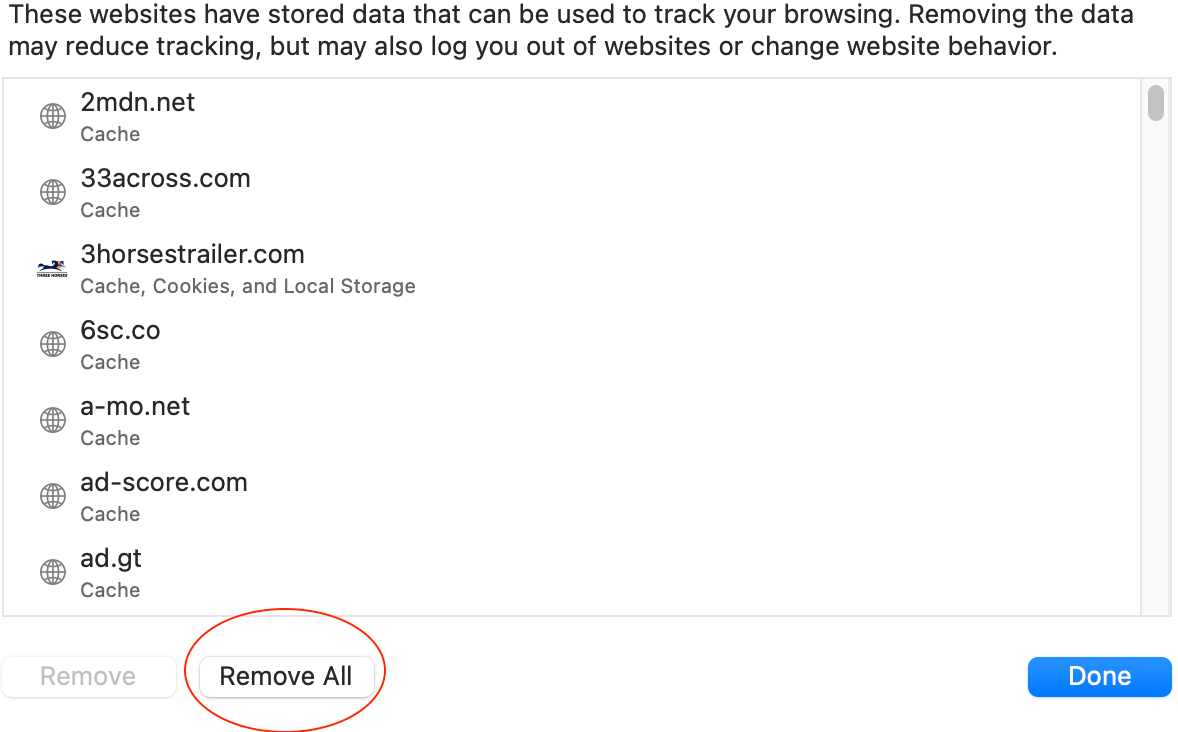
Click Remove All at the bottom left, confirm, and then Done.
Microsoft Edge
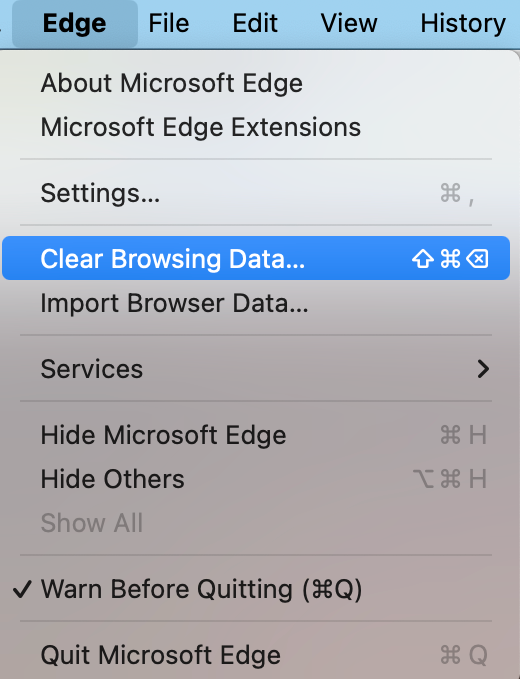
Open the Edge menu and select Clear Browsing History.
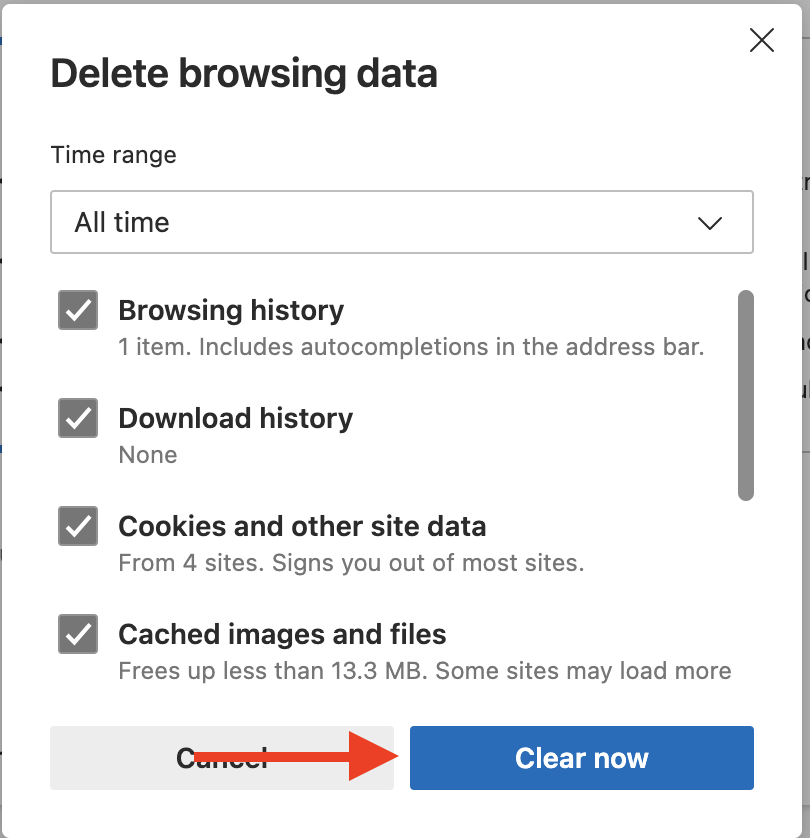
Choose All time from the time range drop down menu.
Check all boxes and click the Clear Now button.