Approved permits can be revised at your discretion. Municipal administrators, managers, and approvers have the necessary permissions to make changes; however, permits must be paid in full before they are eligible for revision. When revising a permit, any field within the application can be modified.
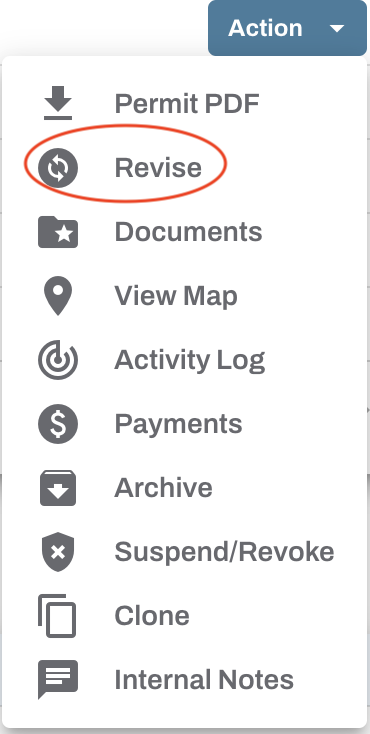
To get started, locate the permit, click the blue Action button, and select Revise from the dropdown menu. This will open the original permit application.
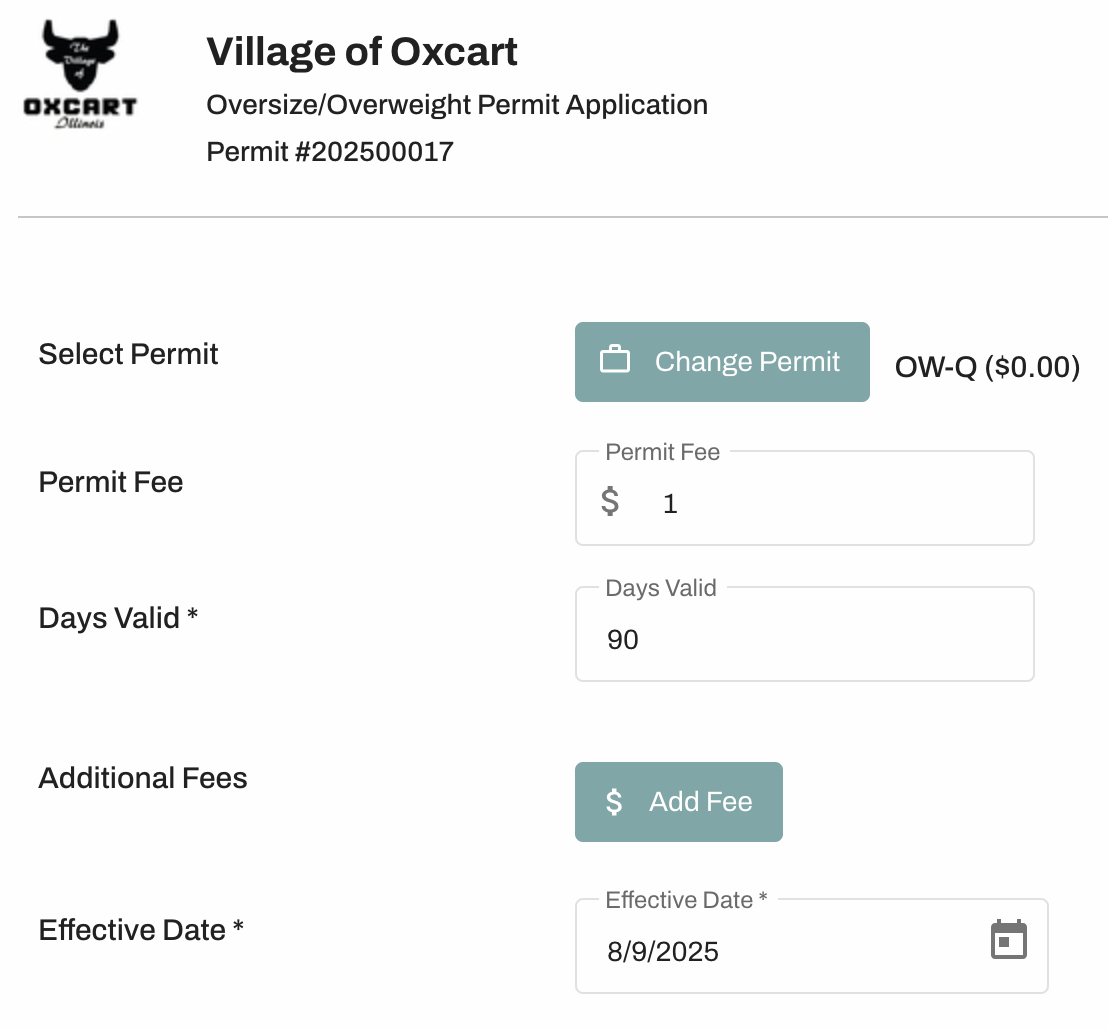
Revision fees default to the original permit price, but you can change the amount before approval. Once approved, Oxcart cannot make changes to the fee. Please note, Oxcart fees apply to all permits, including revisions with a $0 charge.
After completing the necessary revisions, enter the reason at the bottom of the application. Then select "Revise Permit" to submit.
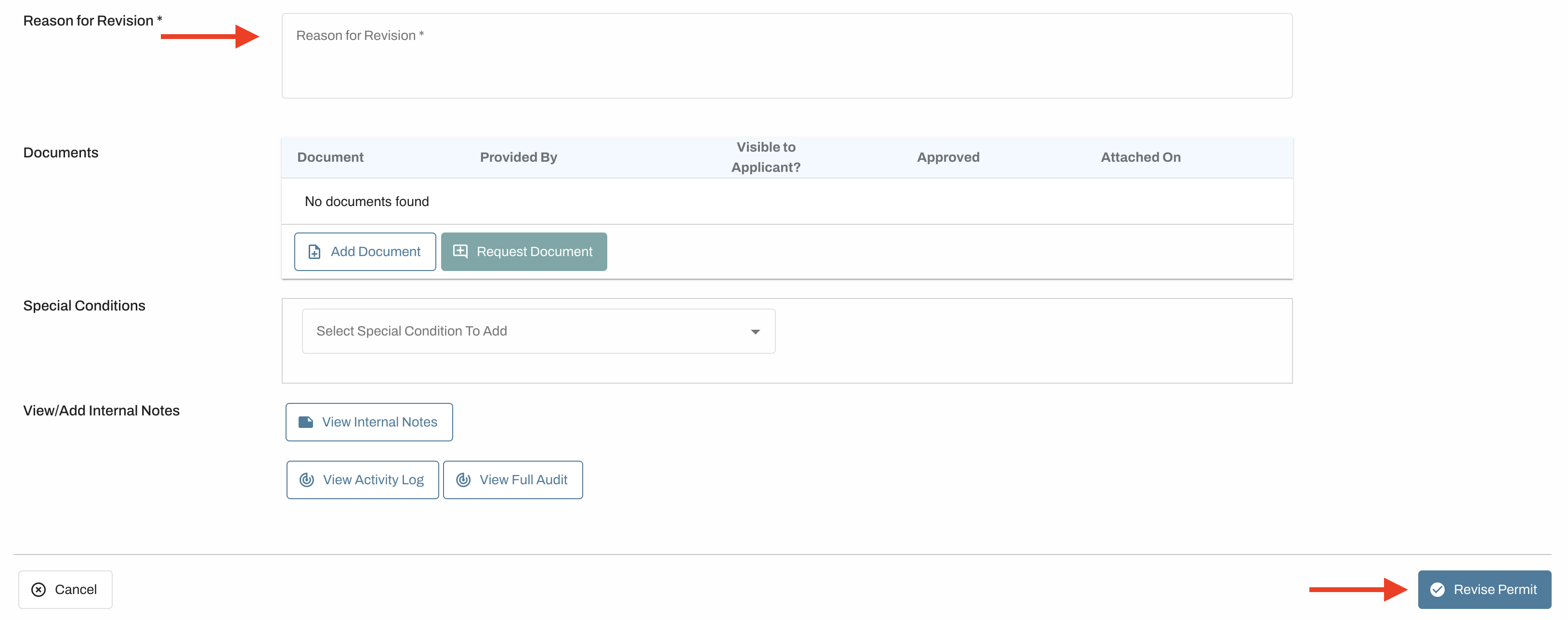
The revised permit will be assigned a sequential identifier, such as -R1, -R2, -R3, and will be displayed in the Approved Permits table on your dashboard. A notification email will be sent to the applicant, and the permit will appear with a 'Payment Due' status on the applicant's dashboard. Once the revision fee is paid, the revised permit PDF can be downloaded via the Action menu.
To view the base permit, a complete list of revisions, or the Route Notifications linked to the permit, simply click the REV flag located next to the permit Action button on your dashboard.

IMPORTANT INFORMATION ABOUT REVISIONS:
Permits are considered invalid until they are paid in full.
To allow applicants to initiate revisions, please contact support@oxcartpermits.com.
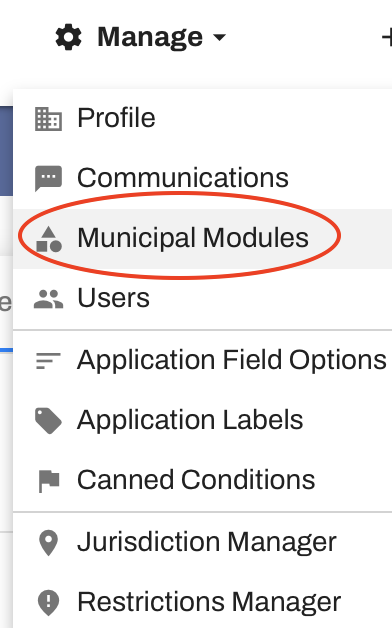
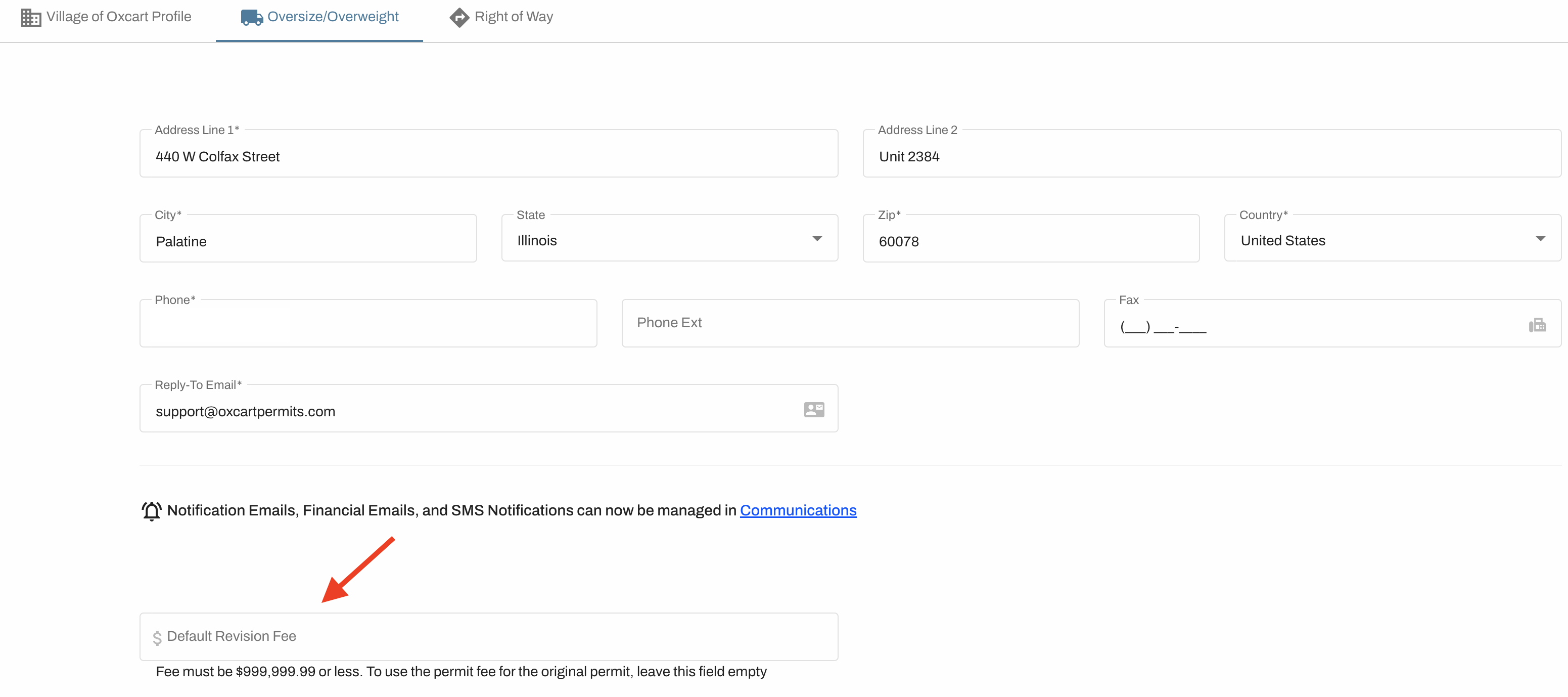
You can set a default revision fee in your account profile; this can be set per module and will apply to all revisions within that module. Even after a default is set, the fee can still be adjusted during review. To do so, hover over "Manage" and choose "Municipal Modules." Select the correct permit module, locate the line labeled "Default Revision Fee," and enter your preferred dollar amount, including $0. Be sure to save!