

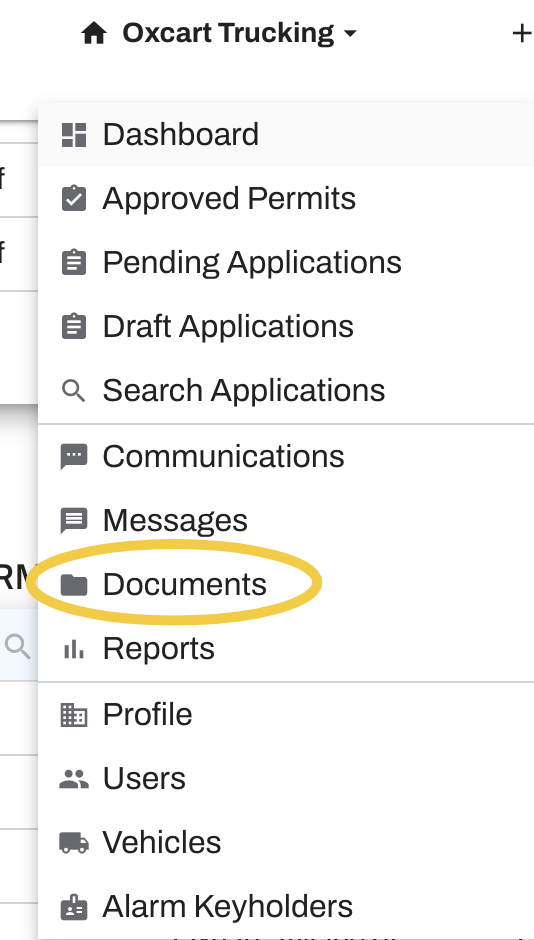
Use the document library to organize your documents and efficiently add to applications. To access the document library hover over your account menu at the top of the page and select Documents.
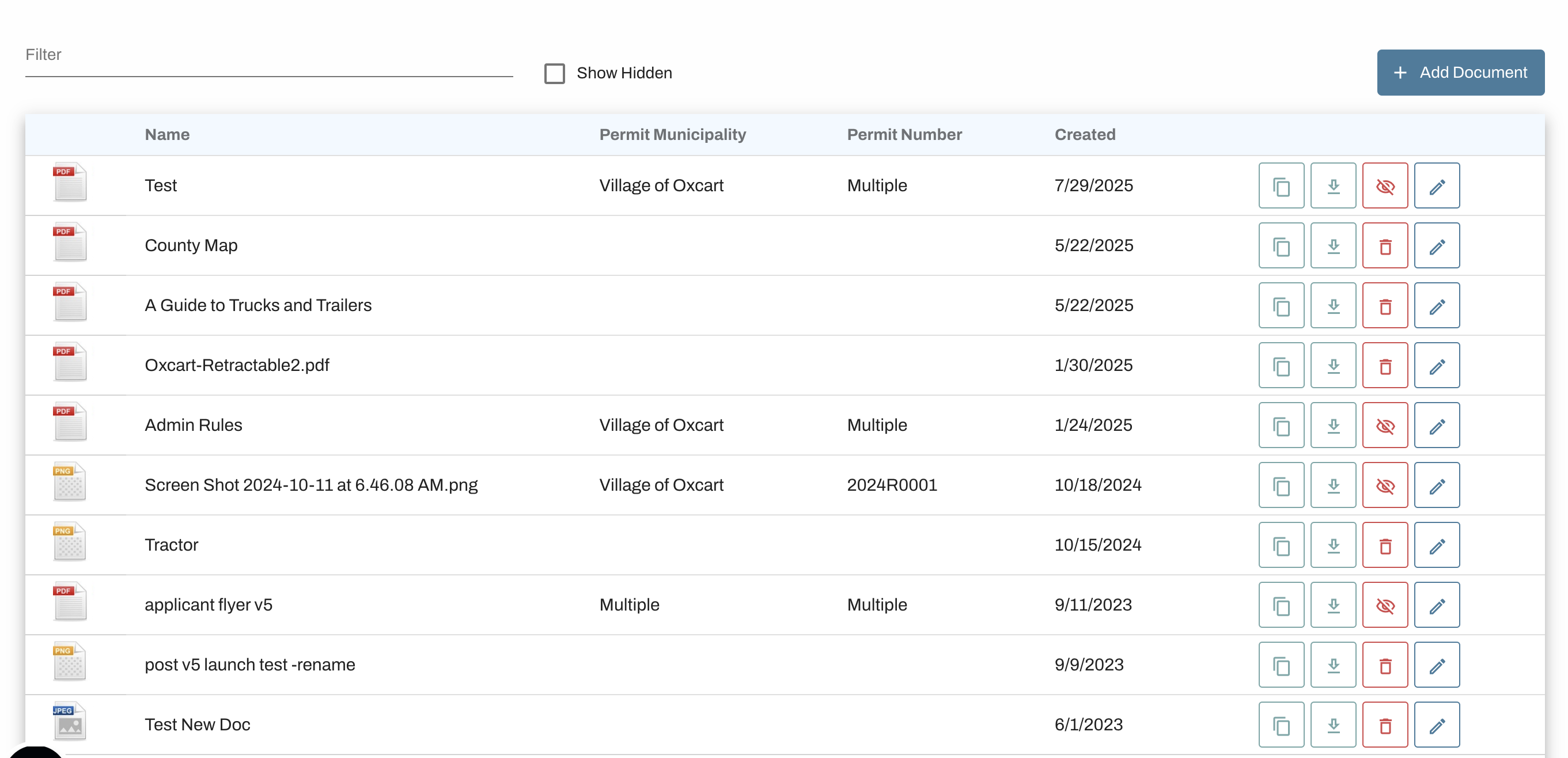
The library will display a list of all stored documents.
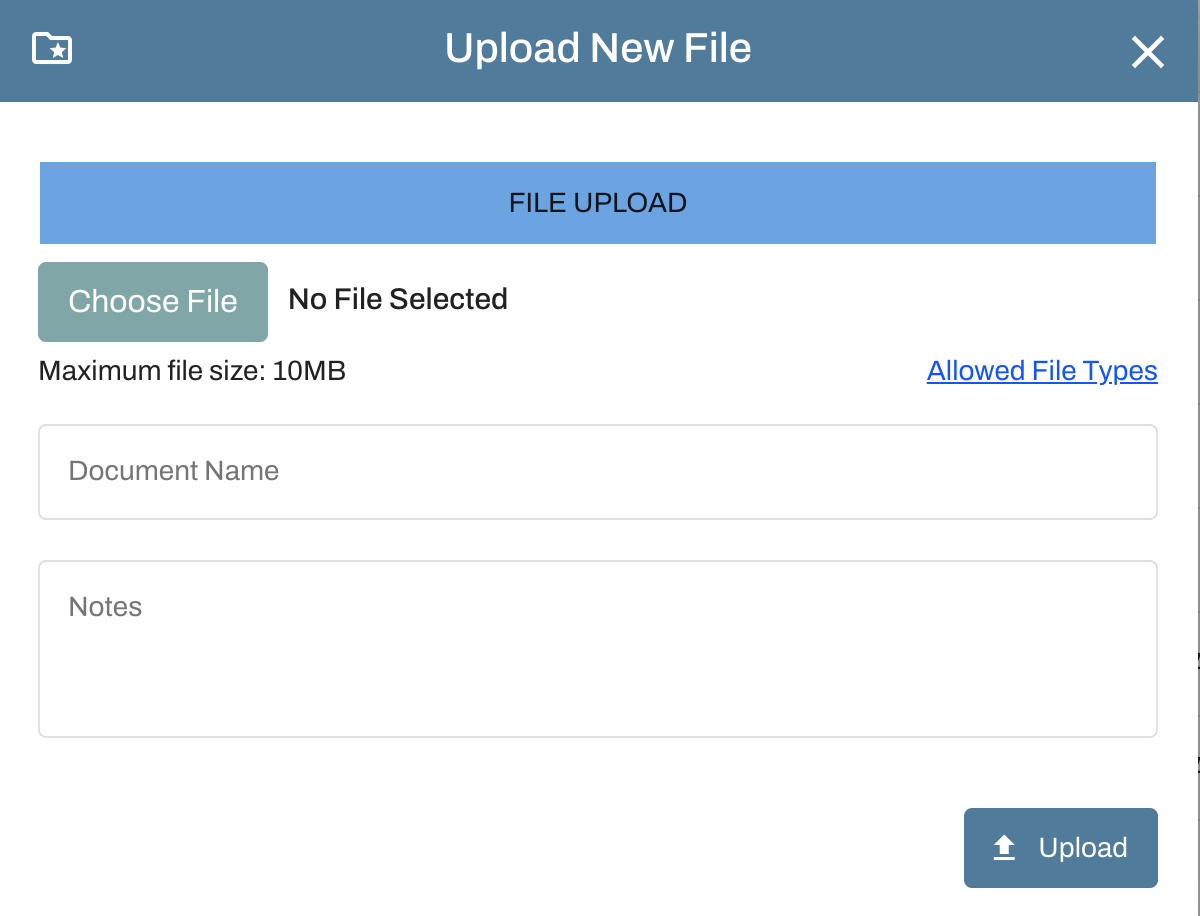
Add documents by clicking Add Document. Follow the on-screen instructions and select Upload to finalize the process.
You can upload documents up to 10MB in size. For files exceeding this limit, consider splitting them into smaller parts or compressing them into a zip file.
Ensure your document names are clear and specific, as you can upload multiple files with identical names.
The document library prevents uploading the same document twice, even under a different name, as Oxcart detects the metadata and declines the upload.
Utilize the search bar to locate specific documents with ease.
To sort columns, simply click the arrow located next to the column name.
Copy the document URL to your clipboard, download, delete, or edit documents.
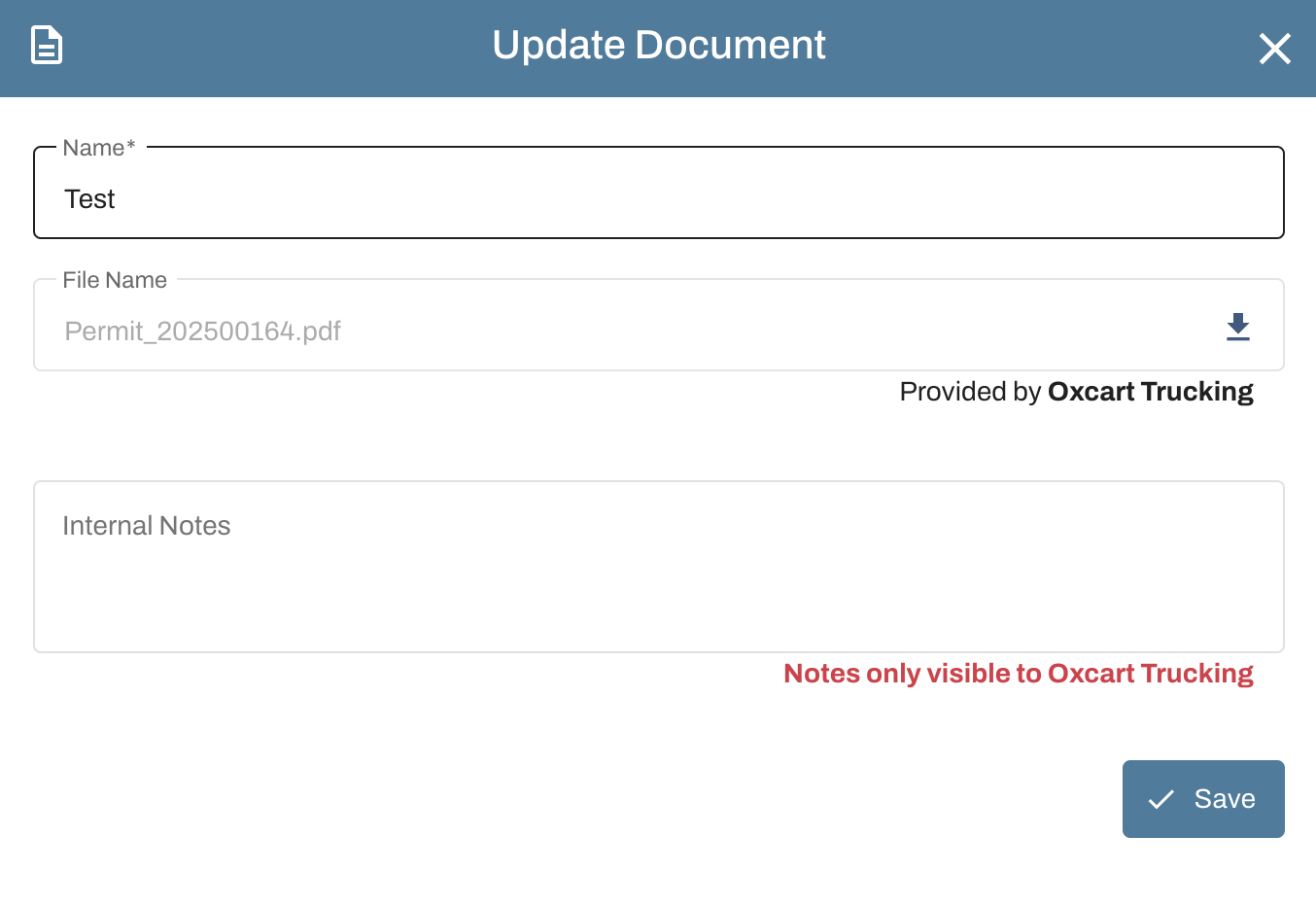
Use the edit feature to rename documents.
Use the edit feature to add internal notes.
After uploading documents to your library, you can effortlessly link to applications and permits. You are able to utilize a document from your library as many times as needed.
While applying for a permit, select +Add Document and then choose Select From Library to pick an existing file.

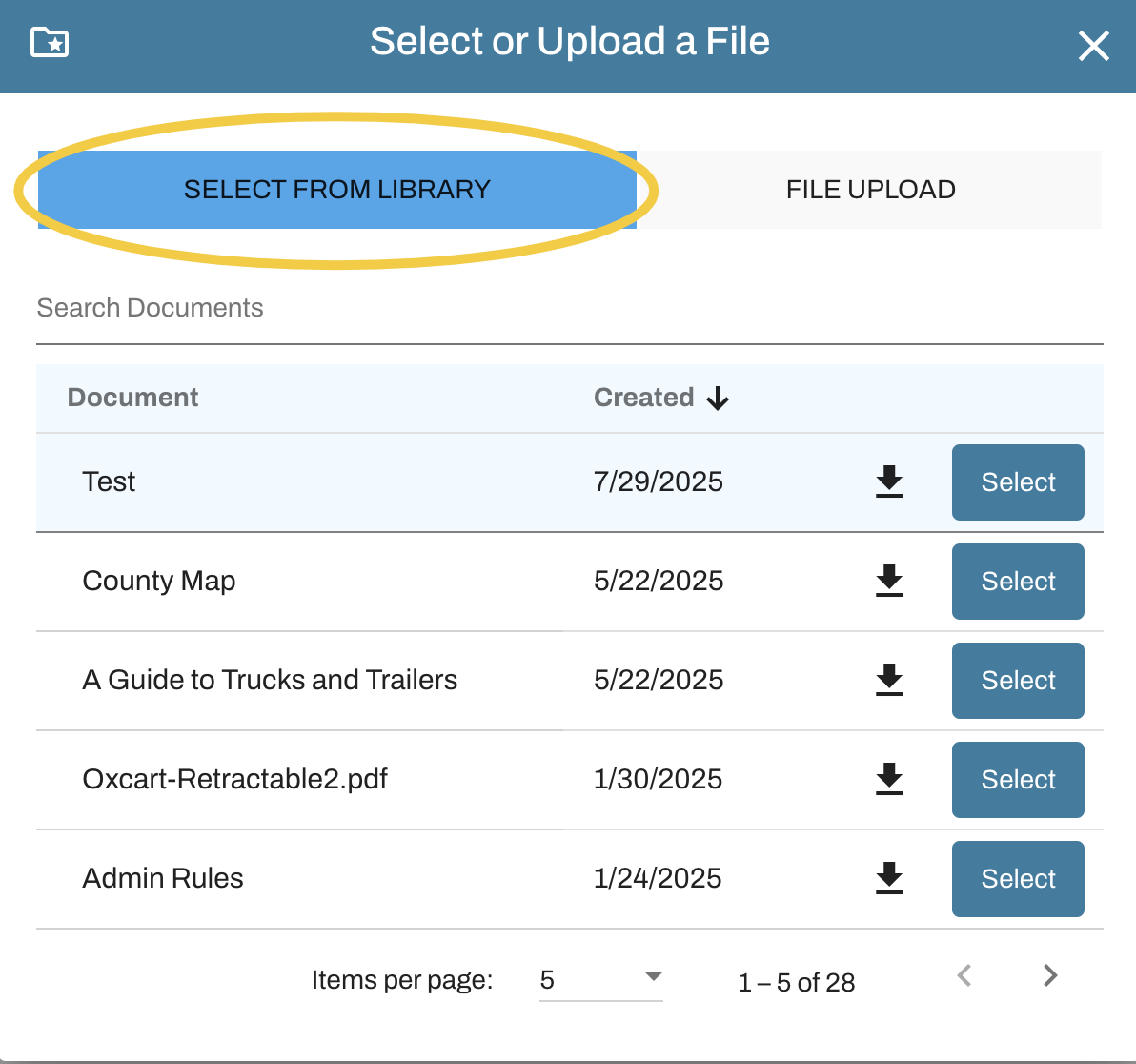
To add documents to an approved permit, select Documents from the Action menu and proceed by following the previously outlined steps.
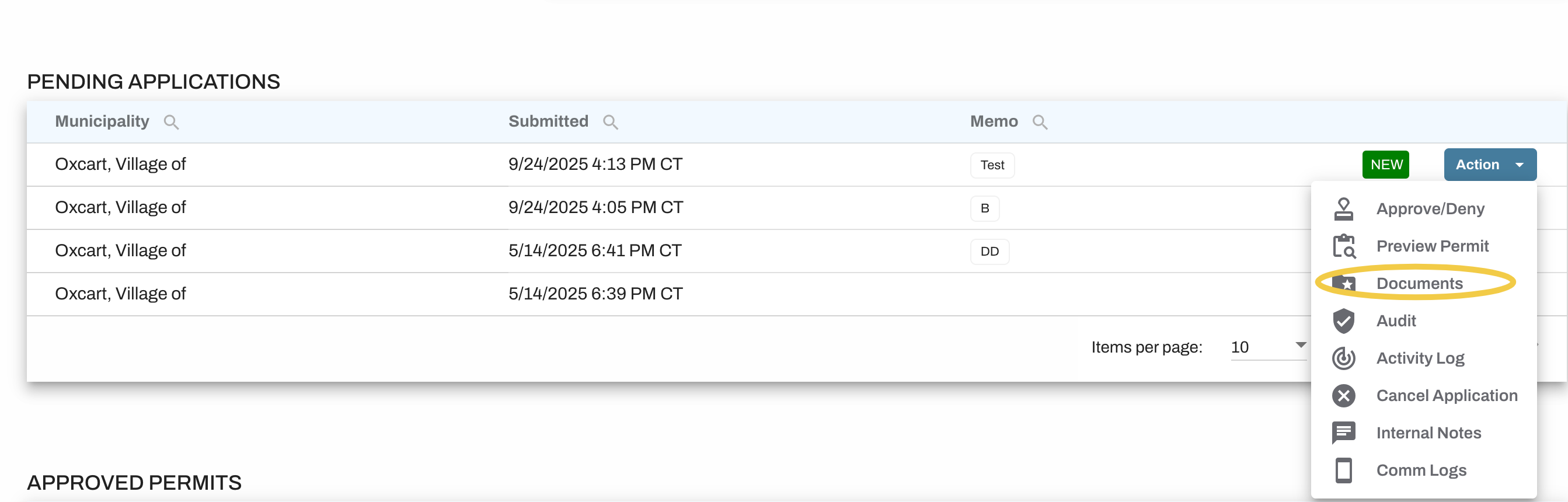
When you attach new documents to an application or approved permit, they are automatically saved in your Document Library, eliminating the need to upload them more than once.