

Most permit applications will require a route before you can submit to the municipality. When starting a new application the map will populate based on the municipality's jurisdiction. Before using the map to generate a route, make sure the permit start date and all vehicle size/weight fields are filled in.
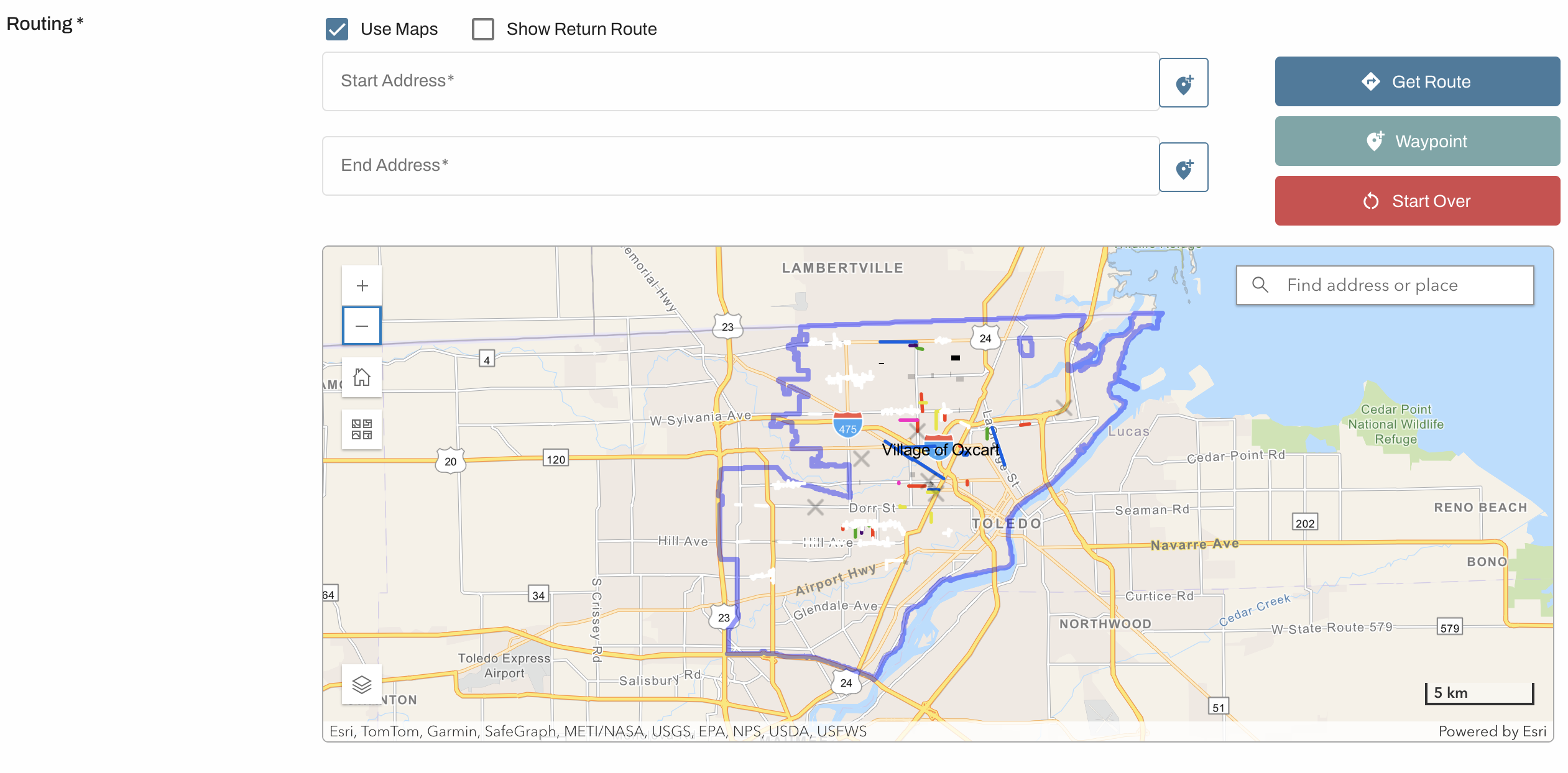
Generating a route:
To enter an address, begin typing your start address and select from the autofilled options that appear. Or click on the pin to the right of the "Start Address" line and click on the map where your route will begin. It always helps to zoom in to add points to make sure you are not clicking off in a field or parking lot. Repeat for the "End Address" line with where your route will end. When both addresses are filled in, the route will generate.
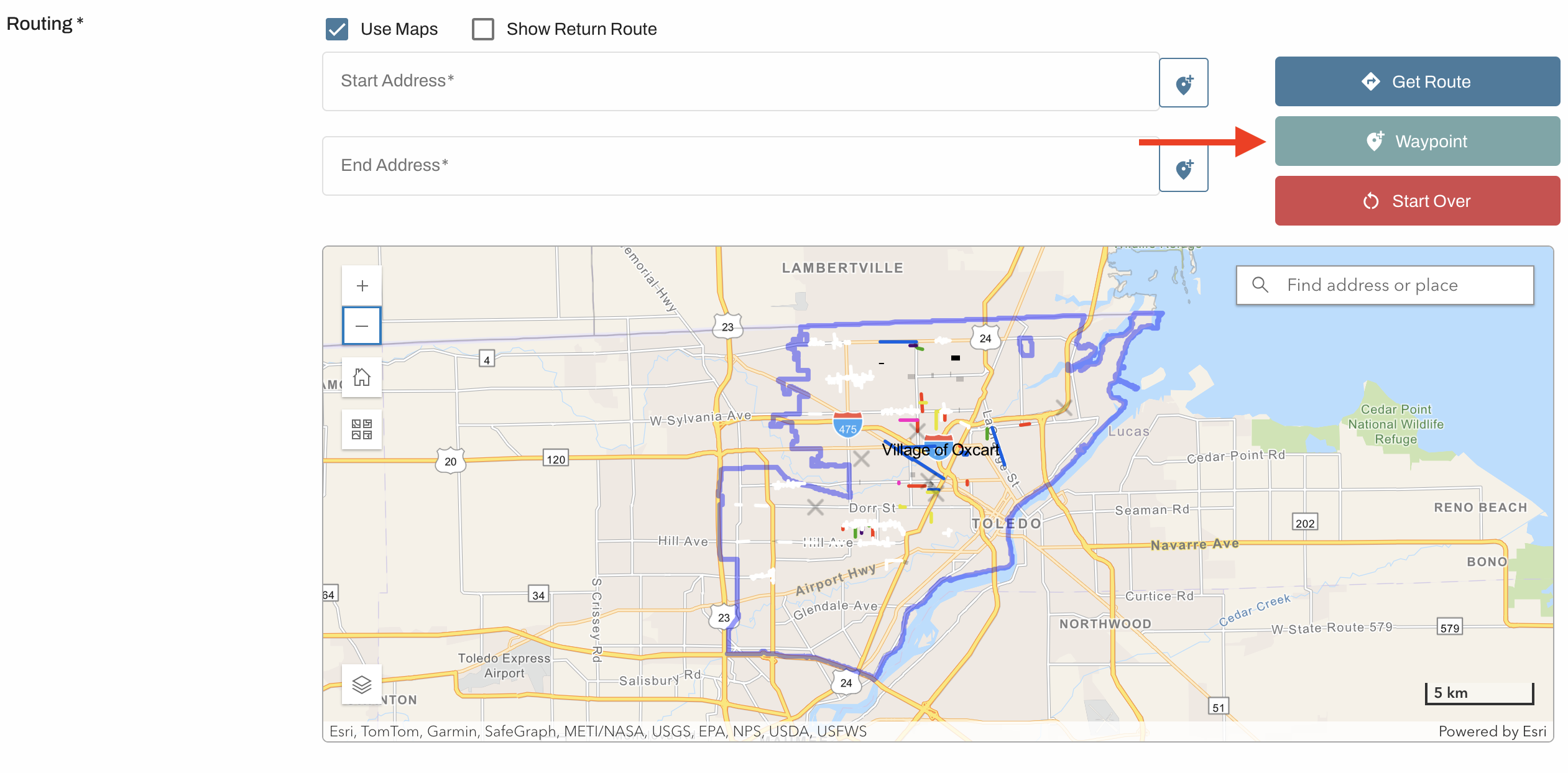
You can change the route that was generated by adding stops on the map. If only a start and end point are added, the map will generate a route which may or may not be what you want. To adjust the route, click “Waypoint” to add a stop. These waypoints allow the user to direct the route. You can add as many stops as needed.
To clear a route:
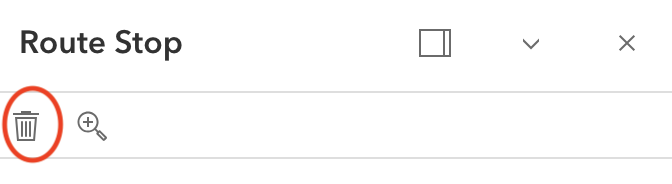
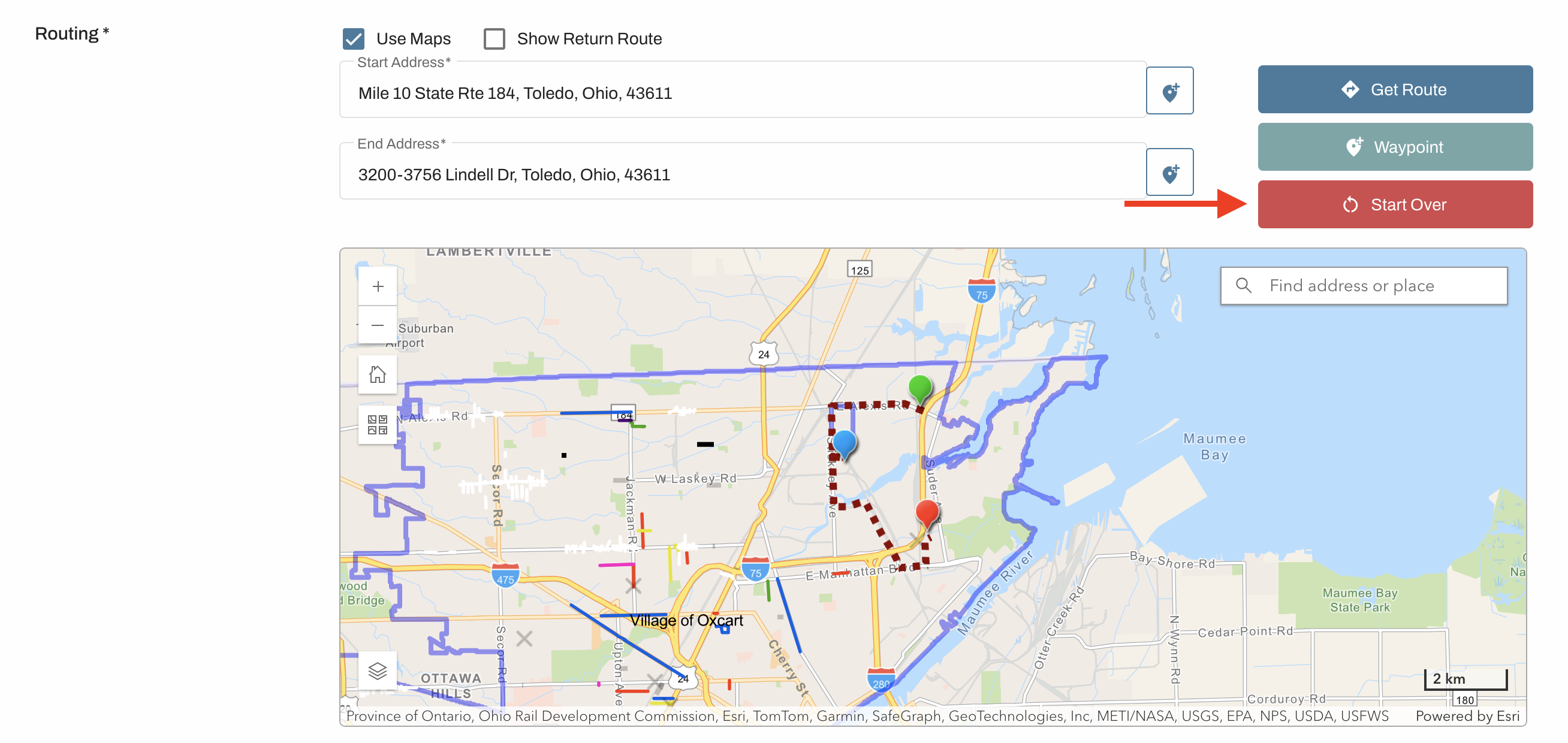
Clear the addresses from both address fields, click the waypoint and click remove, or click Start Over from the upper right corner of the map.
IMPORTANT INFORMATION ABOUT ROUTES:
You might not be able to go the way you want to because of one-way streets, closures, medians, etc. Furthermore, municipalities can add size and weight restrictions to roadways which may alter your course.
Routes generated by Oxcart are only a suggestion. All routes must be approved by the municipality.
The map will not restrict applicants from generating routes outside the municipal boundaries. It is up to the approving municipality to confirm jurisdiction when reviewing applications.