Use Oxcart Permit Systems to apply for permits, track application status, and manage approved or expired permits—all in an easy-to-use dashboard. After creating your free Oxcart account, you'll be taken to your dashboard each time you log in. It displays all current permits, plus any that have expired within the past 90 days.
Start by selecting the permit type from the modules at the top. Each permit module has it's own dashboard. Transportation and Seasonal permits can be found under Oversize/Overweight. Driveway and Utility permits can be found under Right-of-Way.

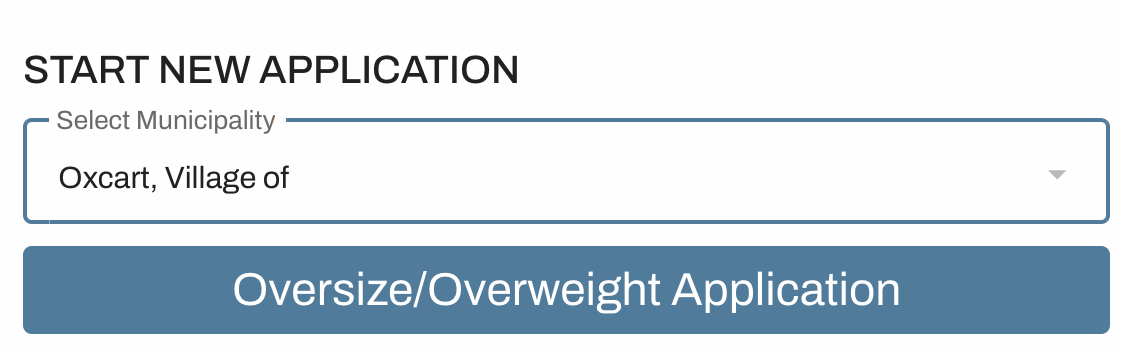
Start New Application - Start your new application here. Use the dropdown menu to select the municipality where you need a permit. Municipalities are listed alphabetically by state. Once you've selected the correct municipality, click the blue bar to open the application.
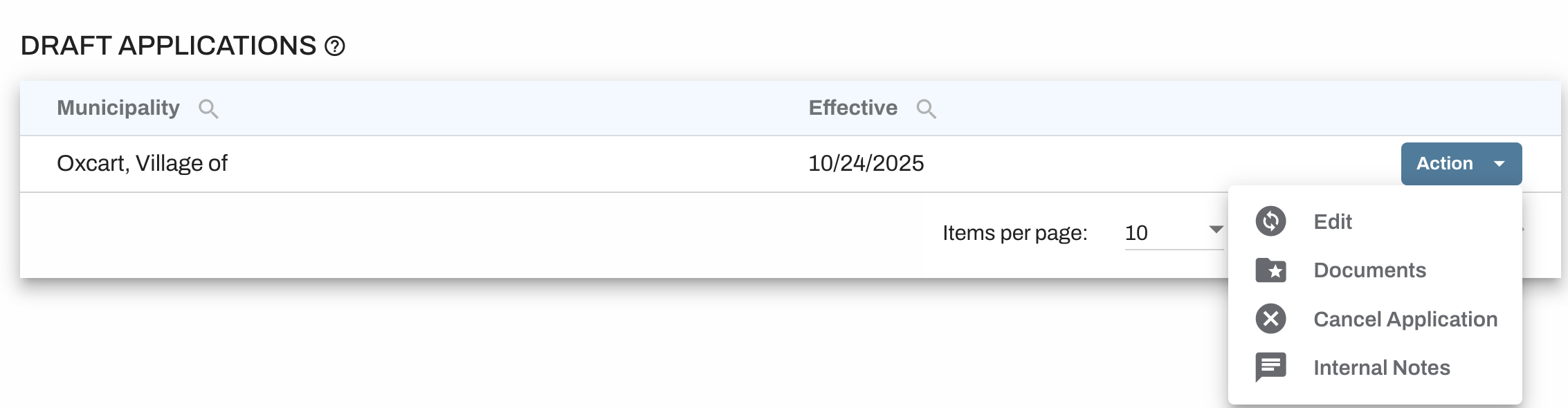
Draft Applications - Don't have time to finish your application? Save it as a draft and come back to finish it later. Use the "Action" menu to continue editing the application or select Cancel Application if you no longer wish to apply.
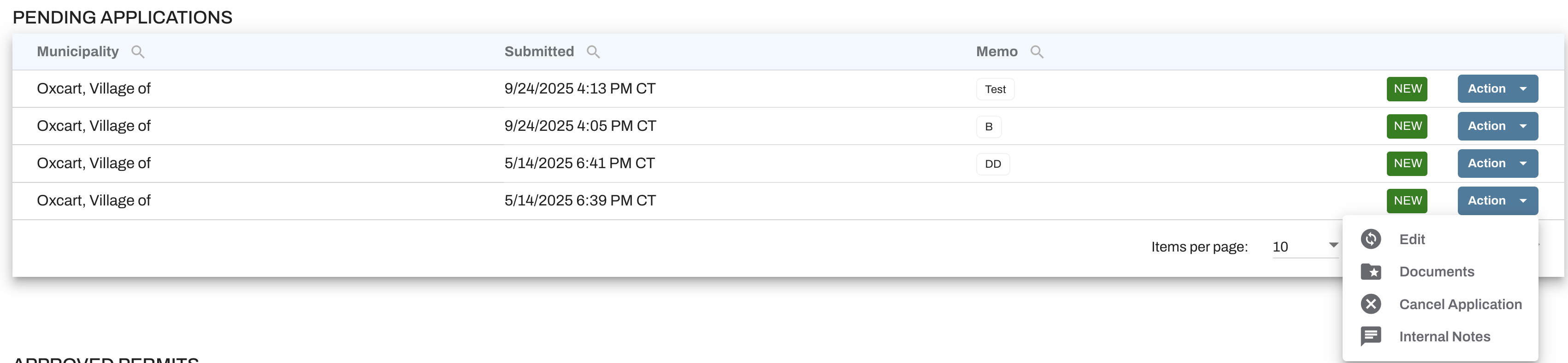
Pending Applications - Once you submit an application, it will appear under the Pending Applications table while awaiting municipal review. During this stage—and before the municipality begins its review—you can cancel or edit the application using the "Action" menu.
Once the municipality has started its review, any changes or cancellations must be requested directly through the issuing agency. There is no fee for canceled applications.
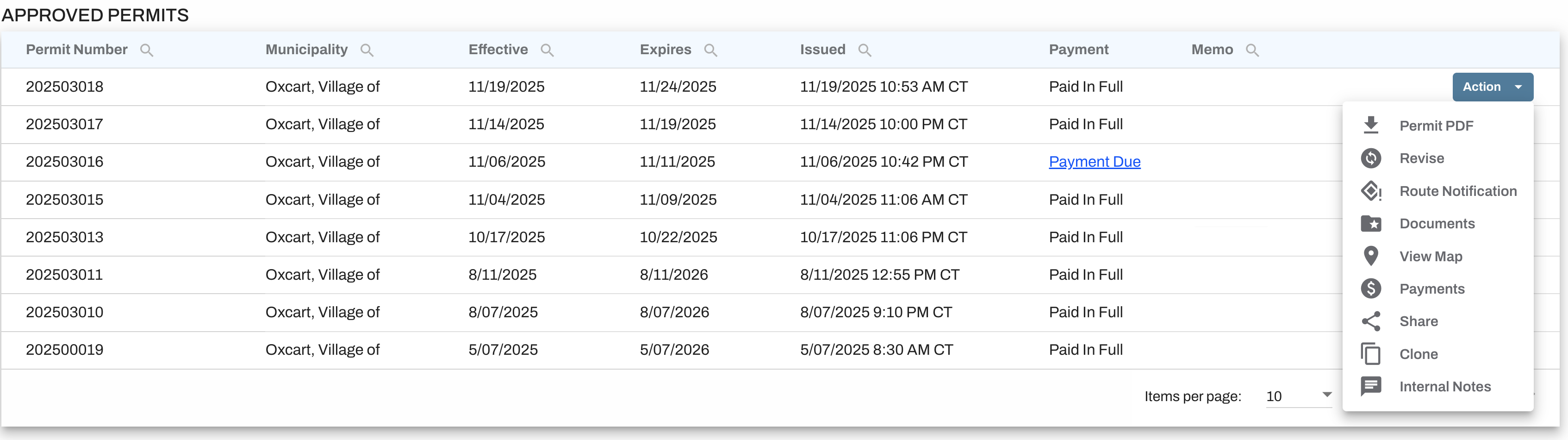
Approved Permits - Once your permit is approved, it will be issued a permit number and displayed in the Approved Permits table on your dashboard. Only permits that have been paid in full will be accessible. From the "Action" menu, you can access the options available for that specific permit.
Available actions vary by municipality and permit type. If an option is not shown, it means the municipality does not allow that action. In those cases, you will need to contact them directly with your request.
Denied Permits - If a permit is denied it will be in the Denied Permits table at the bottom of your dashboard. Use the "Action" menu to view available options, including viewing the denial and cloning the application to make corrections.

Shared Permits - Oxcart allows users to share permits with other verified Oxcart users. Permits are shared with individual users, not entire accounts. Any permits shared with you will appear in the Shared Permits table at the bottom of your dashboard—you may need to scroll down to view.
To learn more about sharing permits, click here.

IMPORTANT INFORMATION ABOUT YOUR DASHBOARD
Be sure to refresh your browser to view the most up‑to‑date version of your dashboard.
The dashboard only displays active permits and permits that expired within the last 90 days. However, your entire permit history is saved to your Oxcart account. Click here to learn about accessing old permits.
If you have any questions about Oxcart Permit Systems, please feel free to click the help button in the bottom left corner of your dashboard or reaching out to support@oxcartpermits.com.