

Your dashboard will show all current permits and permits valid within the last 90 days. If you need to locate an approved permit older than 90 days you can easily navigate to those from the dashboard.
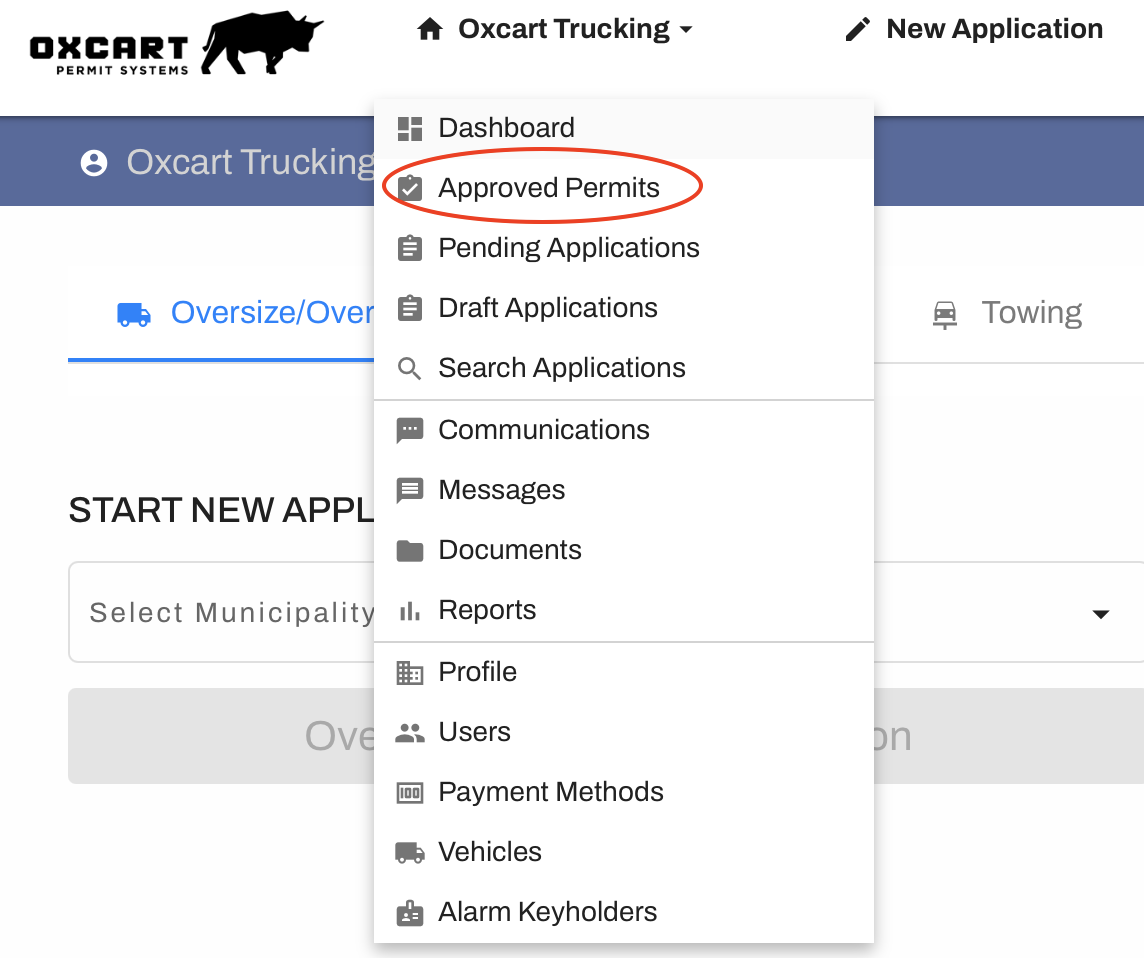
Hover over your account menu at the top of the screen and select "Approved Permits".
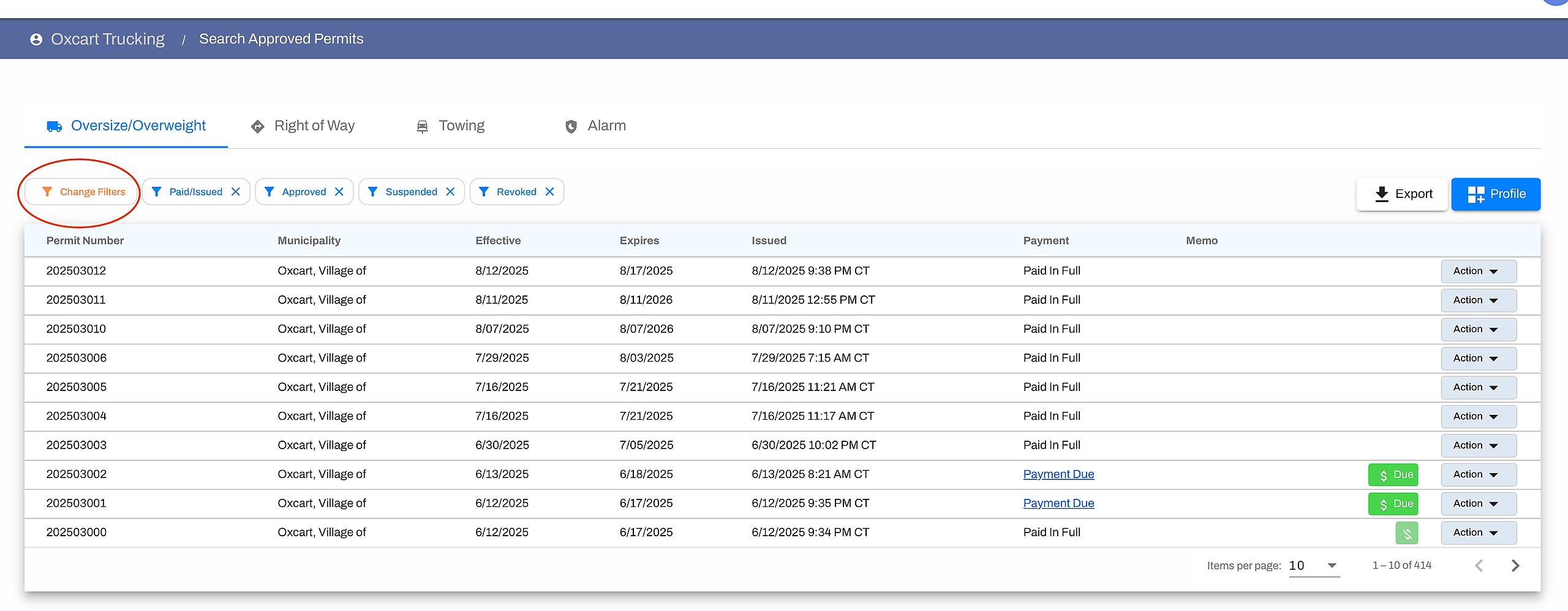
The Approved Permits screen displays all permits that have been approved since the account was created. To customize your table, click the orange "Change Filters" button.
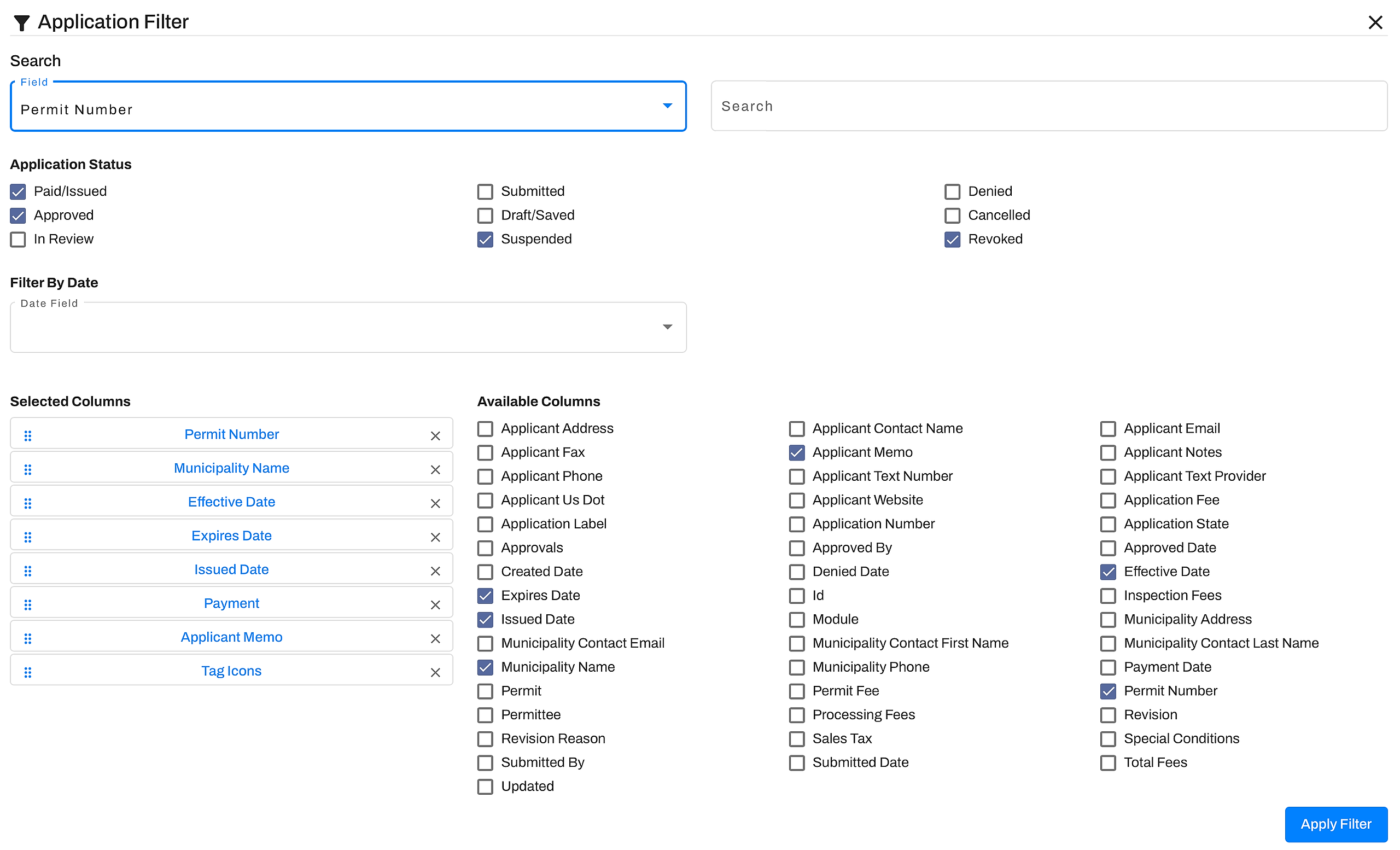
Enter specific search criteria to narrow down the list of displayed permits—for example, you can search by permit number, status, or date range. You can also adjust which columns are visible by checking or unchecking boxes and rearranging their order to suit your preferences. Once you've made your selections, be sure to click "Apply Filter" to update the table view.
Helpful Tips for Managing Approved Permits
Add memos directly within the table to track and document permits.
Take action on an approved permit by clicking on the "Action" button to the right of each permit (ie revise, clone, share, etc).
Use the module selector to easily switch between different permit types.
To sort columns, hover over the column header (e.g., Permit Name, Permittee) and click the arrow icon.
Navigate between pages or adjust the number of permits displayed per page using the controls at the bottom of the table.
Export your permit data to a CSV file for external use or recordkeeping.
Save your customized filter settings by clicking the blue "Profile" button. Saved profiles allow you to quickly rerun the same report whenever needed. Just click on the "Profile" button to review saved searches.