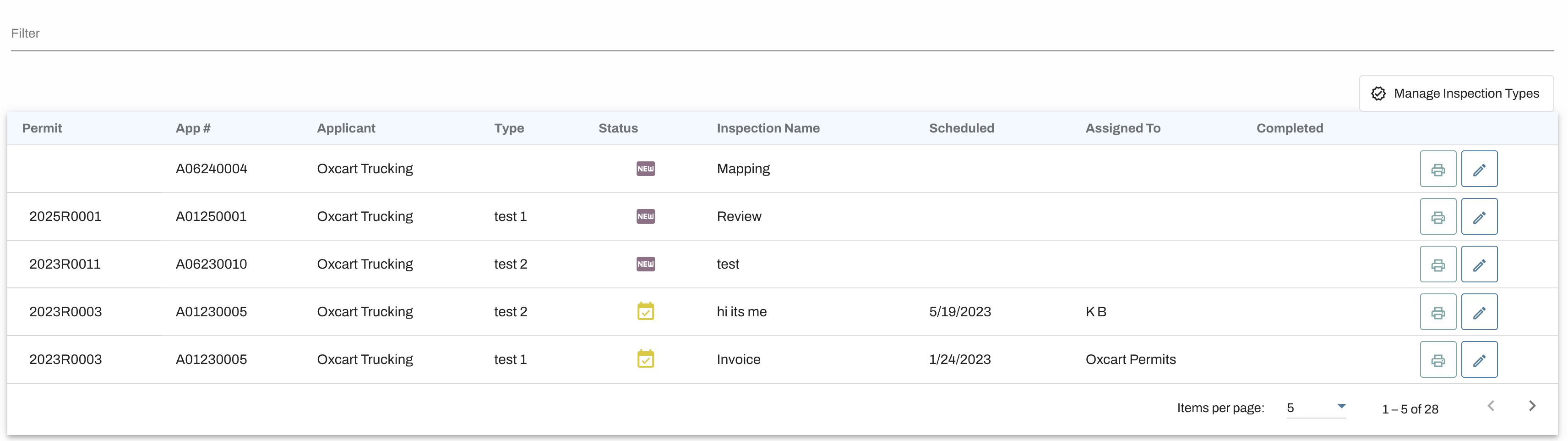
From the dashboard, administrators can schedule inspection dates, monitor progress, assign users to tasks, upload supporting documents, and oversee all inspection activity in one place. The inspection center streamlines the entire process, keeping records organized, ensuring accountability, and providing municipalities with a clear overview of inspection workflows across all permits.
Inspections Associated with a Specific Application or Permit:
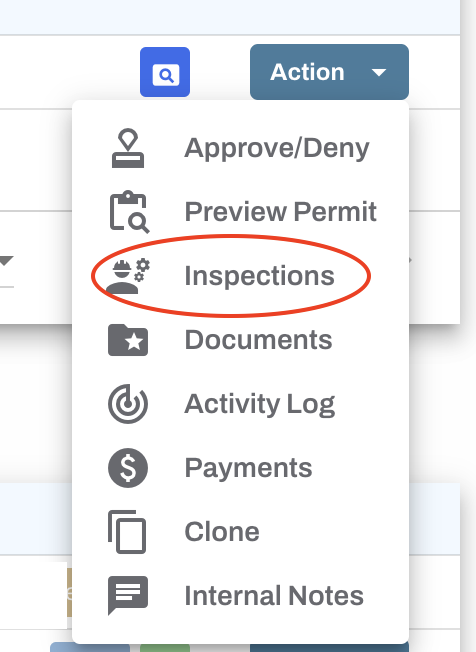
Locate the right of way application or permit, click on the Action button and then select "Inspections" from the dropdown menu.
This table will display all inspections associated with that application/approved permit. You can add inspections, manage inspection types, or update existing inspections from this screen.

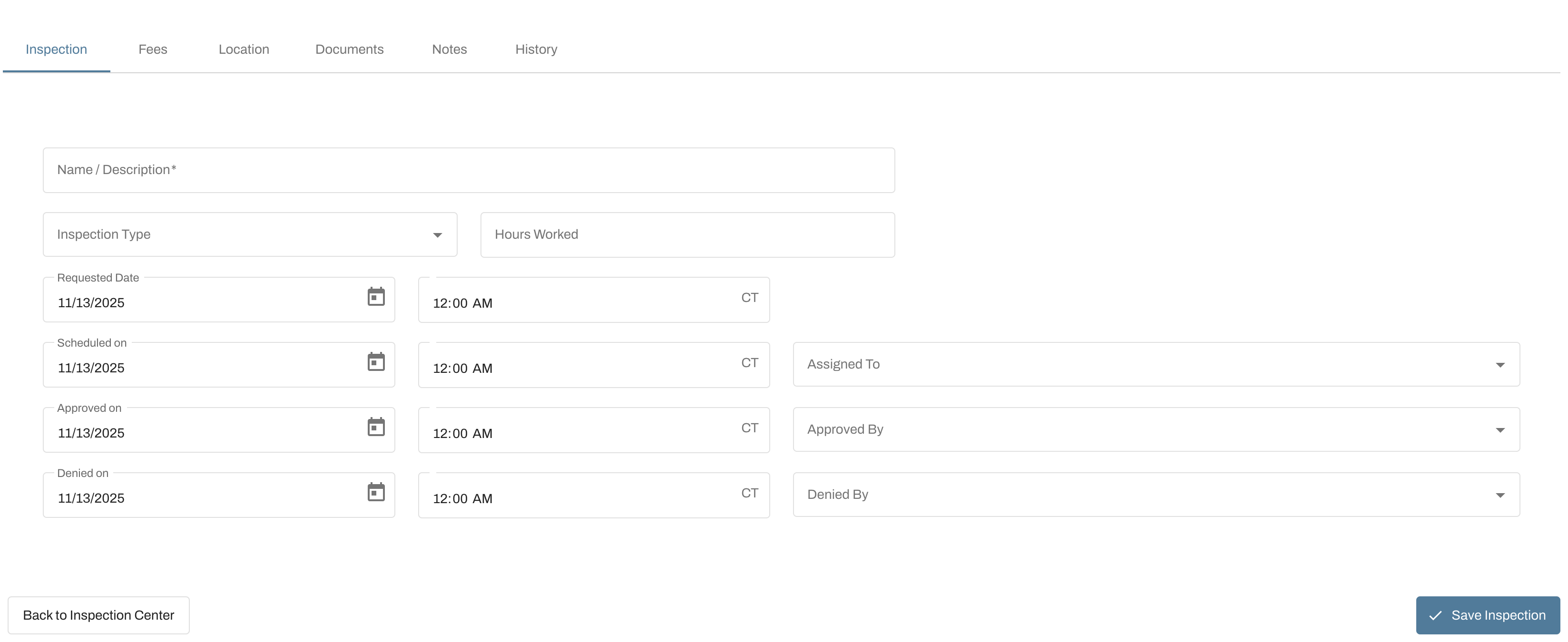
When adding an inspection you can add the description, set an inspection type, schedule the inspection, assign it to an account user, and set applicable fees. Inspection fees can be calculated based on hours worked, flat fee, or a combination of both, but only one fee can be added per inspection. You may also add documents or internal notes to the inspection.
To set up specific inspection types, go to "Manage Inspection Types".
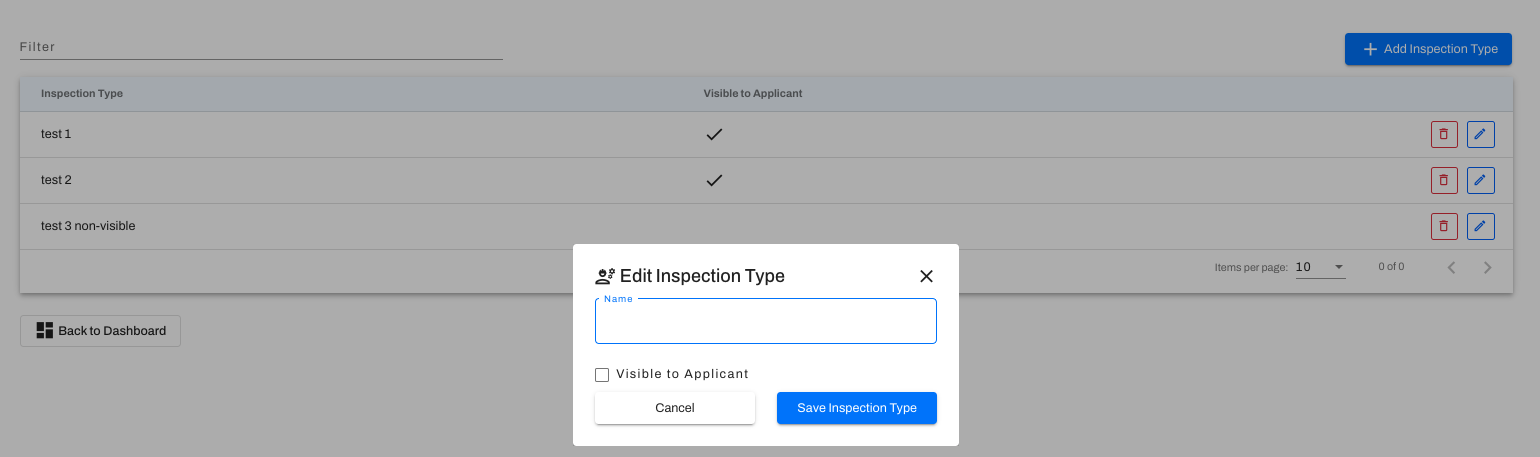
To review or update existing inspections, click on the pencil icon. Be sure to save any changes!

Overview of All Inspections within the Municipal Account:
To view all inspections tied to your municipal account, hover over your account name and select "Inspections" from the dropdown menu.
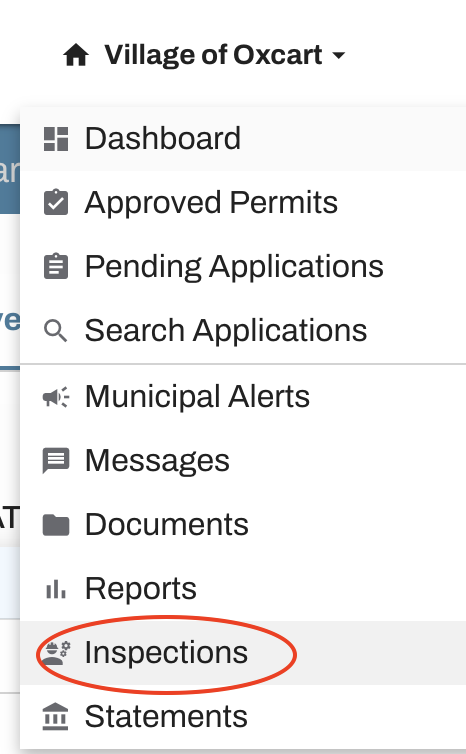
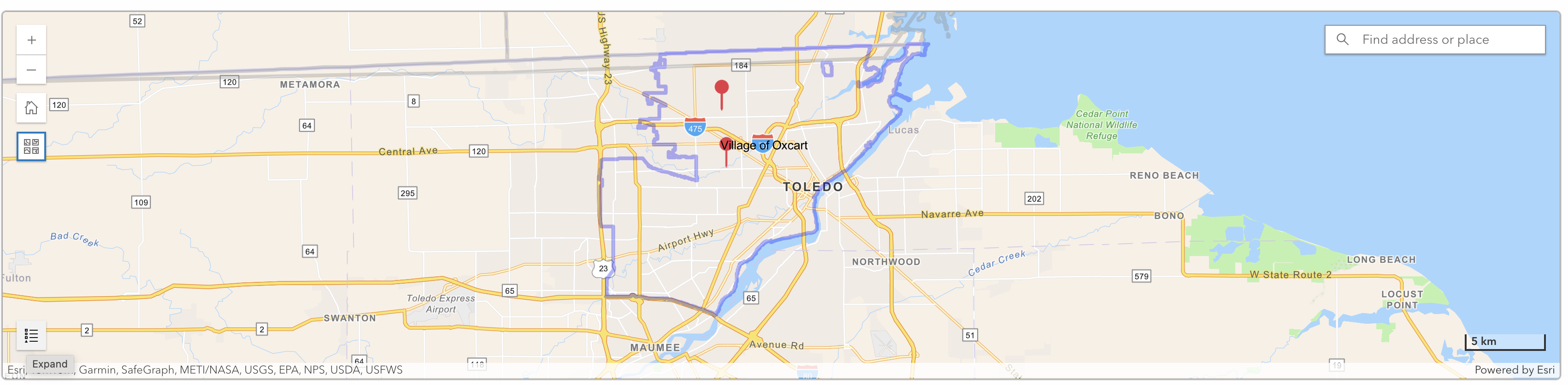
A table will then display inspections for every permit. You can use the filter to narrow the results or sort the data by clicking the arrow next to any column header. Scrolling further down reveals the inspections map, which automatically plots the inspections shown in the table. Any filters or customizations applied to the table will directly update the map view. Use the buttons on the left side of the map to zoom in or out, adjust the view, and expand the legend. Clicking a pin will display details about that inspection and clicking "Edit" take you directly to it.