

Municipalities have the authority to either temporarily suspend or permanently revoke a permit—both actions prevent the applicant from using it.
TO TEMPORARILY SUSPEND A PERMIT:
Suspending a permit temporarily restricts access to the permit. Access can be reinstated manually or automatically once the applicant meets your specified criteria. To initiate a suspension, click the Action button and choose “Suspend/Revoke” from the dropdown menu.
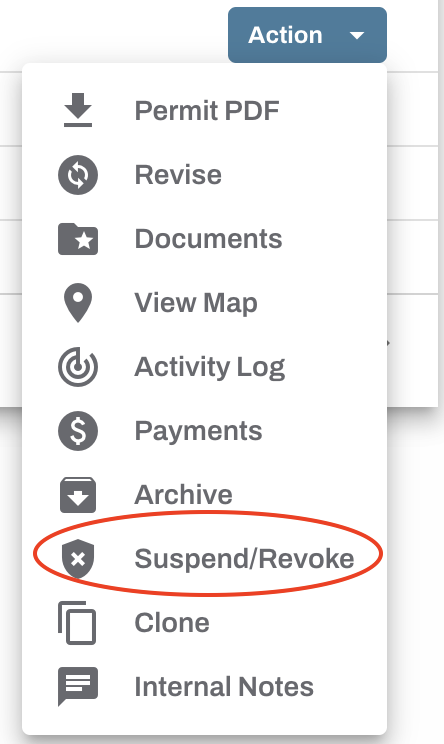
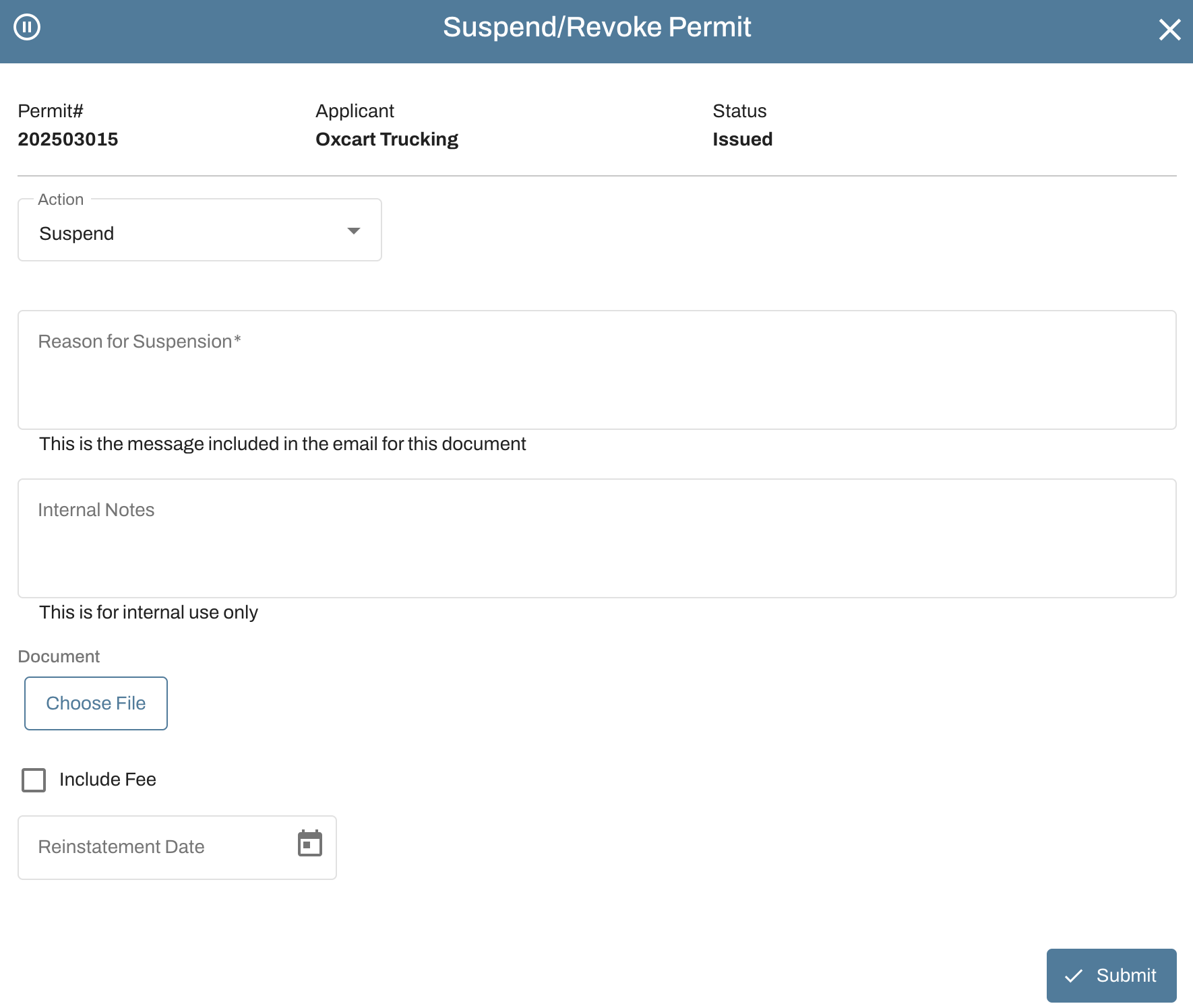
The default action is Suspend.
A reason for the suspension is required. Text entered here will be shared with the applicant via email.
You may also include an Internal Note for municipal reference. This text will not be shared with the applicant.
Any document that is attached will be shared with the Applicant via email.
If you choose to apply a fee, you can then select whether reinstatement is handled manually or automatically.
If a reinstatement date is entered, access will be restored automatically on that date. If no date is entered, you will manually need to change the status of the permit.
Be sure to click on "Submit" to save your changes.
TO CHANGE THE STATUS OF A SUSPENDED PERMIT:
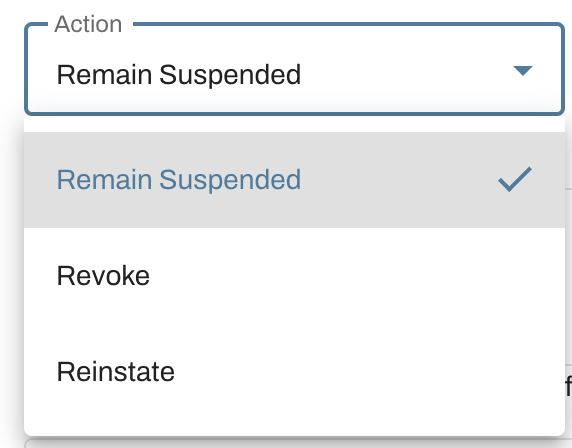
Once a permit has been suspended, you can update the status at any time. Select “Suspend/Revoke” from the Action menu and choose your preferred next step. You may add notes and keep the permit suspended, proceed with revocation, or reinstate the permit.
TO PERMANENTLY REVOKE A PERMIT:
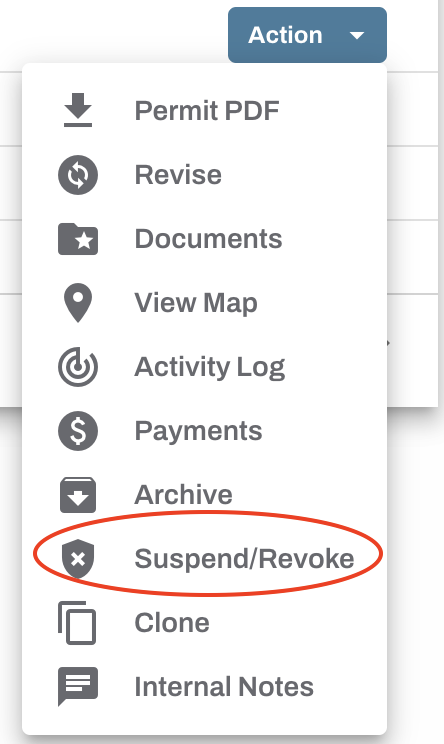
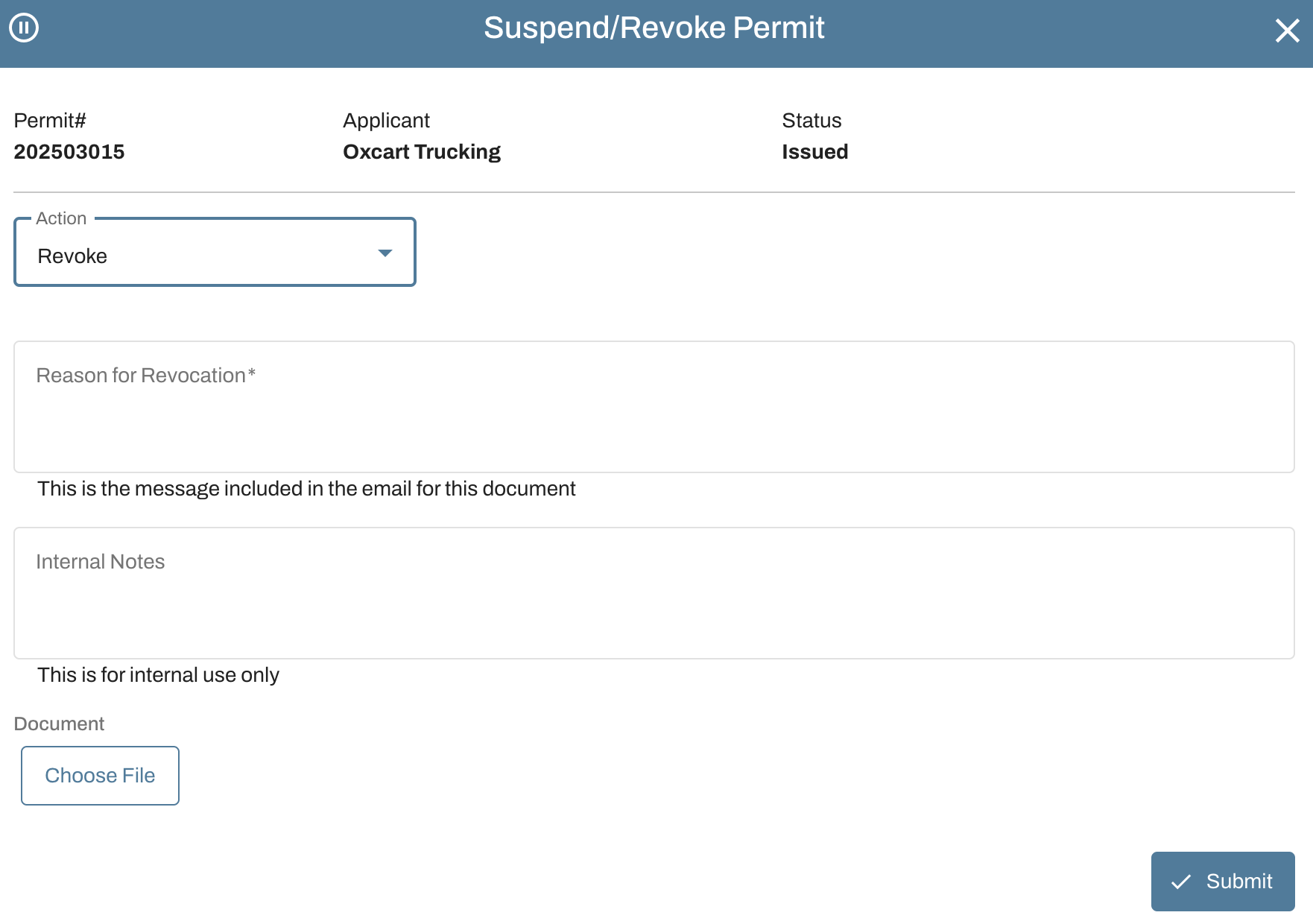
In certain cases, you may choose to revoke a permit with or without initiating a suspension first. Revoking a permit permanently invalidates the permit. This action cannot be undone. To initiate a revocation, click the Action button and choose “Suspend/Revoke” from the dropdown menu.
The default action is Suspend. You must select REVOKE from the dropdown menu.
A reason for the revocation is required. Text entered here will be shared with the applicant via email.
You may also include an Internal Note for municipal reference. This text will not be shared with the applicant.
Any document that is attached will be shared with the Applicant via email.
You do not have the ability to add a fee as revoked permits cannot be undone.
Be sure to click on "Submit" to save your changes.
IMPORTANT INFORMATION ABOUT SUSPENDED/REVOKED PERMITS:
Applicants are notified via email when a permit has been suspended, reinstated, or revoked.
Suspended and revoked permits are indicated on dashboards with the following icon. Hovering over it will reveal whether the permit is suspended or revoked.

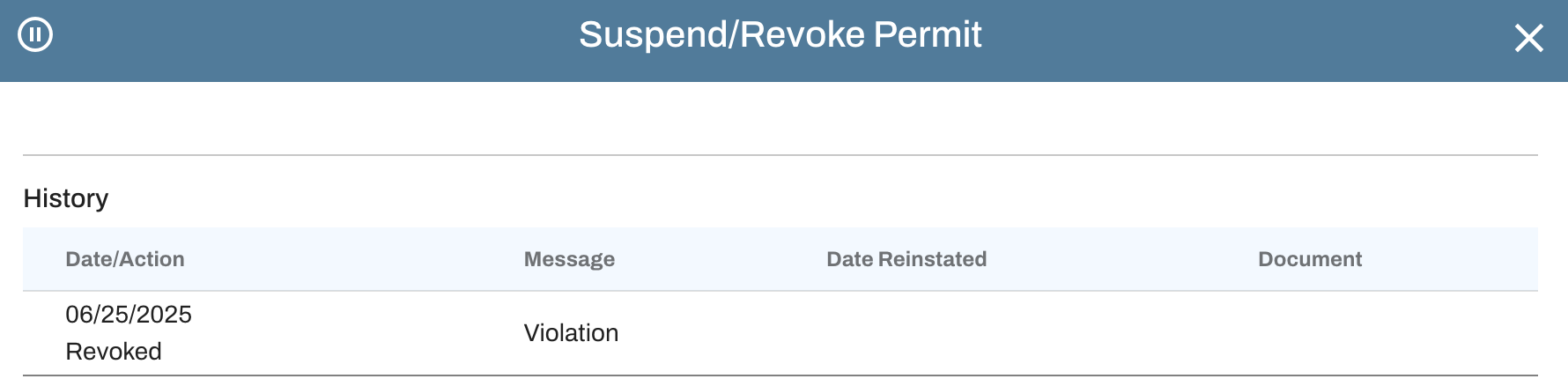
The permit status is recorded for tracking and review purposes.
Suspended/revoked permits can still be cloned to expedite the reapplication process.
Suspended/revoked permits can be easily found among historical records by applying a search filter.