

An email address can be added for notifications by either adding an existing account user email address or adding a new email address not associated with a user account. Only account administrators and managers can add an email address to the Communications screen. Oxcart emails will originate from Notifications@OxcartPermits.com. Please whitelist the email to ensure consistent delivery.
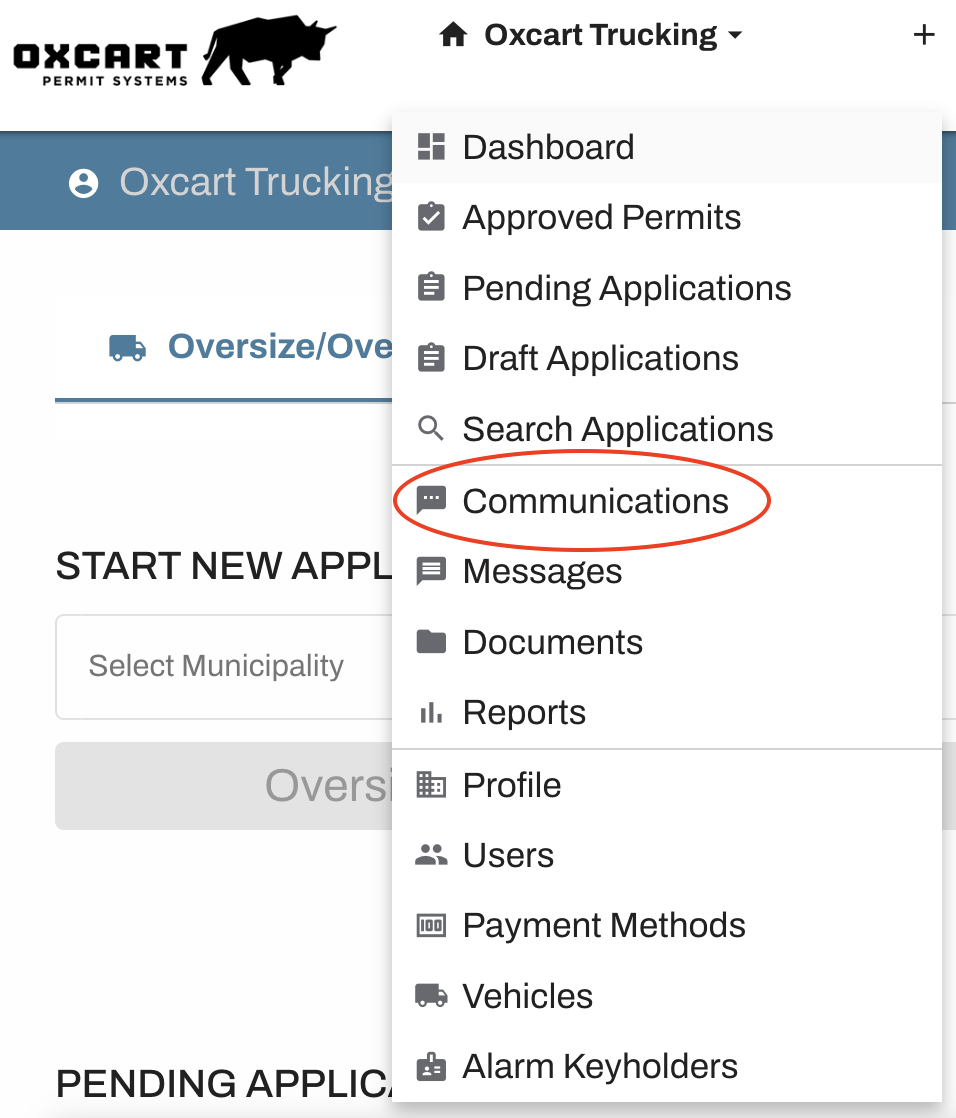
Hover over your account name and select Communications to get started.
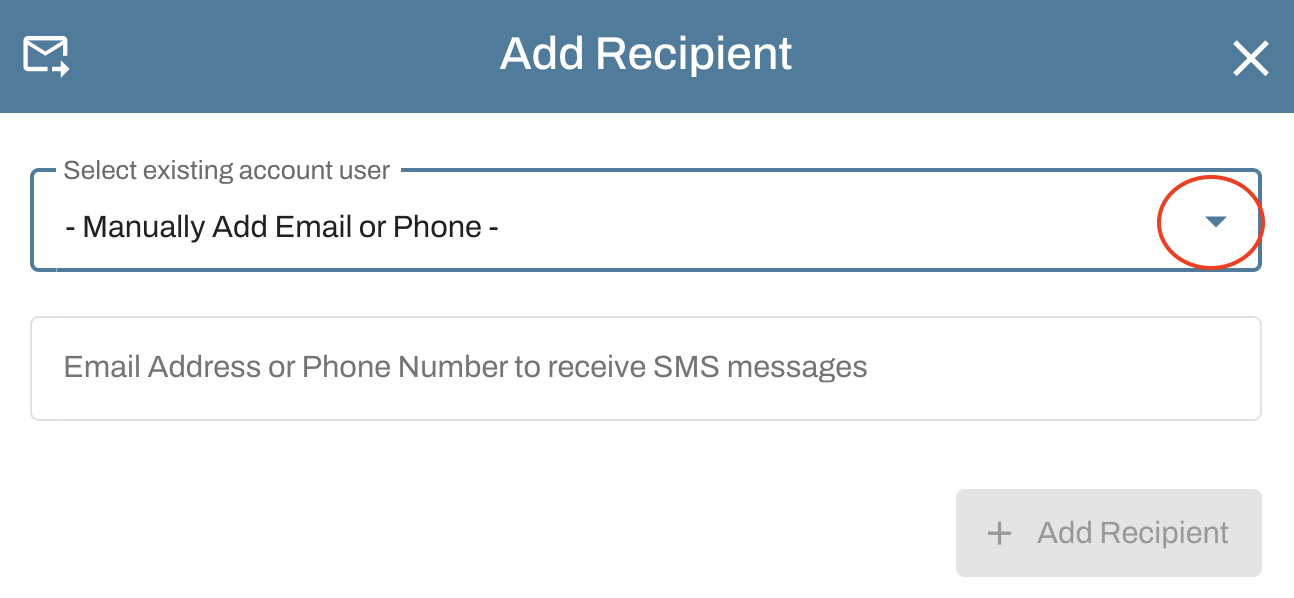
Click the Add Recipient button.

To add an email address for an existing user: Use the dropdown arrow to select the existing user's email. Then click the blue Add Recipient button.
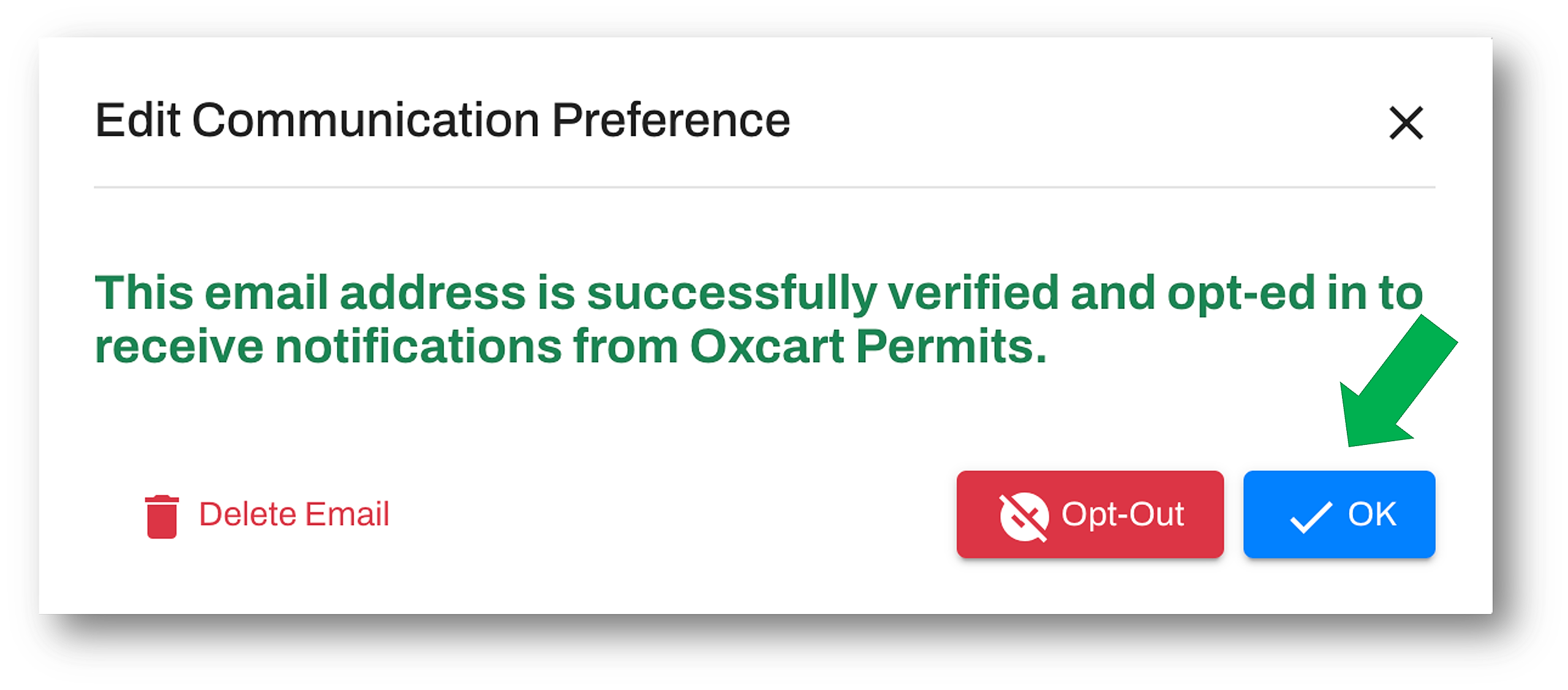
You will then receive a prompt that the user has been successfully added. Click the blue OK button and you can begin assigning notification preferences to the user by checking the desired boxes. The user is also able to login and adjust their own communication preferences from the Communications page.
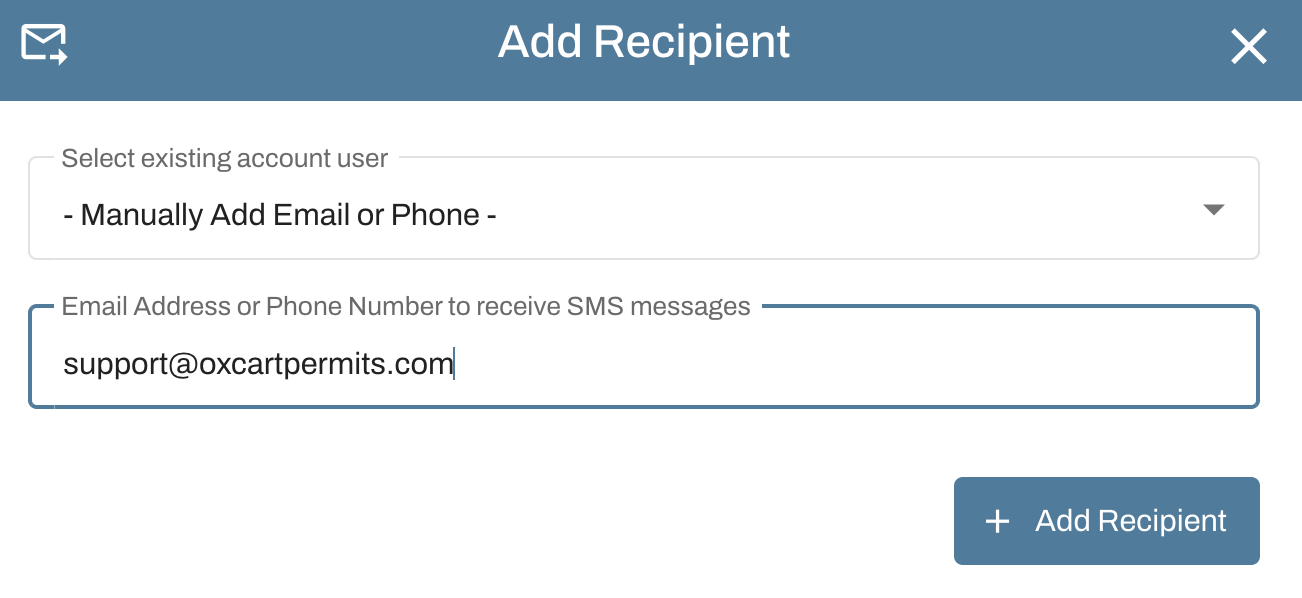
To add an email address not associated with an existing user: Be sure the owner of the email address has access to their email. They will be required to verify the email address by receiving a time sensitive 6-digit, one-time-password (OTP). When the window appears, manually enter the email address in the second text box and click the blue Add Recipient button
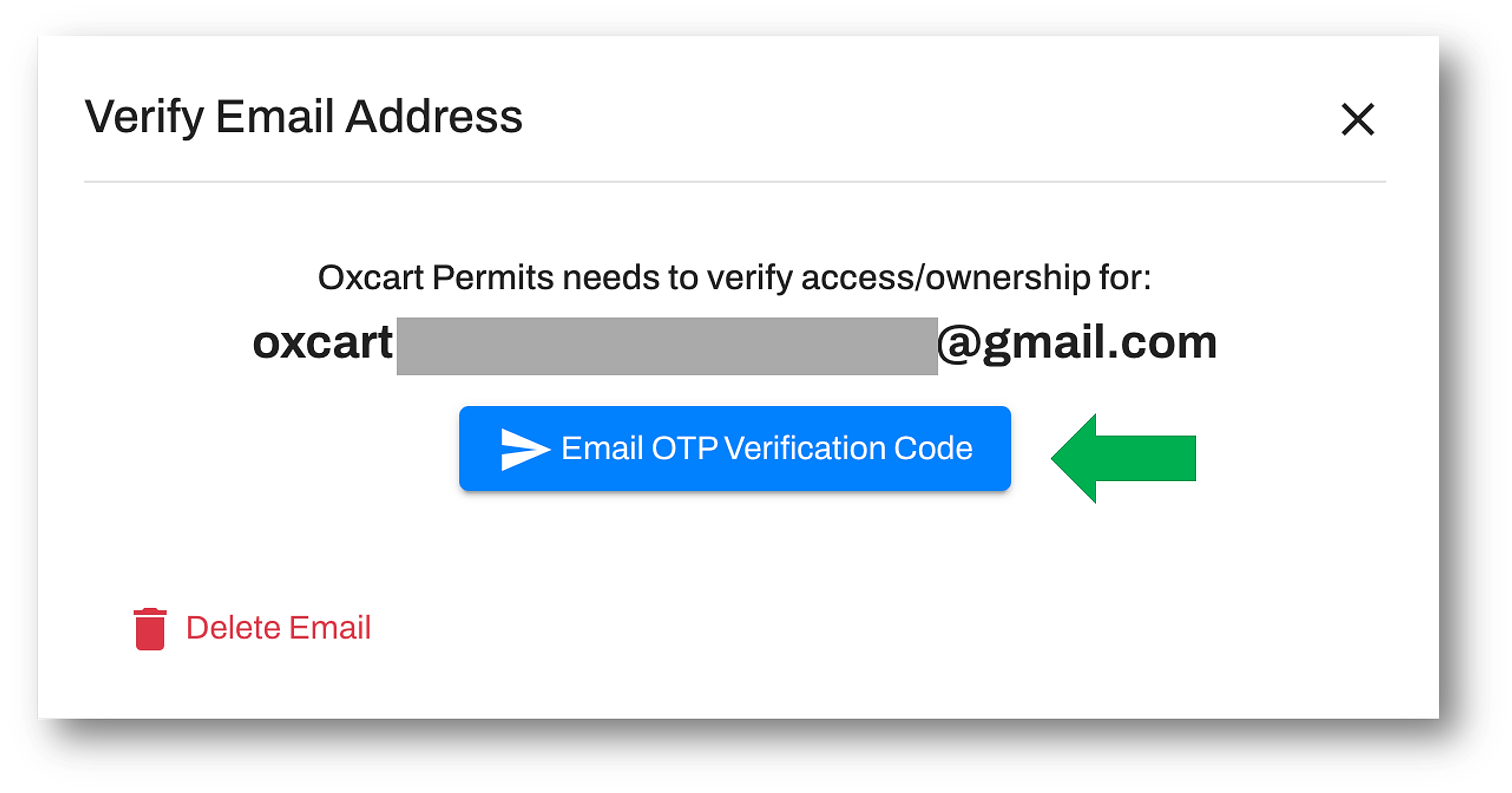
A window will appear to send the time sensitive 6-digit, OTP verification code. Click the blue button to send.
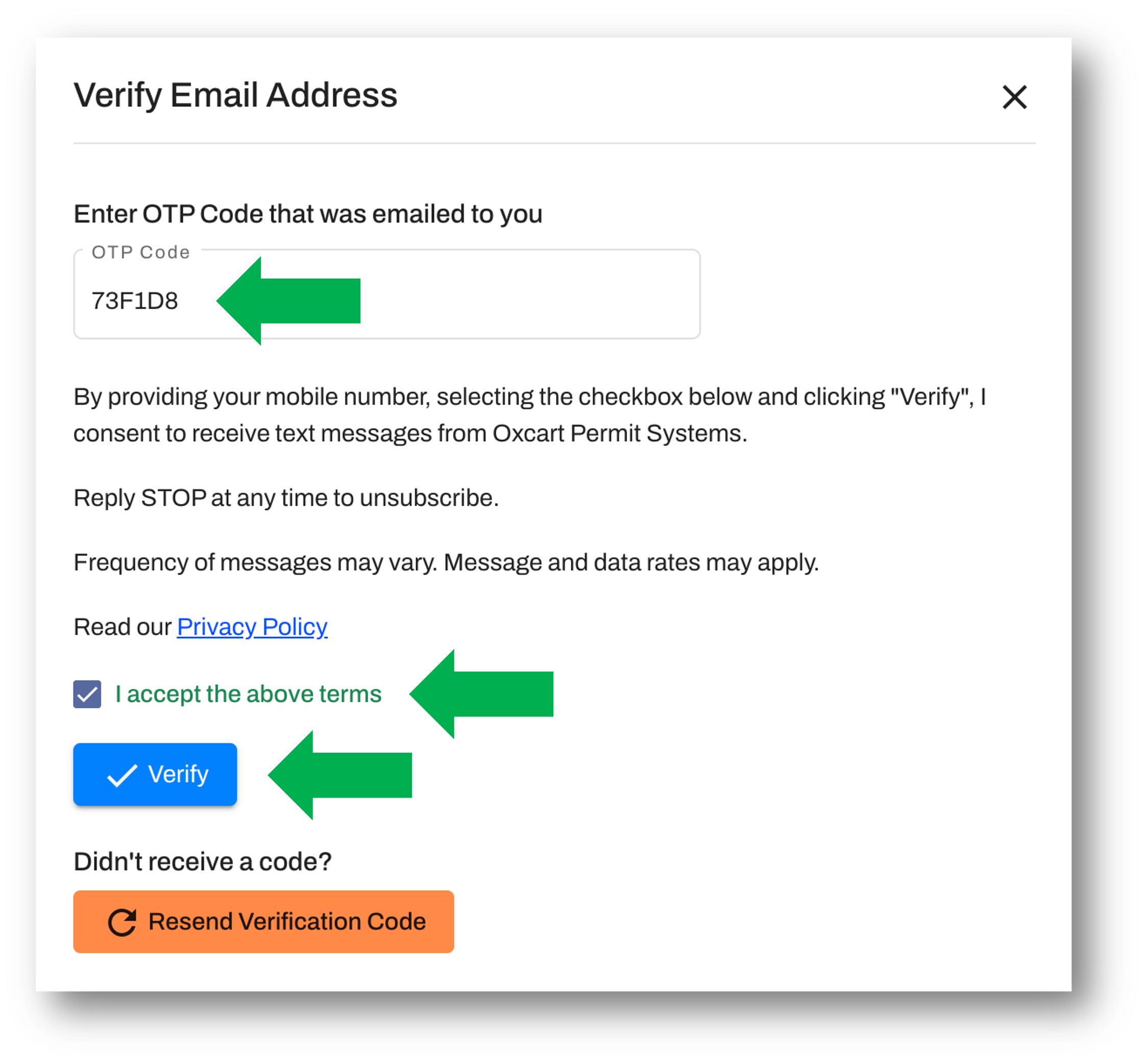
A new window will appear to enter the OTP verification code. Retrieve the code from the email account and enter in the text box. The terms of the privacy policy must be accepted by checking the box. Lastly, click the blue Verify button.
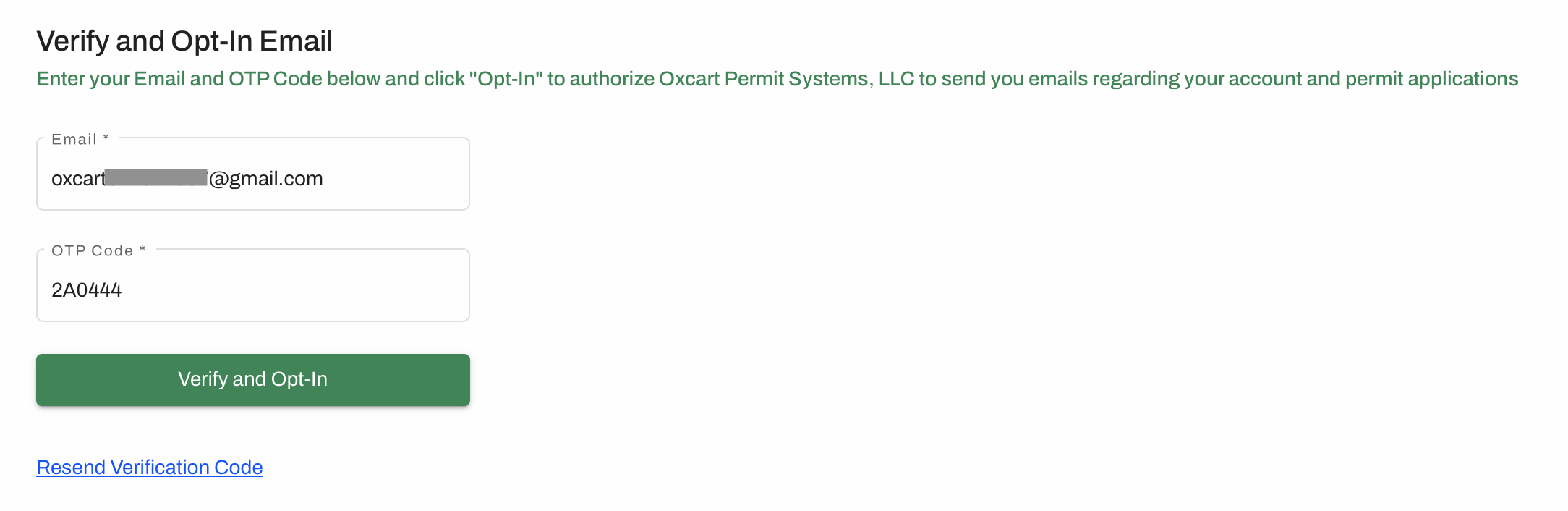
Account administrators and managers are not required to provide the OTP code and opt-in the recipient. Recipients are able to provide that information by following the link in the email.
Once the recipient is opted in, you are then able to assign notifications to the new recipient by checking the desired boxes.
PLEASE NOTE: If an email address not associated with a user account is added (for example a financial recipient), only an account administrator or manager will be able to make changes. The new recipient will not have access to Oxcart in order to make their own changes.