Each application contains separate text boxes for Comments, Memos, and Internal Notes. Understanding the distinct purpose and visibility of each type can help determine the best option for your needs.
1. COMMENTS:

Each application includes a “Comments” text box that is visible to the municipality. While comments are helpful for conveying relevant details about the permit application, they will not appear on the final permit PDF and cannot be used as a search parameter when retrieving past permits. Comments may only be added during the initial application process, but they will carry over to subsequent permit revisions and/or cloned applications.
2. MEMOS:
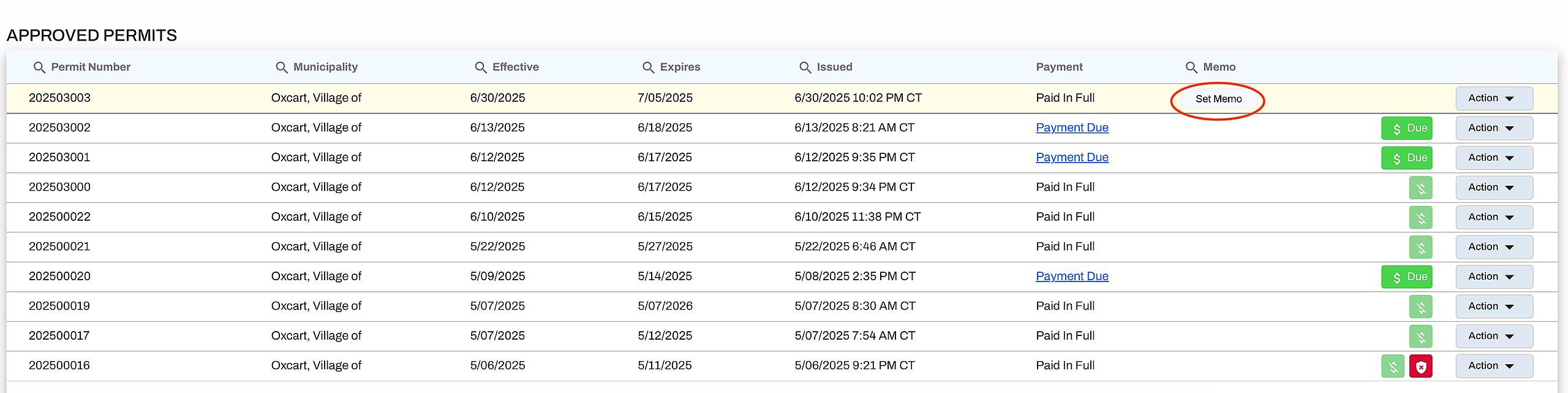
Every application includes a “Memo” text box that appears on the applicant dashboard and is not shared with the municipality. This field can be used to flag important information and can be edited as needed. Only one memo is allowed per application or permit, with a character limit of 30. Memo fields are also searchable when looking for past permits. You can add a memo during the application process or directly from the dashboard. All users on the applicant account will be able to view memos.

To add a memo from the dashboard, hover over the column and click “Set Memo.” To update an existing memo, simply click on the memo text to open the memo and make your edits.
3. INTERNAL NOTES:
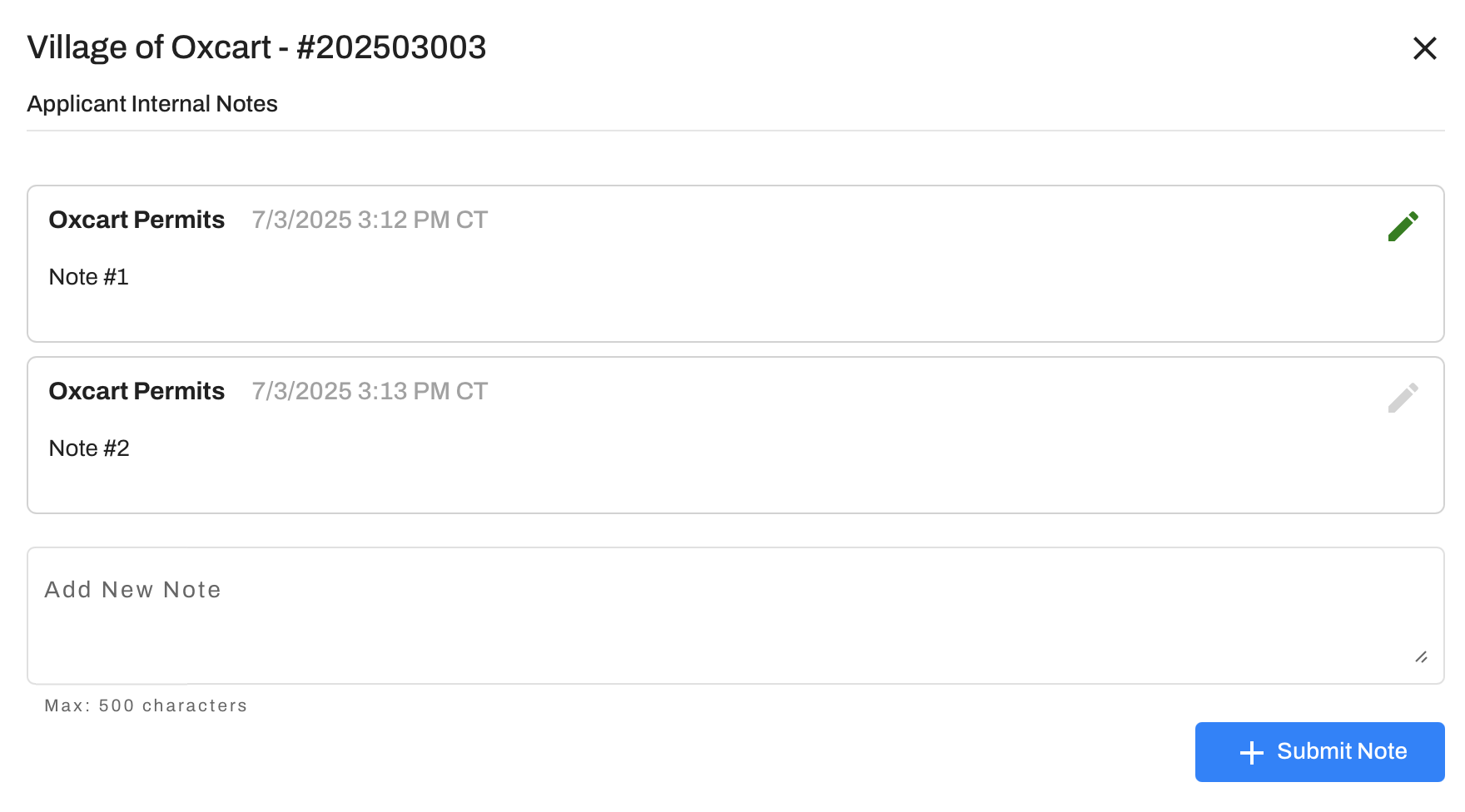
Each application includes an “Internal Note” text box that remains private and is not shared with the municipality. Notes entered here are accessible throughout all stages of the permit application process. They’re useful for tracking internal data, can be edited at any time, and there’s no limit to how many you can add to applications and permits. Internal notes are also searchable when looking for past permits. You can add an internal note during the application process or directly from the dashboard. Account permission settings will impact which users can view internal notes.

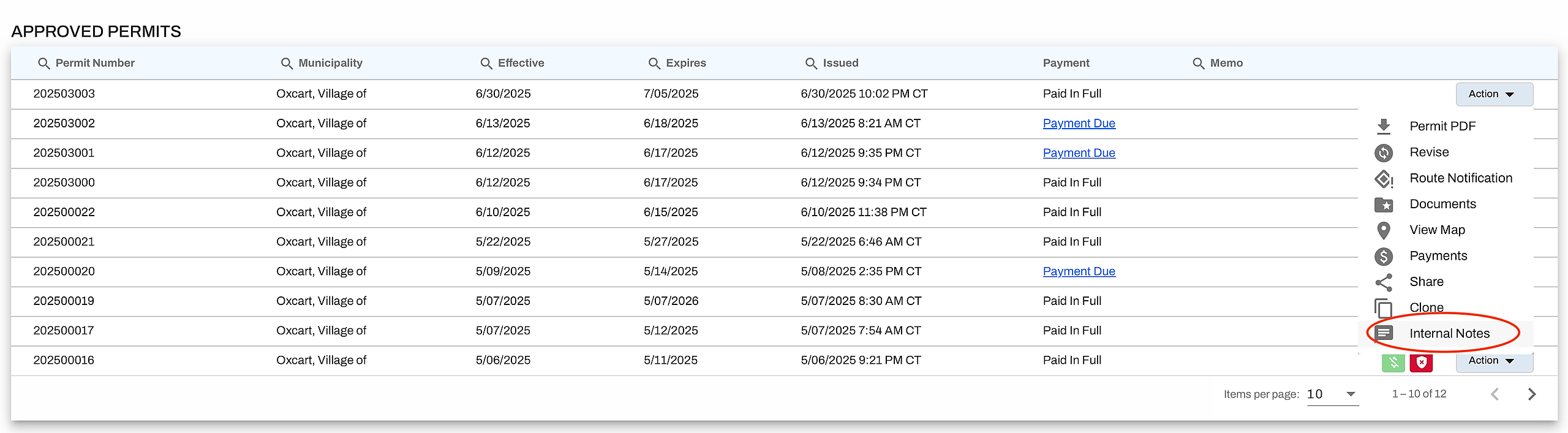
To access the internal notes on a permit, you can click on the Action button and select "Internal Notes".
Clicking here will display all notes entered for a permit. To edit an existing note, select the pencil icon. To add a new one, type your entry into the text box that reads Add New Note and click “Submit Note" when finished.