To help sort and organize your permits, you are able to create custom permit labels. Labels are identifiers used to categorize applications and permits based on their current status. They help streamline organization and tracking, making it easier to manage workflow.
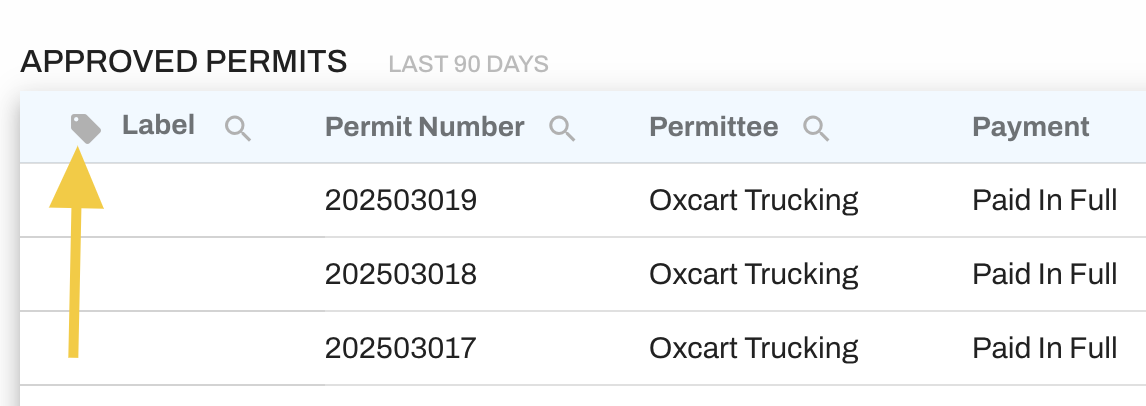
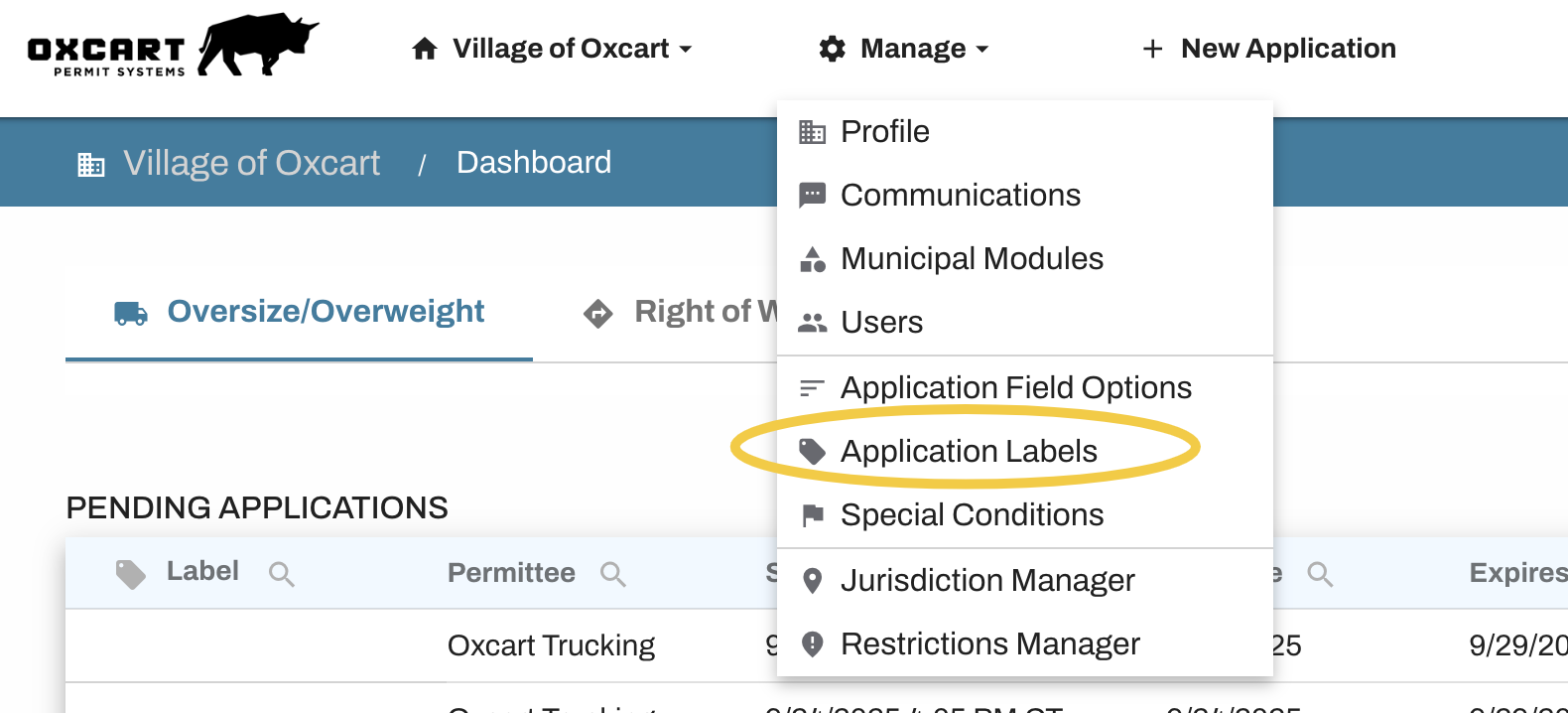
To create custom application labels, either click the icon next to "Label" on your dashboard or choose "Application Labels" from the Manage menu.
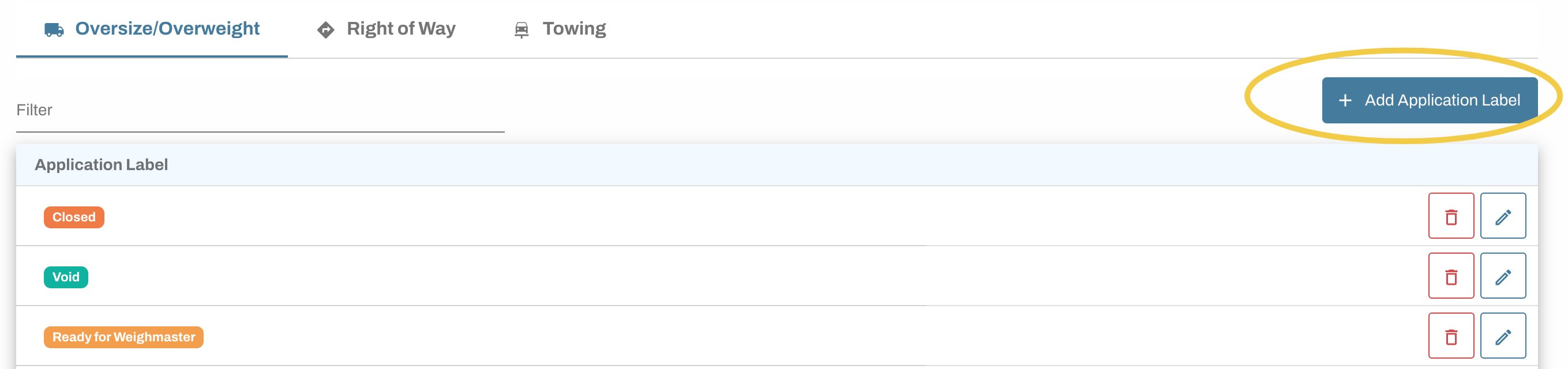
Labels are assigned individually to each permit module and can vary across dashboards. After selecting the appropriate permit module, click the blue "Add Application Label" button to create additional labels.
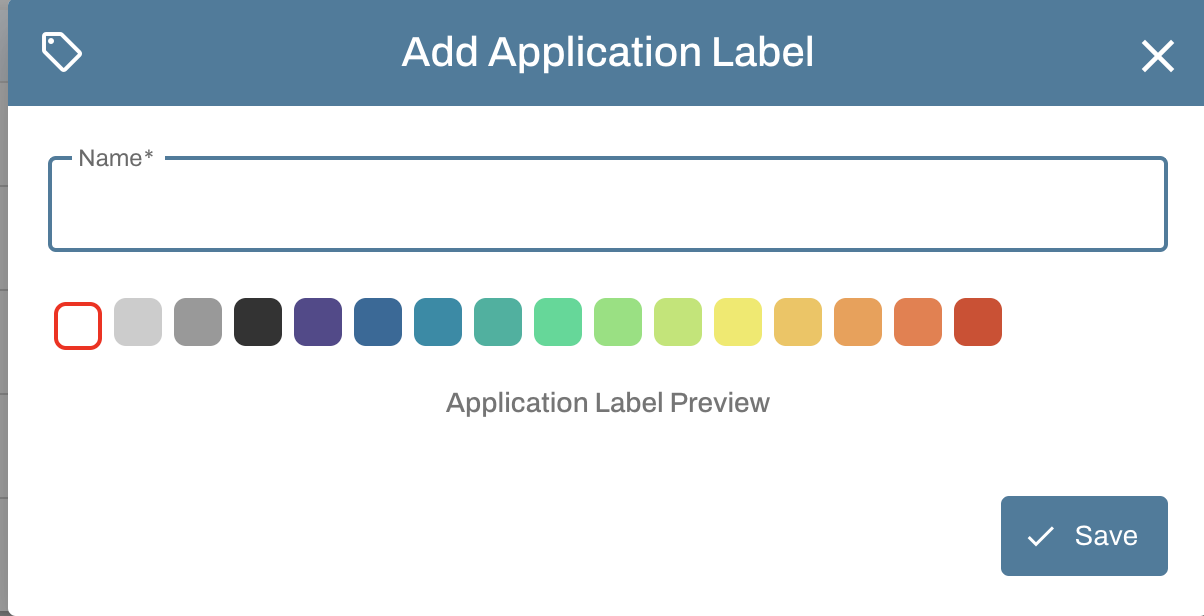
Name your label and select a color option (if desired). Make sure to save any changes.
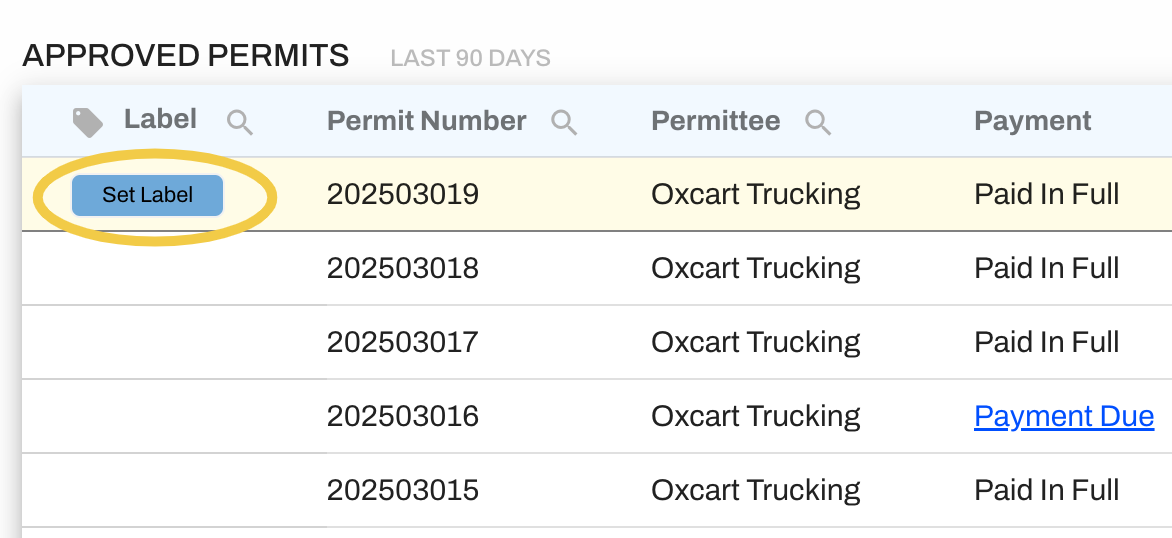
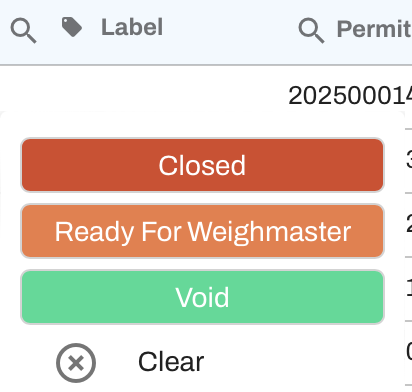
After creating custom labels, you can assign labels to permits directly from your dashboard. To label a permit, simply hover over the Label column next to the desired permit. Click on the "Set Label” square to view a list of your application labels and choose one. Additionally, you can click on an existing label to change it to a different status or remove the status altogether by selecting “Clear." If you are not seeing newly created labels please log out and log back in before checking the list again.
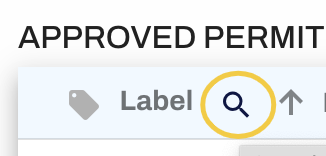
Use the magnifying glass to the left of the Label to filter for specific labels.
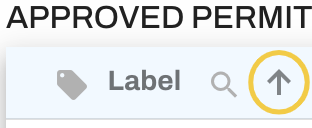
Click the arrow to sort by labels.