

Oxcart Permit Systems provides a vehicle library feature to store information for different trucks, trailers and equipment you routinely pull permits for. This feature will save you time on permit applications by eliminating redundant keystroke entries.
When using the library, you can store an unlimited number of vehicles or combinations of vehicles. You can also edit, clone or delete this information when necessary. Vehicle combinations must be stored as individual entires in the library. For example, Truck A with Trailer A could be saved as one vehicle. Truck A with Trailer B could be saved as a second vehicle. After selecting a community to apply for a permit, you will be prompted in the application to select a vehicle. This choice will appear in different places depending on the application.
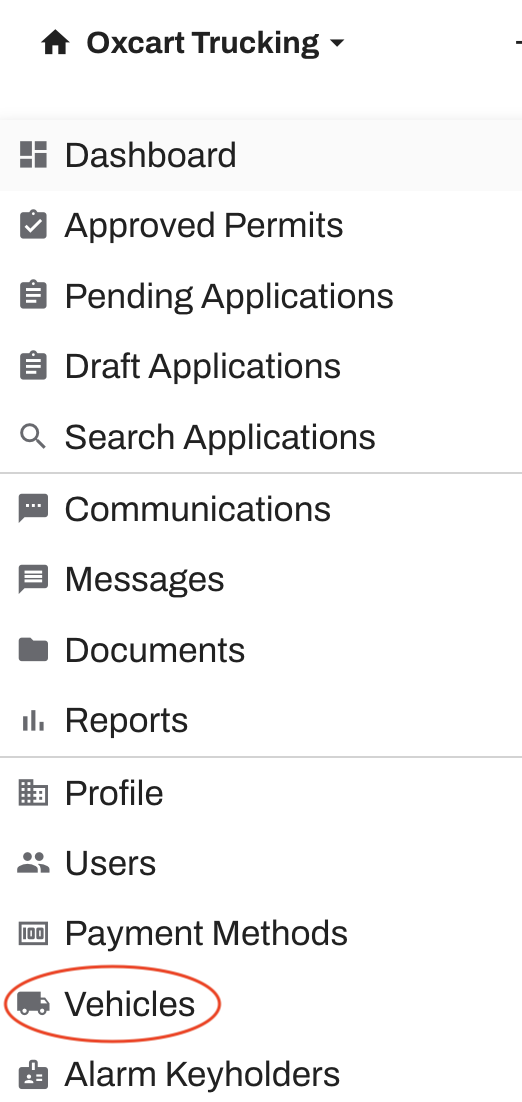
To access your vehicle library, log into your Oxcart account. Then, hover over your account menu at the top of the page and select "Vehicles".
If you have already saved vehicles, you will see a list of vehicles in your library. Vehicles can be sorted by clicking on the column name or filtered using the search box at the top. Use the buttons to the right of the saved vehicle to delete, clone, or edit.

To add a vehicle click the blue "Add Vehicle" button. The only field of information required to be completed is the "Nickname" field; all other fields are optional. Every application requires different fields so not all fields will be used on all applications. If you add axles you will need to enter axle weight information.
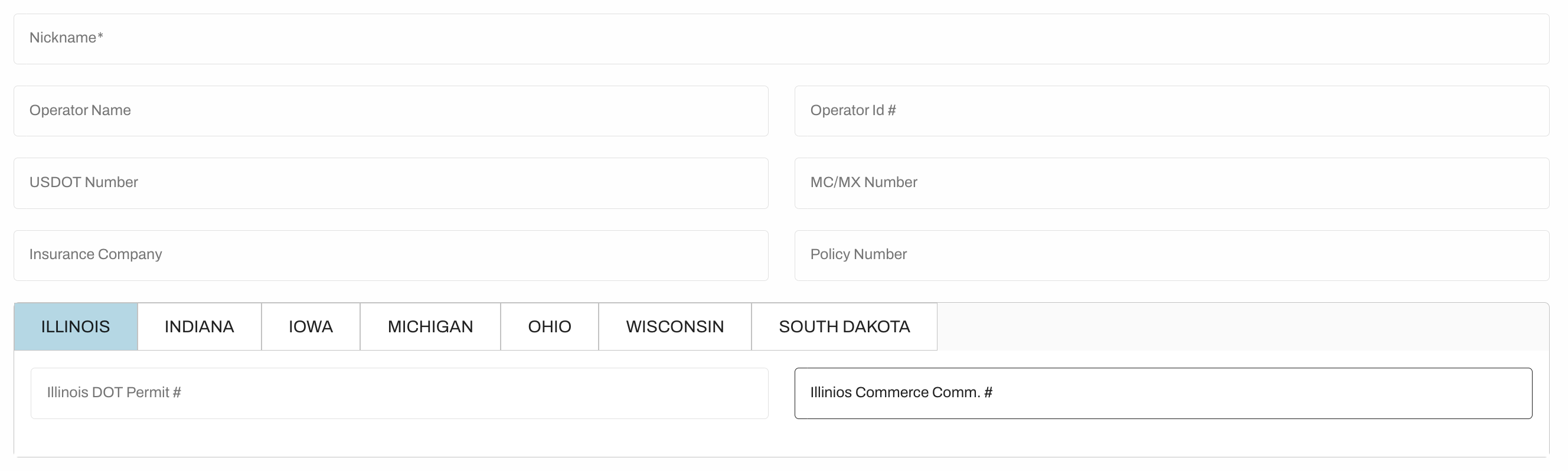
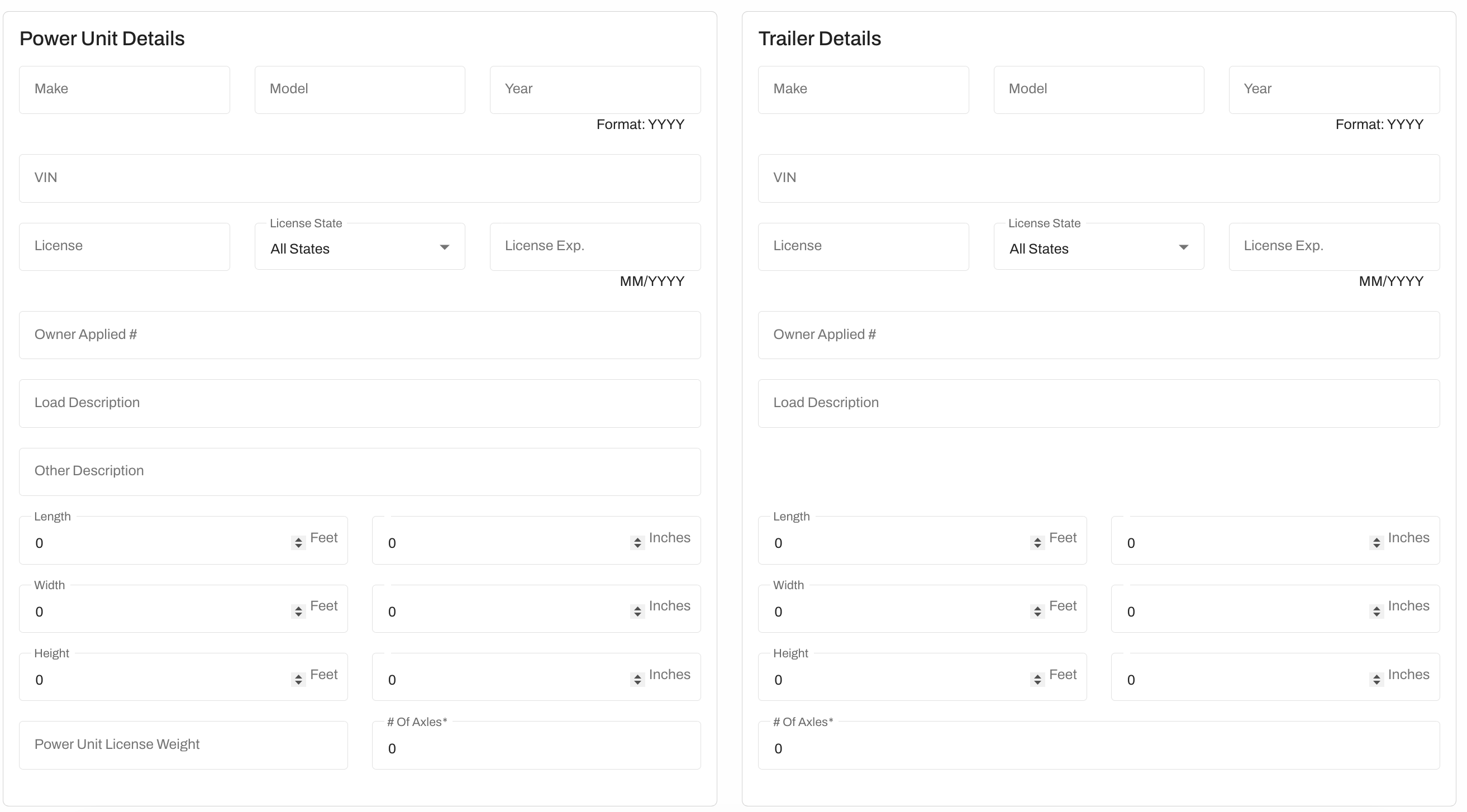
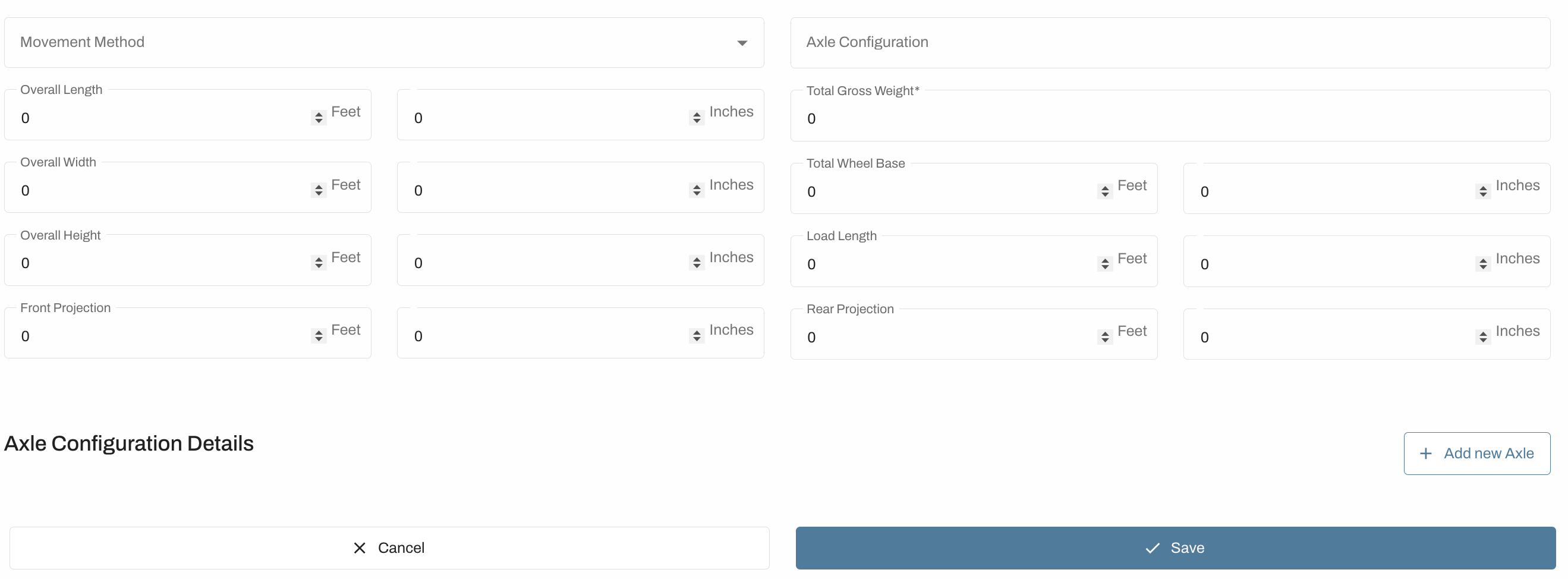
You can cancel at any time. Once you are done, click "Save".
Please remember not every community asks for, or requires, the same information for permits. Some information you save in the vehicle library will be used extensively and some information will rarely be used. Furthermore, there are some municipalities who may ask for vehicle information which is not yet available for storage in the vehicle library and will need to be manually entered on the application.