

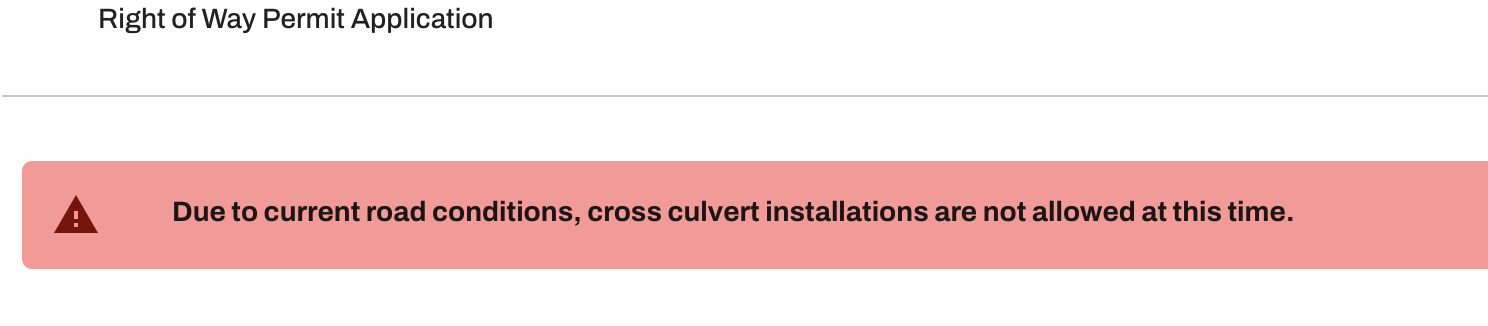
You can communicate announcements and updates to applicants by creating a Municipal Alert. This alert will be prominently displayed at the top of your permit application whenever an applicant accesses it.
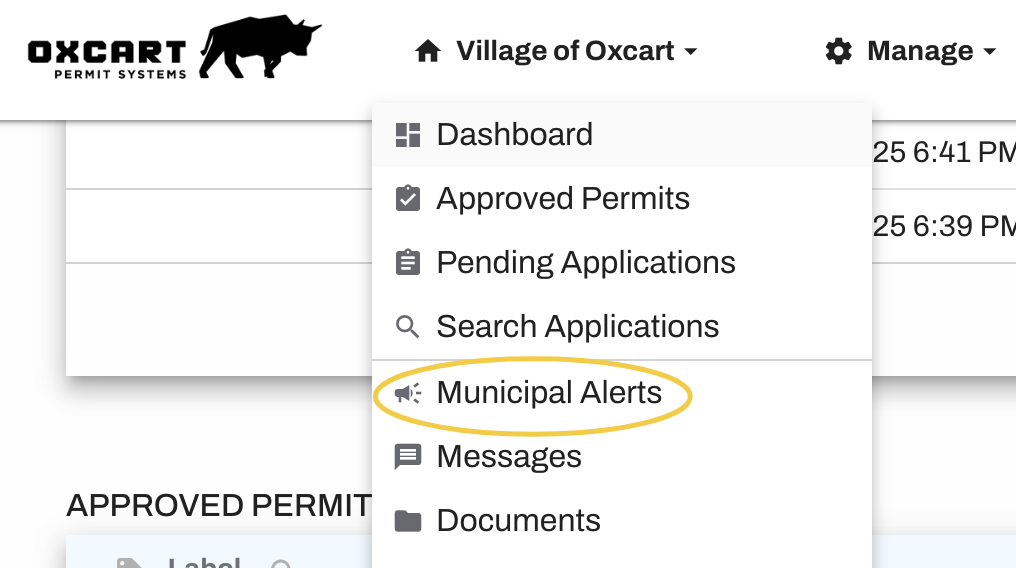
You can manage these alerts at any time by hovering over the Account menu at the top of the page and selecting Municipal Alerts.
Adding an Alert
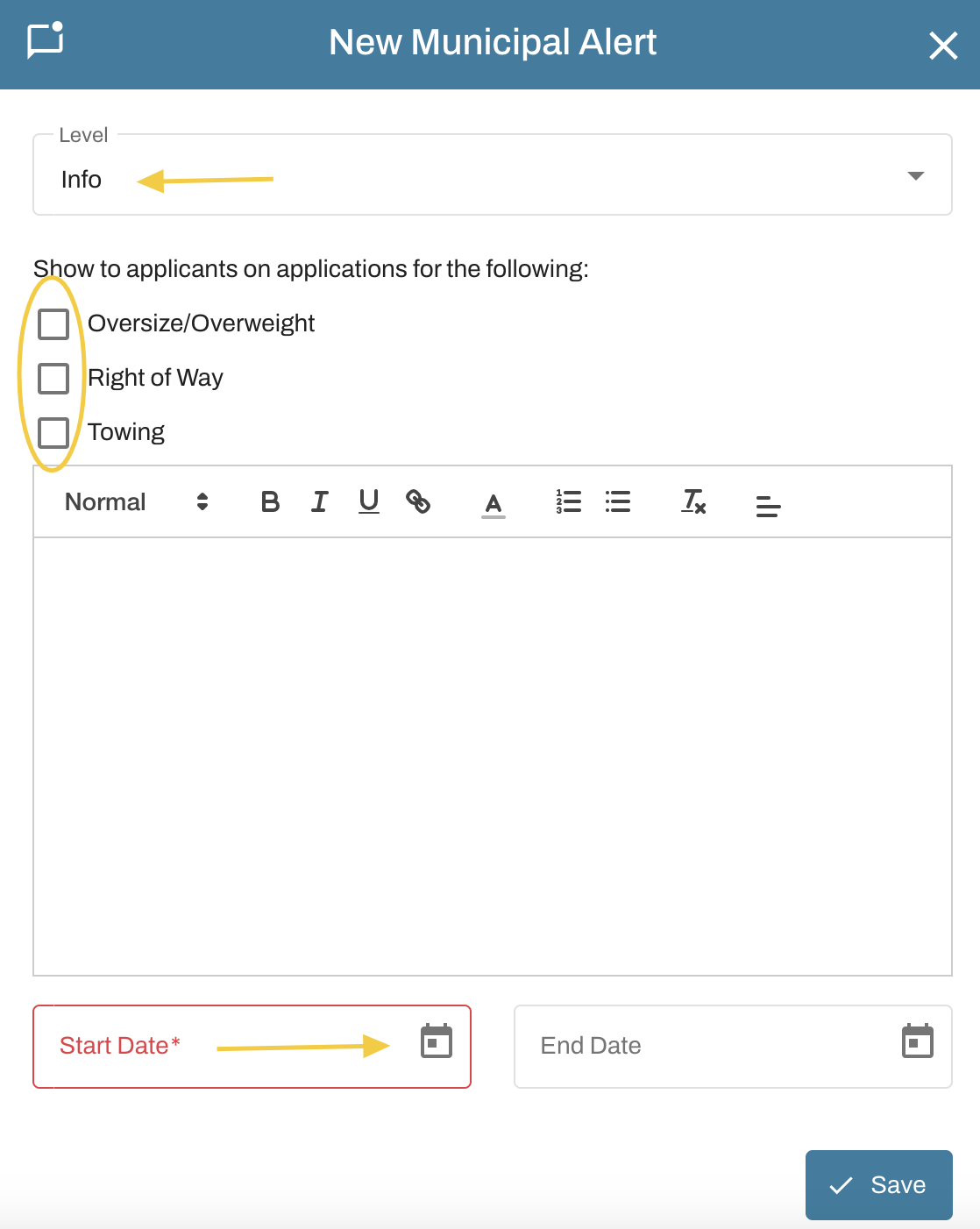
Navigate to the Municipal Alerts page and click Add Municipal Alert.

Select the notification level: Info (blue), Warning (yellow), or Danger (red).
Specify the permit module(s) where the alert should appear.
Enter your message. To include a hyperlink to a webpage or document, type the text you want displayed, highlight it, and click the link button (next to the "U" icon). A pop-up box will appear where you can input the URL, creating a clickable hyperlink.
Set a start and end date for the alert. If the end date is uncertain, you may leave it blank.
Save your alert!
Removing an Alert
Go to the Municipal Alerts section by hovering over your Account menu.
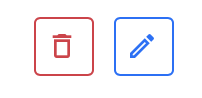
Decide whether to remove the alert completely or modify it. To delete, select the trash can icon. To edit, click the pencil icon. Alerts set with an end date will cease to display on the application once that date is reached.
Save your changes!