Oxcart allows you to add multiple users to the same account. You may also differentiate those users as "administrators" who may edit account information and apply for permits and "users" who have limited access. For a more in depth look at what each role allows, please see our article on levels of user access.
Manage users on your account in a few easy steps:
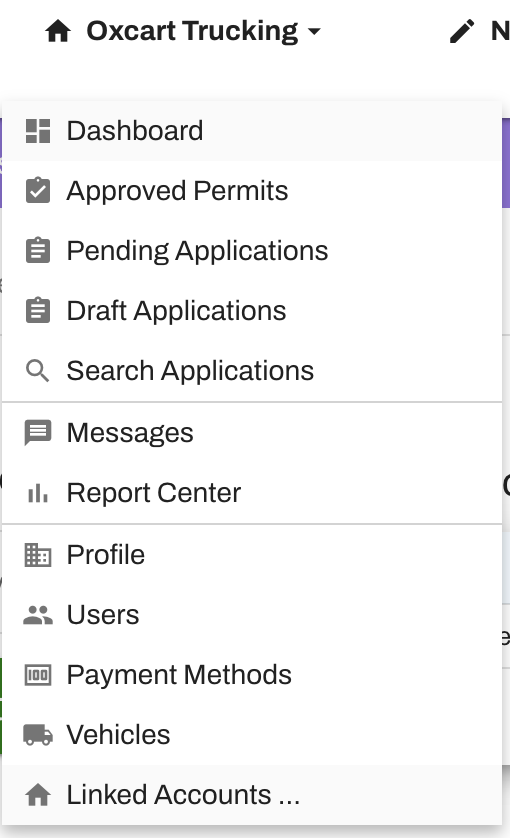
1. Login to your Applicant Administrator account. Hover over your account name in the top menu and choose "Users" from the dropdown menu.
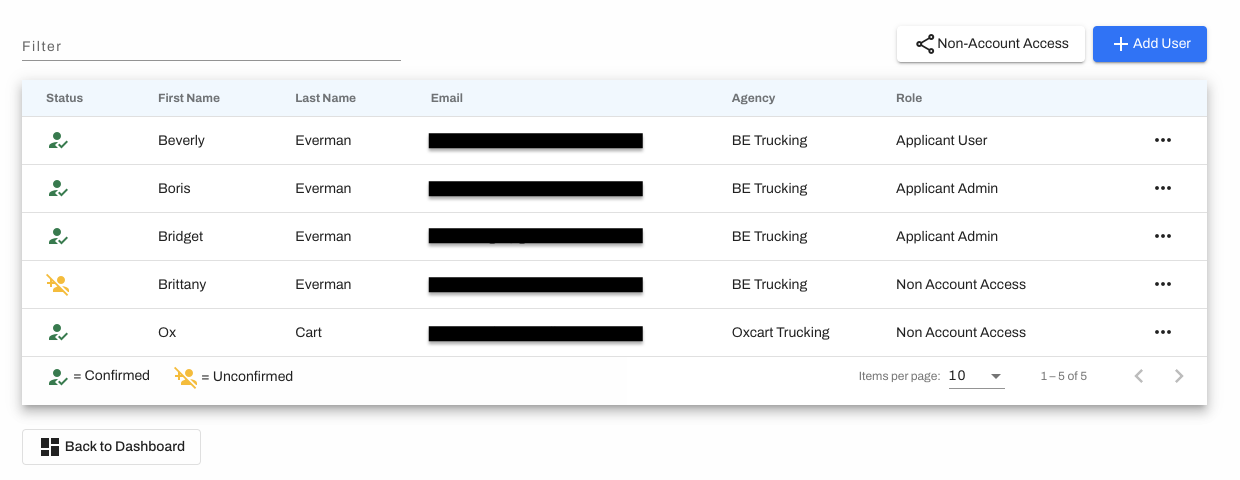
2. Here you'll see a list of users on your account as well as their assigned role. To add a new user click the blue "Add User" button. You may edit contact information and access level for current users by clicking on the three dots associated with their name.
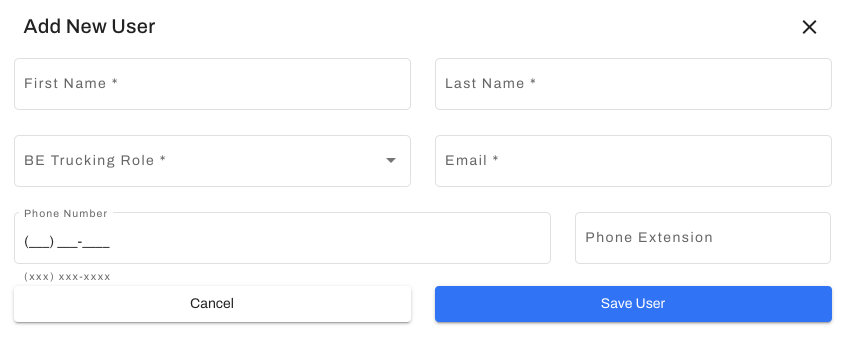
3. Fill out the required information for the new users and hit Save User. The new user will get an email to confirm their account and set up a password.